I once watched a “simple” enterprise project turn into a daily ritual of spreadsheets, status pings, and last-minute surprises. The work was happening, but nobody could confidently answer three basic questions:
What’s truly on track, what’s blocked, and who needs help right now?
That’s exactly why enterprise project management software exists. When projects span multiple teams, tools, and stakeholders, you need more than task lists. You need one place where priorities stay clear, dependencies don’t get missed, resources don’t get double-booked, and leadership can trust the reporting without chasing updates.
In this buyer’s guide, I’ve shortlisted the top 10 enterprise project management tools that actually hold up in real enterprise conditions. Let’s get started!
Top 10 Enterprise Project Management Software
Now, let me share the top 10 enterprise project management tools that give you clearer visibility, stronger control, and the reporting needed to keep work moving on time and on budget.
| Tool | Best for | Pricing | User Rating (G2) |
| ProProfs Project | Simplest Project Management Tool for SMBs With Client Invoicing, Time & Billing | Forever free for small teams. Paid plan starts at $39.97/month | 4.4/5 |
| Microsoft Project | Complex schedules and resource planning | Starts at $10/user/month | 4.0/5 |
| Celoxis | Portfolio and capacity planning | Starts at $25/user/month | 4.4/5 |
| Basecamp | Low-friction collaboration hub | Starts at $15/user/month | 4.1/5 |
| Adobe Workfront | Enterprise marketing and creative ops | Custom pricing | 4.1/5 |
| Notion | Roadmaps + docs in one workspace | Starts at $10/user/month | 4.7/5 |
| Quickbase | No-code workflow apps | Starts at $35/user/month | 4.4/5 |
| Smartsheet | Spreadsheet-style enterprise work management | $9/user/month | 4.4/5 |
| Wrike | Cross-functional work intake + execution | $10/user/month | 4.2/5 |
| ClickUp | Flexible reporting and customization | $7/user/month | 4.7/5 |
| monday.com | Visual work management with governance | $8/user/month | 4.7/5 |
| Trello | Lightweight Kanban workflows | $5/user/month | 4.4/5 |
1. ProProfs Project – Simplest Project Management Tool for SMBs With Client Invoicing, Time & Billing
Okay, let’s talk about the ProProfs Project. You don’t need a PhD in project management to manage projects online. It’s got all the essentials – task management, collaboration features, progress tracking – you name it.
Features like automated invoicing and time-tracking reduce manual processes. Not only that, but I also like how I can set instant email notifications and alerts. So, even if someone adds a task comment or a new task is added, everyone in the team gets instantly notified.
For project progress views, you can easily switch between Gantt charts, Kanban boards, calendar views, etc. This provides flexibility.
In my opinion, it’s a no-fuss enterprise project portfolio management system. And don’t just take my word for it – you can test it first (yes, they have a free plan!). More recently, the tool has brought AI directly into project setup and reporting. Describe a project in plain language, and its AI Project Designer builds out the tasks, stages, and assignments for you automatically, cutting into the setup time that usually eats into the first week of any enterprise rollout. There’s also an AI assistant available throughout the project, so instead of chasing updates across teams, you can ask direct questions like “which projects are overrunning” and get an answer from live data.
Pros:
- Time-tracking features for accurate billing and budgeting
- AI Project Designer and AI assistant that build project structures and flag risks automatically, reducing manual status-chasing
- Expert-designed templates to speed up project setup
- Reporting dashboards for insights into various project-related information
- Lets you set up teams, task comments, @mentions, etc., for real-time collaboration
Cons:
- No downloadable or on-premise version
- Dark user interface option not available
Pricing:
Free plan available. Paid plans start at $39.97/month.
2. Microsoft Project – Best for Complex Project Management
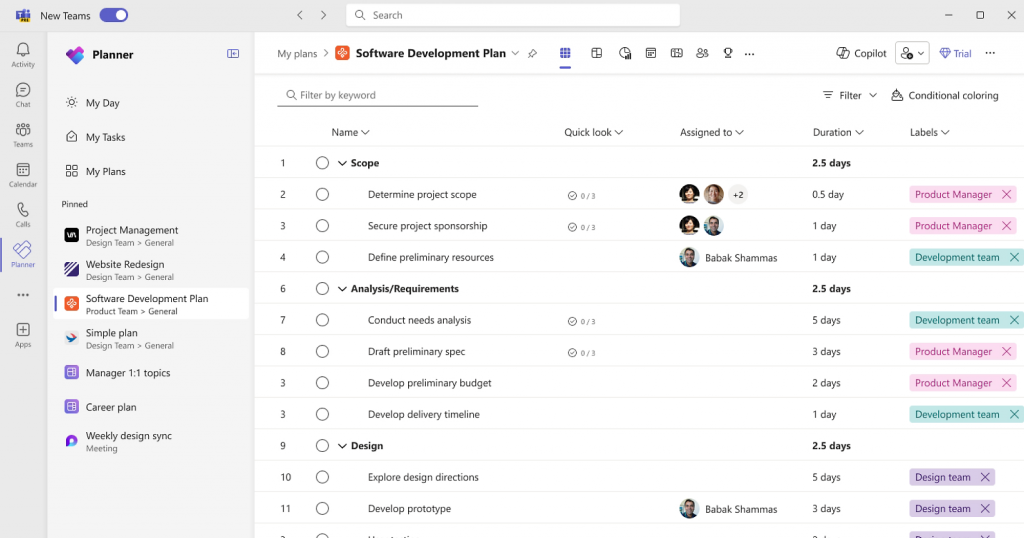
Image source: Microsoft
Microsoft Project is a go-to tool for managing large-scale projects. I think it’s one of the best enterprise project management software especially in organizations with complex work structures.
What I found most beneficial was its capacity for handling multiple projects simultaneously. You can easily break down big tasks into more manageable components, track progress, and allocate resources with precision.
Its timeline and reporting features give a detailed view of how projects are progressing at every stage. So, who is it for?
Well, if you’re okay with the pricing and require advanced resource management and scheduling, it’s worth giving a shot.
Pros:
- Resource management tools to allocate and track workloads
- Built-in reports for insights into project health, resource usage, and costs
- Multiple project views, including grid, board, and timeline
- Collaboration enabled through co-authoring and shared project plans
Cons:
- Multiple users seem to have faced issues with resource allocation
- Users pointed out the lack of clear notifications or alerts for changes made within a project
Pricing:
Starts at $10/user/month.
3. Celoxis – Best for Enterprise Portfolio Management
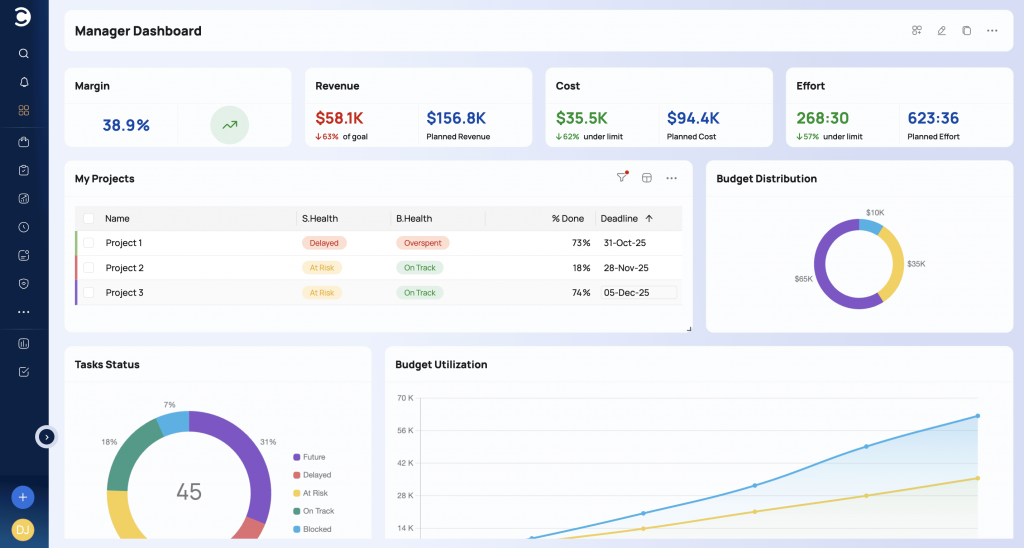
Image source: Celoxis
Now, if you’re dealing with a whole portfolio of projects, Celoxis might be your best bet. It’s designed to handle complex project portfolios, which I think is great.
With real-time data available in the dashboard, the platform delivers a complete view of project performance and resource usage. This enables quick adjustments when necessary.
One thing I noticed about Celoxis is its focus on customization. You can tailor it to fit your needs and workflows, which is a big plus in my book.
It also offers some pretty advanced features like risk management and capacity planning, so you can proactively address potential roadblocks and ensure projects stay on track.
Pros:
- Gantt charts for scheduling, task dependencies, and real-time project tracking
- Budget management ensures precise tracking of project expenses
- Resource capacity planning predicts future workload
- Portfolio dashboards provide a high-level overview of multiple projects and KPIs
Cons:
- No portfolio management in the basic plan
- Some users feel the color-coded workload displays can become too cluttered when managing larger teams
Pricing:
Starts at $25/user/month.
4. Basecamp – Best for Remote Work Collaboration
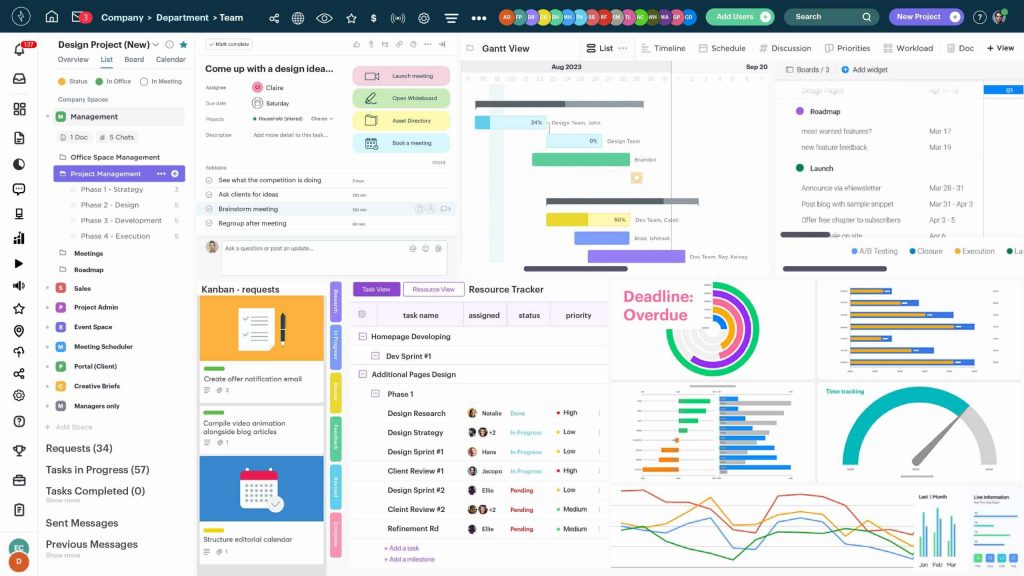
Image source: Basecamp
Basecamp is good for teams that prioritize a central hub where everyone can organize tasks, share files, and discuss projects.
What impressed me the most was how the platform emphasizes transparency. Everyone has access to the same information—whether it’s a task list, document, or project update.
What I also appreciate about Basecamp is its emphasis on simplicity. It’s not overloaded with features you’ll never use. It instead focuses on the essentials: to-do lists, message boards, schedules, and file sharing.
This makes it easy to get your team on the same page and keep projects moving forward without facing software-related roadblocks.
Pros:
- Built-in message boards for project discussions without cluttering inboxes
- Automatic daily check-ins to track progress without the need for meetings
- Real-time group chat for quick communication across the entire team
- Client access portals allow external stakeholders to view relevant project details
Cons:
- Many users criticized the platform’s user interface, finding it difficult to navigate
- Lacks built-in time tracking, making it harder to assess how long tasks are taking
Pricing:
Starts at $15/user/month.
5. Adobe Workfront – Best for Portfolio Planning
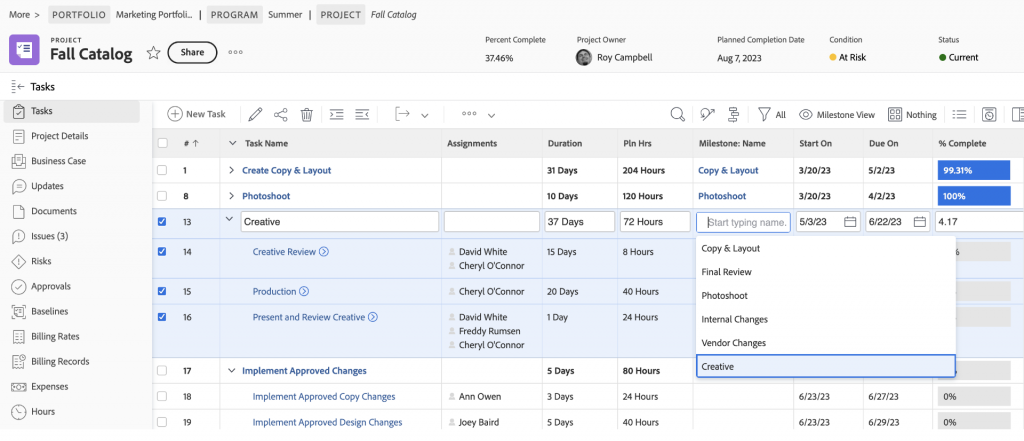
Image source: Adobe for Business
Adobe Workfront works best for teams that require highly detailed workflow management and portfolio management.
From my experience, this tool truly excels when multiple teams or departments are involved in a project. You can be assured that everyone stays on the same page. I’ve seen how it brings structure to even the most complex workflows, which allows you to break projects into clear, trackable stages.
Its integration with other Adobe Creative Cloud applications makes it a natural choice if you’re already using those tools. However, for smaller teams, the tool might feel like overkill. I’d say it’s ideal for larger organizations looking for an enterprise project portfolio management software platform.
Pros:
- Resource management tools for efficient team scheduling
- Issue tracking features to identify and address potential problems
- Customizable reports for detailed insights into project performance
- Integration with Adobe Creative Cloud to enhance creative workflows
Cons:
- Pricing is not transparent
- Some users have found that customizing reports is not as straightforward as they would like
Pricing:
Custom pricing.
6. Notion – Best for Building Product Roadmaps
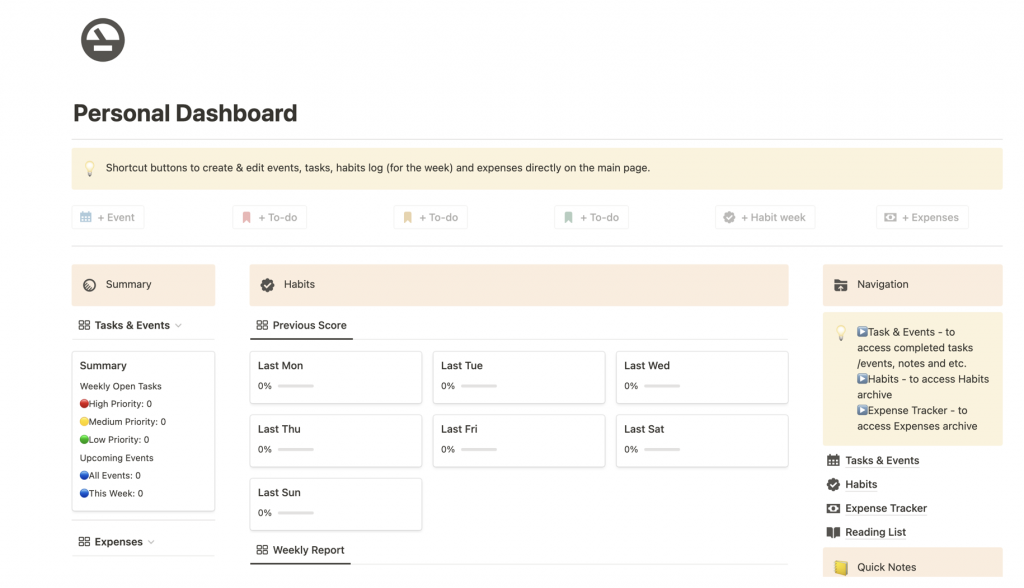
Image source: ProjectManager
Notion is ideal for teams that need a balance between project management and extensive documentation. You can capture every project detail in a table format – similar to a traditional spreadsheet but with added functionalities.
The platform lets you centralize everything from meeting notes to task lists. This means you can track tasks, assign owners, set deadlines, and monitor progress, all within a single view.
I also found that it allows you to link related projects and create a web of interconnected information. In my opinion, it helps a lot when you want to see how different projects relate to each other and identify dependencies.
Pros:
- Flexible organization with Kanban, calendar, and list views
- Templates provide pre-built structures for projects
- Web pages can be clipped and saved directly to Notion
- Cross-platform syncing ensures access from any device
Cons:
- Only 5 MB of file upload is allowed in the free plan
- Many users report issues with the formatting tools, mentioning changes made are not saved properly
Pricing:
Starts at $10/user/month.
7. Quickbase – Best for Complex Workflows With No-Code Apps
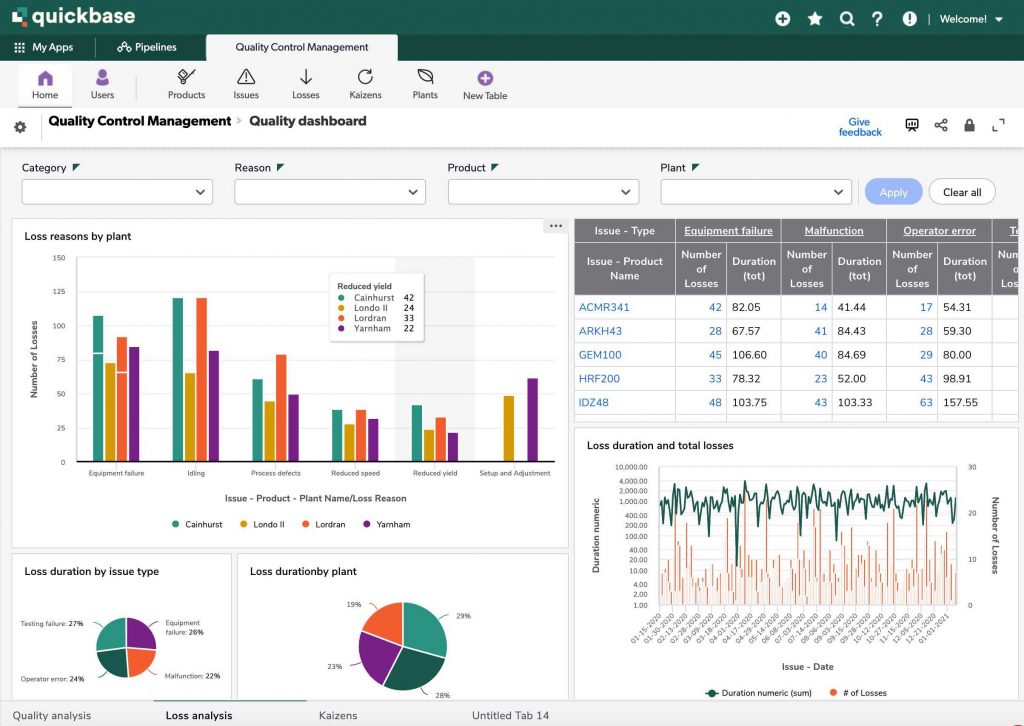
Image source: Quickbase
Quickbase is a low-code platform that lets you build custom applications without extensive coding knowledge. But how does that make the software unique?
For example, let’s say you want to create a system for tracking customer orders.
Using Quickbase, you can build a custom application that captures order details, tracks shipments and generates invoices – all without writing a single line of code.
This way, you can create solutions that perfectly match your business needs without the time and expense of traditional software development.
Pros:
- Dynamic workflows adapt to changing project needs and stakeholder inputs
- User-specific permissions ensure secure access to sensitive project data
- Automated notifications trigger based on project milestones and task updates
- Built-in governance tools to comply with industry-specific regulations
Cons:
- Some users feel the shift to requiring custom coding for certain functionalities slowed down workflows
- No Gantt charts in the basic plan
Pricing:
Starts at $35/user/month.
8. Smartsheet – Best for Real-Time Project Collaboration
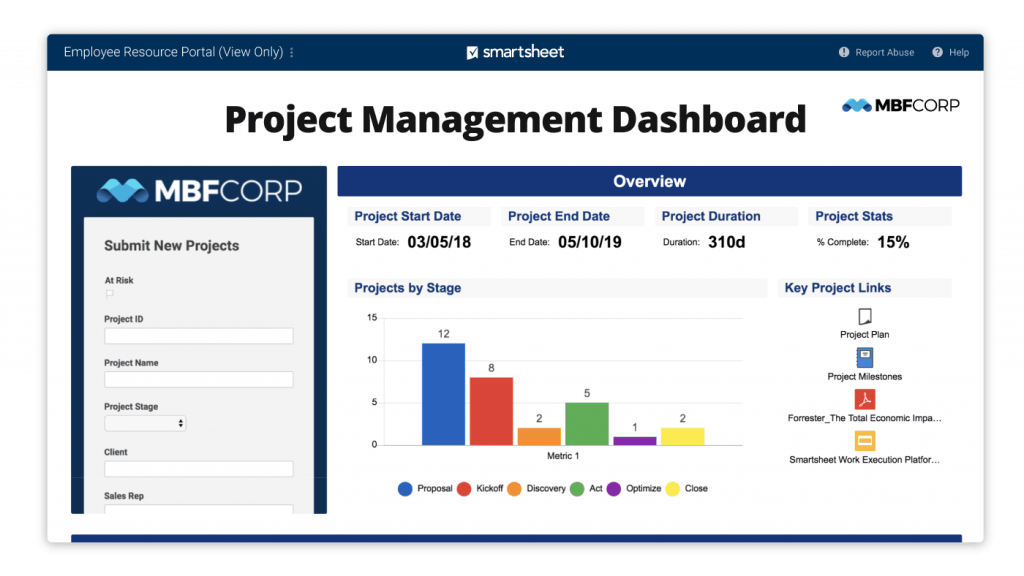
Image source: Smartsheet
If you’re a fan of spreadsheets, you’ll feel right at home with Smartsheet. It takes the familiarity of a spreadsheet and the benefits of an enterprise project management software platform.
Its grid-based system transforms project data into a clear, actionable format, which I think should help you easily manage tasks and timelines.
The software also features Gantt charts, automated workflows, and dashboards. This makes it a powerful tool for managing projects of all sizes, from simple to-do lists to complex initiatives.
Pros:
- Customizable Gantt charts to visualize timelines and project dependencies
- Conditional formatting highlights task statuses based on pre-set rules
- Role-based access controls for secure sharing with external collaborators
- Pre-built templates to quickly initiate industry-specific projects
Cons:
- No team workload tracking in the basic plan
- Several users have reported dissatisfaction with customer support
Pricing:
Starts at $9/user/month.
9. Wrike – Best for Automating Administrative Workflows
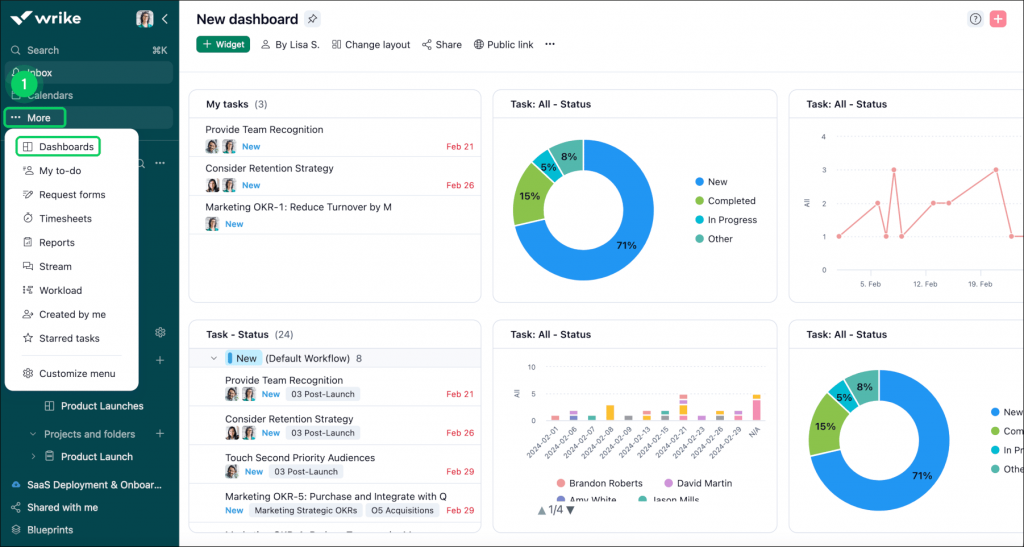
Image source: Wrike
Wrike offers features like real-time chat within tasks so you can discuss details and resolve issues without cluttering your inbox. You can also share files directly within tasks, ensuring everyone can access the latest versions.
But what else does the platform offer apart from collaboration features?
The software’s activity stream updates you on project progress and any changes made by your teammates. This transparency helps you stay informed on complex projects with multiple stakeholders.
In my experience, Wrike works well in environments where collaboration and communication are key, making it ideal for marketing, creative teams, or any department dealing with constantly shifting priorities.
Pros:
- Custom request forms capture task details and automatically assign them
- Real-time reporting showcases performance metrics
- Cross-tagging allows tasks to exist in multiple projects simultaneously
- Workload view balances resources and schedules based on team capacity
Cons:
- Only 2 GB storage space per account in the free plan
- Users have found Wrike’s search feature to be somewhat unreliable, particularly when trying to locate older documents
Pricing:
Starts at $10user/month.
10. ClickUp – Best for Generating Detailed Reports

Image source: Vidi Corp
Who is ClickUp for? From my experience, it fits small teams looking for a simple task management tool and larger teams managing multiple projects.
I noticed the platform is highly customizable. For example, let’s say you’re managing a software development project.
You can create custom statuses for each stage of development, set up automated workflows to move tasks between stages and use custom fields to track specific information, such as code repositories or bug reports.
Even if you’re managing a marketing campaign, you can use the software to create content calendars, track social media posts, and manage your budget. The possibilities are endless.
Pros:
- Nested subtasks create detailed task hierarchies for complex project breakdowns
- Multi-view options to toggle between list, board, and calendar views
- Goals feature measures progress against objectives
- Time estimates for predictive insights into task completion timelines
Cons:
- Only 100 MB of storage in the free plan
- Several reviewers noted that the software often experiences bugs, which can reduce overall productivity
Pricing:
Starts at $7/user/month.
Start with options from the top 16 project management software for small businesses before moving to the best enterprise project management software. Guide: Top 16 Project Management Software for Small Businesses.
My Top 3 Picks for the Best Enterprise Project Management Software
If you want a faster shortlist, these are the three tools I would personally start with. I picked them based on real enterprise needs like adoption, visibility, workflows, and the ability to scale without turning setup into a project of its own.
1. ProProfs Project
I picked ProProfs Project first because it balances structure and simplicity really well. It gives teams clear task tracking, flexible views like Gantt and Kanban, and built-in time tracking for better control. It is easier to roll out, so you get consistent updates and reliable visibility faster. Its AI-driven setup and reporting also mean faster time-to-value during rollout, which matters most in the first 30 days when adoption is still fragile.
2. Microsoft Project
Microsoft Project is my go-to when scheduling complexity is the main challenge. It handles dependencies, baselines, and resource planning in a way lightweight tools cannot. If you run large, interdependent programs and need serious planning discipline, it helps you reduce timeline surprises and manage constraints more accurately.
3. Smartsheet
Smartsheet is a strong choice when teams want spreadsheet familiarity but leadership needs better reporting. I like how it supports structured tracking with dashboards and automation, so updates feel less manual. It works well for cross-functional teams that need visibility and consistency without heavy process overhead.
Choose industry-specific tools like the best construction project management software within enterprise solutions. Recommendations: Best Construction Project Management Software.
Evaluation Criteria
This enterprise project management software comparison features the 12 best software tools I found through unbiased research. I employed a systematic approach that follows these six criteria below –
- User Reviews & Ratings: I analyzed feedback and ratings from users on reputable review sites. This ground-level insight helped me understand users’ satisfaction levels and potential challenges with each tool.
- Essential Features & Functionality: I closely examined each tool’s core features to gauge their effectiveness in addressing project management needs. I focused on practical functionalities, such as task management, collaboration options, and reporting capabilities, to determine how well they support team objectives.
- Ease of Use: I assessed each platform’s user-friendliness, considering factors like design and navigation. An easy-to-understand interface is easier to adopt.
- Customer Support: The quality of customer support was evaluated, emphasizing how well each tool assists users in different phases—whether setting up, addressing queries, or resolving operational issues.
- Value for Money: I compared the cost against the features and performance of each tool to assess value for money. This evaluation helps readers understand if the investment aligns with their project management needs and organizational goals.
- Personal Experience & Expert Opinion: I integrated my own experiences and insights from industry experts. This perspective adds credibility and practical relevance.
Buyers’ Guide to Choose the Right Enterprise Project Management Tool
Not sure how to find the right tool for your unique project needs? Follow the steps in this buyer’s guide and choose a solution that aligns perfectly with your team’s goals and workflows.
Step 1. Map Your Enterprise Pain Points (Not Your Feature Wishlist)
Most teams pick tools the same way they pick food at a buffet. They grab every feature that looks good, then wonder why nothing gets used.
Instead, start with the two problems you must solve first. These are the “make-or-break” issues that decide whether the rollout succeeds.
- Change management and adoption (teams refusing the tool): If people don’t update tasks, the tool becomes a fancy spreadsheet no one trusts. Look for simple daily workflows, quick task updates, clear notifications, and templates that match how teams already work.
- Security and compliance requirements: If you deal with regulated industries, client data, or internal governance rules, security is not an add-on. You’ll want SSO, role-based permissions, audit logs, and controls over who can view, edit, and export data.
- Integration complexity across systems: Enterprise work rarely lives in one app. If your PM tool has to connect with email, chat, CRM, dev tools, or accounting systems, “integrations” can become the real project. Prioritize tools with strong native integrations and clean APIs if you need custom workflows.
- Data migration risk and downtime: Switching tools can break momentum. If migration takes months or requires heavy cleanup, adoption drops fast. Look for reliable import options (CSV/Excel, connectors), clear onboarding support, and a migration plan that avoids a hard cutover.
- Portfolio visibility and resource conflicts: This is where enterprise project management gets real. When teams run multiple initiatives at once, the biggest threat is not late tasks, it’s resource collisions. Prioritize portfolio dashboards, workload views, and capacity planning so leaders can see what’s overloaded before it becomes a fire drill.
A simple way to do this: write your top two pains as outcomes.
Example: “We need to stop resource clashes across projects” or “We need leadership visibility without weekly spreadsheet updates.”
Step 2. Decide What Enterprise Means for Your Organization
“Enterprise” is not a company size. It’s operational complexity.
For some teams, enterprise means governance.
- SSO, audit logs, permissions, data controls
For others, enterprise means coordination at scale.
- portfolio prioritization, resource planning, cross-team dependencies
If you’re managing multiple programs or strategic initiatives, prioritize enterprise project portfolio management capabilities. That typically includes:
- Portfolio dashboards that roll up progress across projects
- Strategic alignment (goals, themes, or initiatives mapped to work)
- Resource governance (who is allocated where, and what’s overbooked)
- Standardized reporting that leadership can trust
A quick test: if you need weekly status meetings mainly to figure out what’s going on, you likely need portfolio visibility more than more task features.
Step 3. Use a Phased Rollout Plan (This Prevents Tool Failure)
Most PM tools fail because the rollout is treated like a switch, not a change.
A phased rollout reduces risk, protects delivery, and gives you time to fix workflows before scaling.
A rollout plan that usually works:
- Pilot with 1 to 2 teams: Pick teams that will actually use the tool daily. Avoid starting with the most chaotic department.
- Standardize templates and reporting: Lock down a few core templates (project plan, intake request, weekly status) so every team isn’t reinventing the wheel.
- Migrate active projects only first: Don’t move five years of archived work. Move what’s live and valuable right now. This keeps migration clean and adoption faster.
- Add departments in waves: Once the pilot teams are stable, expand to adjacent teams. Keep the rollout predictable, not random.
- Lock governance after adoption stabilizes: This is the right time to tighten permissions, finalize roles, and standardize reporting. If you lock everything too early, you’ll create friction before habits form.
One practical tip: define what “success” looks like in 30 days.
Example: “80% of tasks updated weekly” or “Leadership dashboard replaces manual status reporting.”
Step 4. Ask These Questions in Every Demo
Demos can look great. Your job is to find out what breaks in real use.
Ask questions that expose the real enterprise gaps:
How do you handle SSO, roles, and audit logs?
You’re checking whether governance is native or “enterprise in name only.”
What is the migration path from our current tool?
Ask for the exact steps, what gets lost, what needs cleanup, and how long it typically takes.
Which integrations are native vs API vs third-party?
Native usually means easier maintenance. API-based may need development. Third-party can be reliable, but it can also add cost and failure points.
What does adoption support look like for contributors, not just admins?
Admins can learn any tool. Contributors need a workflow that feels natural. Ask about training, onboarding, and in-app guidance for everyday users.
What will our leadership dashboard look like in 30 days?
Ask them to show a realistic dashboard using your use case: portfolio progress, overdue work, workload, and cross-project risks.
If a vendor can’t answer these clearly, the tool might still work, but it’s a sign you’ll be doing more fixing than managing.
Build Predictable Delivery With the Right Enterprise Project Management Software
When you choose the right enterprise project management software, projects stop feeling like constant firefighting. You get clearer priorities, cleaner handoffs, and fewer last-minute surprises because everyone can see what’s moving, what’s blocked, and what needs attention.
The bigger win is confidence at scale. With a solid enterprise project management tool, you can manage change, handle cross-team dependencies, and stay on top of security, integrations, and reporting without chasing updates across emails and spreadsheets.
If you want a simple way to bring structure fast, I’d start with a tool that teams actually adopt and leaders can trust for visibility. That’s where ProProfs Project fits nicely, especially if you want to plan, collaborate, and track progress without a heavy setup.
Frequently Asked Questions
How is enterprise project management different from regular project management?
Regular project management focuses on delivering one project well. Enterprise project management zooms out and manages multiple projects together, so priorities, resources, and timelines do not fight each other. It is more about companywide coordination and strategic alignment than just finishing a single plan on time.
What is the difference between EPM and PPM or EPPM?
EPM focuses on managing projects at an enterprise level. PPM or EPPM adds portfolio-level oversight, meaning you evaluate and prioritize a collection of projects together, track dependencies, and allocate resources for maximum business value. If you run many initiatives, portfolio views become essential.
What features should I look for in enterprise project management tools?
Look for role-based permissions, reporting dashboards, portfolio views, resource management, workflow automation, and strong integrations. At enterprise scale, you also want audit logs, SSO support, and governance features so teams can move fast without losing control over access, standards, and accountability.
How do I choose the right enterprise project management software for my team?
Start with your biggest pain point: portfolio visibility, scheduling, approvals, or adoption. Then shortlist tools that match your workflow and integrations. Finally, run a small pilot with a real project before scaling, because implementation fit matters more than feature count at enterprise level.
FREE. All Features. FOREVER!
Try our Forever FREE account with all premium features!