I have opened more Gantt charts than I’ve had cups of coffee this year, and that’s saying something. Every time a new project lands on my desk, the first question isn’t “what’s the deadline.” It’s “where is everyone actually stuck, and who’s waiting on whom.” A color-coded spreadsheet can’t answer that. Free gantt chart software can, and that’s the whole reason this list exists.
I’ve spent the past few weeks pulling apart timelines, dragging task bars around, and watching what happens when a deadline shifts by three days. Some tools cascade the dependent tasks instantly. Others just sit there and let you find out the hard way, usually in a client meeting. That gap between “looks nice” and “actually saves you from a bad Monday” is what most best-of lists gloss over, and it’s what I paid closest attention to here.
This isn’t a list built from marketing pages. I tested the free tiers of each tool, checked what real users flag as dealbreakers on G2 and Capterra, and cross-referenced pain points that project managers keep bringing up in community threads, things like missed reminders, tools that don’t talk to Outlook or Teams, and free plans that quietly cap you out the moment your team grows past two people. Here’s what actually held up.
What Is Free Gantt Chart Software?
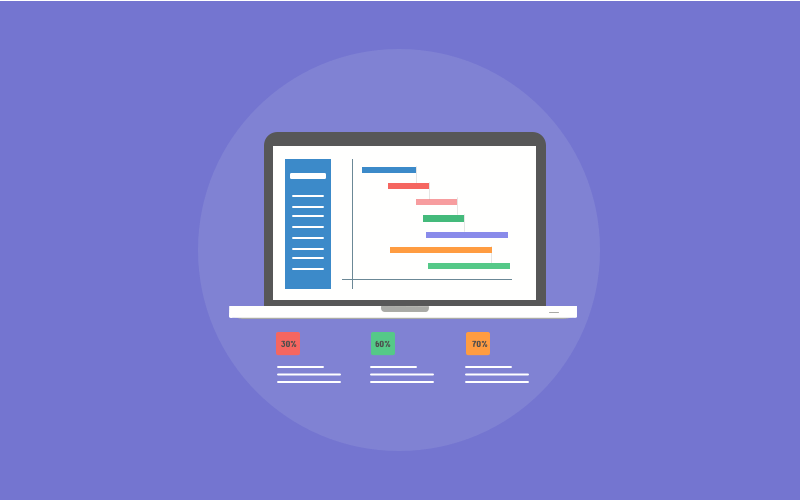
Free gantt chart software is a project planning tool that lets you map tasks on a visual timeline, link dependencies, and track deadlines without paying a subscription fee. It shows start and end dates as horizontal bars so a team can see the entire project schedule at a glance.
Most tools in this category share a common set of building blocks:
- Visual timeline showing tasks plotted against calendar dates
- Task dependencies that automatically shift connected tasks when a date changes
- Milestones marking key deliverables or checkpoints
- Team assignment so everyone knows who owns which task
- Progress tracking with percent-complete indicators on each bar
- Export options to PDF, image, or spreadsheet formats
A marketing agency, for example, might use a free Gantt chart to map a product launch: content drafts, design reviews, and the final publish date all sitting on one timeline instead of scattered across email threads.
Top 10 Free Gantt Chart Software Picks
Here’s my shortlist of the best free gantt chart software available right now. I looked at free-tier limits, how well dependencies actually cascade, collaboration features, and whether the interface would survive a non-technical teammate’s first day.
| Tool | Best For | Pricing | G2 Rating |
| ProProfs Project | Simplest Project Management Tool for SMBs With Client Invoicing, Time & Billing | Free plan available. Paid plan starts at $39.97. | 4.4/5 |
| ClickUp | Feature-rich free plan | Free forever; paid from $7/user/month | 4.7/5 |
| TeamGantt | Visual drag-and-drop simplicity | Free (1 project, 2 users); paid from $49/user/month | 4.8/5 |
| Zoho Projects | Small business budgets | Free (3 users, 2 projects); paid from $4/user/month | 4.3/5 |
| Nifty | Project portfolio management | Free (2 projects); paid from $7/user/month | 4.7/5 |
| GanttProject | Offline, open-source use | 100% free, no paid tier | 4.3/5 |
| Toggl Plan | Visualizing team workload | Free (5 users); paid from $9/user/month | 4.2/5 |
| Lucidchart | Presentation-ready timelines | Free (3 documents); paid from $9/user/month | 4.6/5 |
| Ganttic | Resource planning across projects | Free (10 resources); paid from $25/month | 4.0/5 |
| Tom’s Planner | Simple personal use | Free (1 project); paid from $9.95/month | 3.8/5 |
1. ProProfs Project – Simplest Project Management Tool for SMBs With Client Invoicing, Time & Billing
ProProfs Project is my go-to right now, and I’m actively running my team’s day-to-day project tracking through it as I write this. The moment a task date shifts, the timeline updates on its own, and nothing falls out of sync across the rest of the schedule.
What sold me is the AI layer. Instead of building the timeline task by task, I describe the project in a sentence or two and AI-powered project planning lays out the stages and dates for me. From there, it answers direct questions like “which tasks are behind schedule” instead of making me scan the whole chart myself.
I also lean on its time tracking to compare estimated versus actual hours on each task, which is the piece most standalone Gantt tools leave out entirely. Collaboration feels built-in rather than bolted on. Task comments, file sharing, and automatic reminders keep my team aligned without a separate chat app.
Beyond the chart itself, it handles project billing and invoicing, so closing a milestone and sending the client an invoice happens in the same place instead of a separate tool. ProProfs Project pairs Gantt charts with built-in time tracking and AI-assisted setup, all in a free plan built for teams that want simplicity without sacrificing power.
Pros:
- AI-powered project planning builds an initial Gantt timeline from a plain-language project description
- Free plan supports unlimited projects and tasks for up to three users
- Built-in time tracking with estimated vs. actual hours comparison
- Kanban boards, calendar, and task list views stay automatically in sync with the Gantt chart
- Reports and analytics turn project data into stakeholder-ready summaries without extra setup
Cons:
- No downloadable or on-premise version for teams that need offline access
- Dark mode interface is not currently available
Pricing:
Free plan available. Paid plans start at $39.97.
2. ClickUp – Best for a Feature-Rich Free Plan
I picked up ClickUp for a side project last year expecting a stripped-down free tier, and it genuinely surprised me. The free plan lets me manage unlimited tasks and projects, which is rare for a tool this feature-dense.
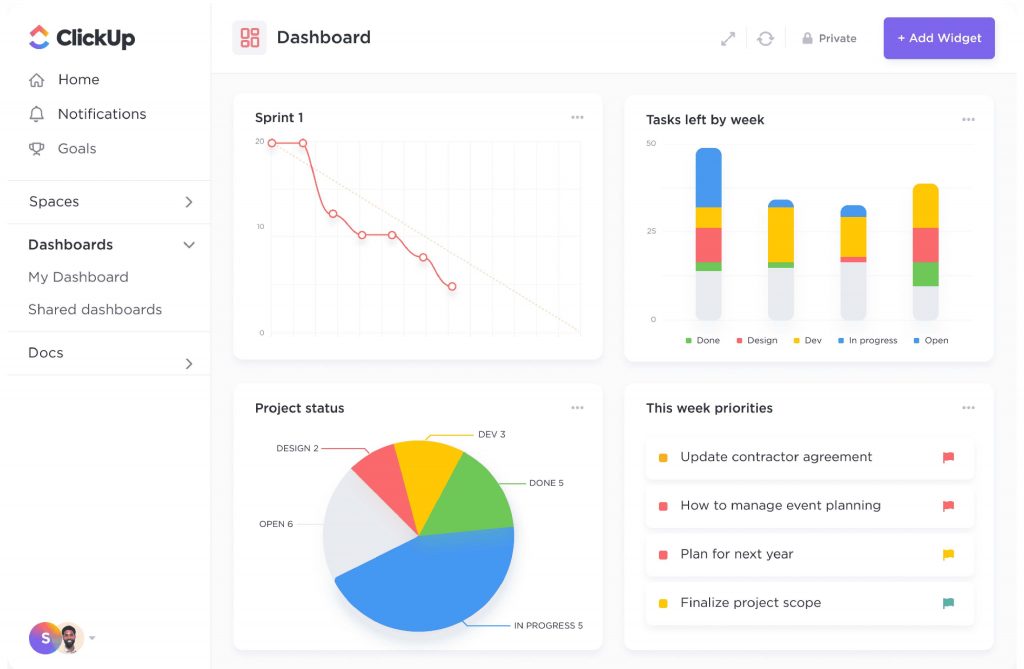
The Gantt view held up well too. I could edit task dates, assignees, and priority levels directly on the timeline, and when I changed one task’s due date, ClickUp automatically notified everyone on a dependent task instead of leaving me to chase people down manually. The AI Writer also filled in task descriptions faster than I could type them, though it took a couple of tries to get the tone right.
Where it got a little much was onboarding. There’s a real learning curve before the interface stops feeling crowded, especially if your team includes people who just want to check a box and move on.
Pros:
- Automatic notifications when a dependent task’s date changes
- Custom fields including dropdowns, formulas, and AI-generated summaries
- Multiple views (list, board, Gantt, calendar) built into one workspace
- Native Whiteboard for visual brainstorming alongside the timeline
Cons:
- Gantt chart usage is limited on the free tier before you’re prompted to upgrade
- Notification volume can feel overwhelming once a team scales up
Pricing:
Free forever plan available. Paid plans start at $7/user/month.
3. TeamGantt – Best for Visual Drag-and-Drop Simplicity
TeamGantt was the tool I reached for when I helped a small team plan a product launch, mostly because nobody on that team had used a Gantt chart before. Adding tasks and dragging their bars to reschedule them took about ten minutes to learn, no manual required.
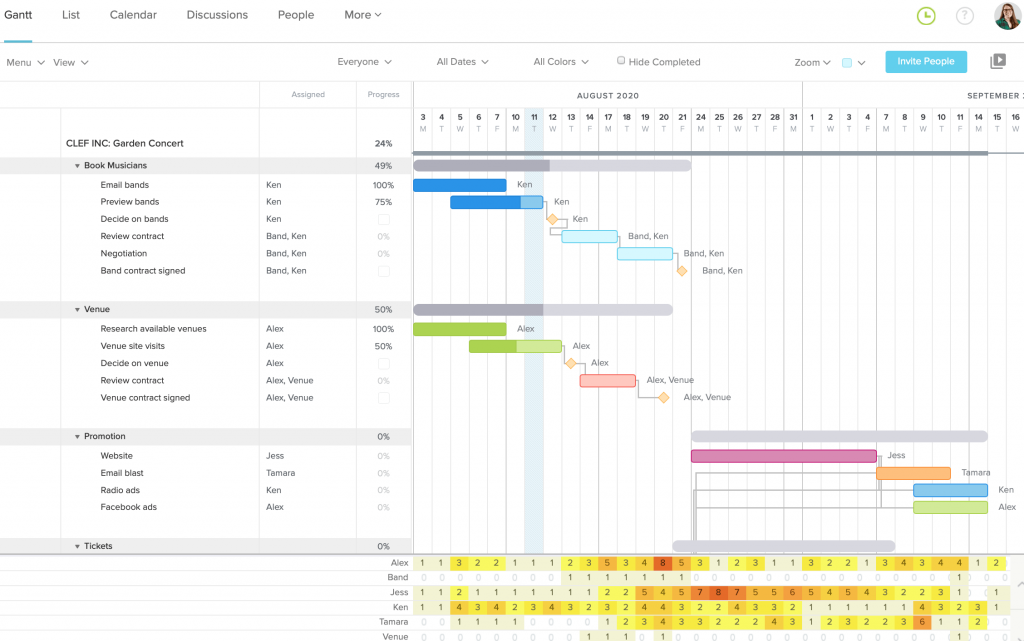
Dependencies connected with a simple click-and-drag between tasks, and moving one task automatically shifted everything linked to it. When teammates updated their own progress, I saw it reflected on my screen in real time, which cut down a genuinely annoying amount of email back-and-forth.
The catch is the free plan. It’s capped at one project and two collaborators, so it’s really built for a single small initiative rather than an entire team’s workload.
Pros:
- Drag-and-drop task bars make rescheduling nearly instant
- Task dependencies cascade automatically when a linked date changes
- Multiple projects can be viewed together with color-coded timelines
- Built-in workload view shows who’s over or under capacity
Cons:
- Reporting features are thin compared to full-suite competitors
- Per-user pricing on paid plans adds up quickly for growing teams
Pricing:
Free for 1 project and 2 users. Paid plans start at $49/user/month.
4. Zoho Projects – Best for Small Business Budgets
I brought in Zoho Projects for a client that was already using Zoho CRM, and the ecosystem fit made the decision easy. Gantt charts here work on a drag-and-drop basis, and I could define all four dependency types (finish-to-start, start-to-start, and so on) without digging through a settings menu.
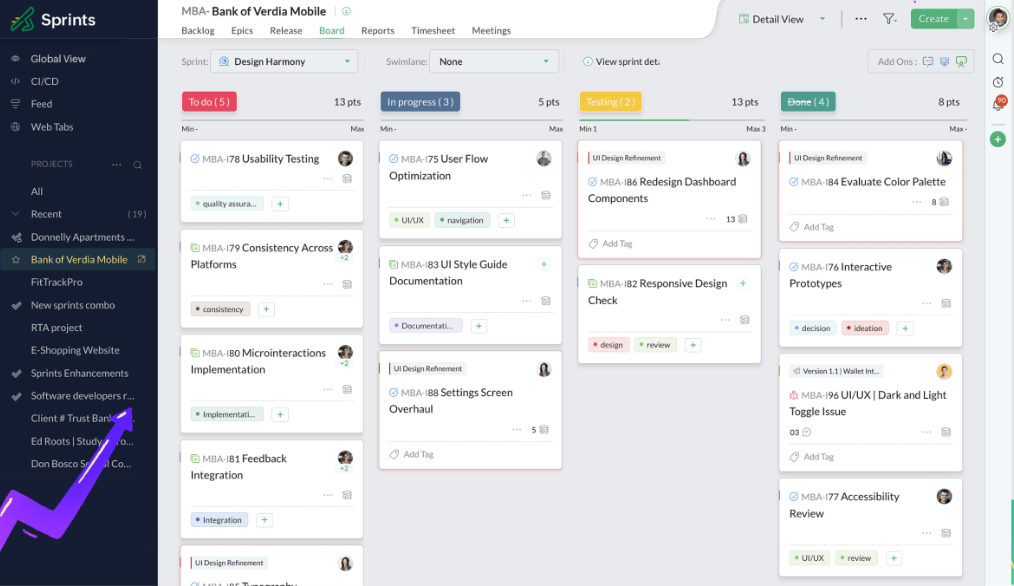
Hovering over any task bar surfaced the owner, progress percentage, and dates instantly, which made status meetings faster since I wasn’t clicking into every single task. I also liked being able to export the whole chart to PDF for a client presentation.
The tradeoff is that the interface takes a bit to get comfortable with, and the free plan’s 3-user, 2-project cap means most teams will outgrow it within a month or two.
Pros:
- Blueprint workflow automation assigns tasks and updates fields automatically
- Baseline comparison shows planned schedule versus actual progress
- Deep integration with other Zoho apps like CRM, Books, and Analytics
- Resource utilization reports flag overallocated team members
Cons:
- Feature density creates a real learning curve for brand-new users
- Mobile app lacks some of the detailed Gantt editing available on desktop
Pricing:
Free for 3 users and 2 projects. Paid plans start at $4/user/month.
5. Nifty – Best for Project Portfolio Management
A friend running operations at a nonprofit pointed me toward Nifty, and what stood out immediately was how it handled multiple projects at once. Instead of flipping between separate Gantt charts, I could view several projects consolidated into one timeline for quick oversight.
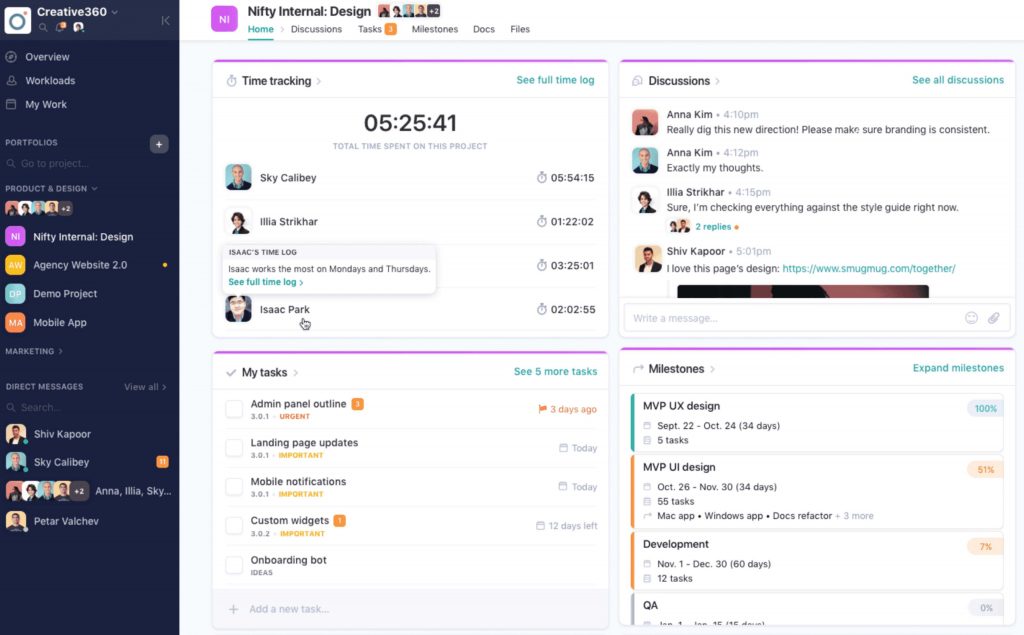
Dragging a task bar automatically adjusted anything dependent on it, which meant I didn’t have to manually re-sequence work after every schedule change. Milestones tied to groups of tasks calculated their own progress percentage too, so I always had an honest read on where things stood without asking anyone for a status update.
The free plan’s 2-project cap is the real limiter here. It’s fine for testing the tool, but any team running more than a couple of active initiatives will need to upgrade fast.
Pros:
- Consolidated view shows multiple projects on a single timeline
- Milestones automatically calculate progress based on linked tasks
- Built-in docs and chat reduce the need to switch to a separate app
- Workload view flags who’s carrying too much across projects
Cons:
- Free plan limited to 2 active projects
- Workflow automation and advanced reporting are paid-tier only
Pricing:
Free for up to 2 projects. Paid plans start at $7/user/month.
6. GanttProject – Best for Offline, Open-Source Use
GanttProject is the tool I keep seeing recommended in project management forums, and after using it myself, I understand why. It’s a genuinely free, open-source desktop app for Windows, Mac, and Linux, and there’s no project cap, no user cap, and no upgrade prompt waiting for you.
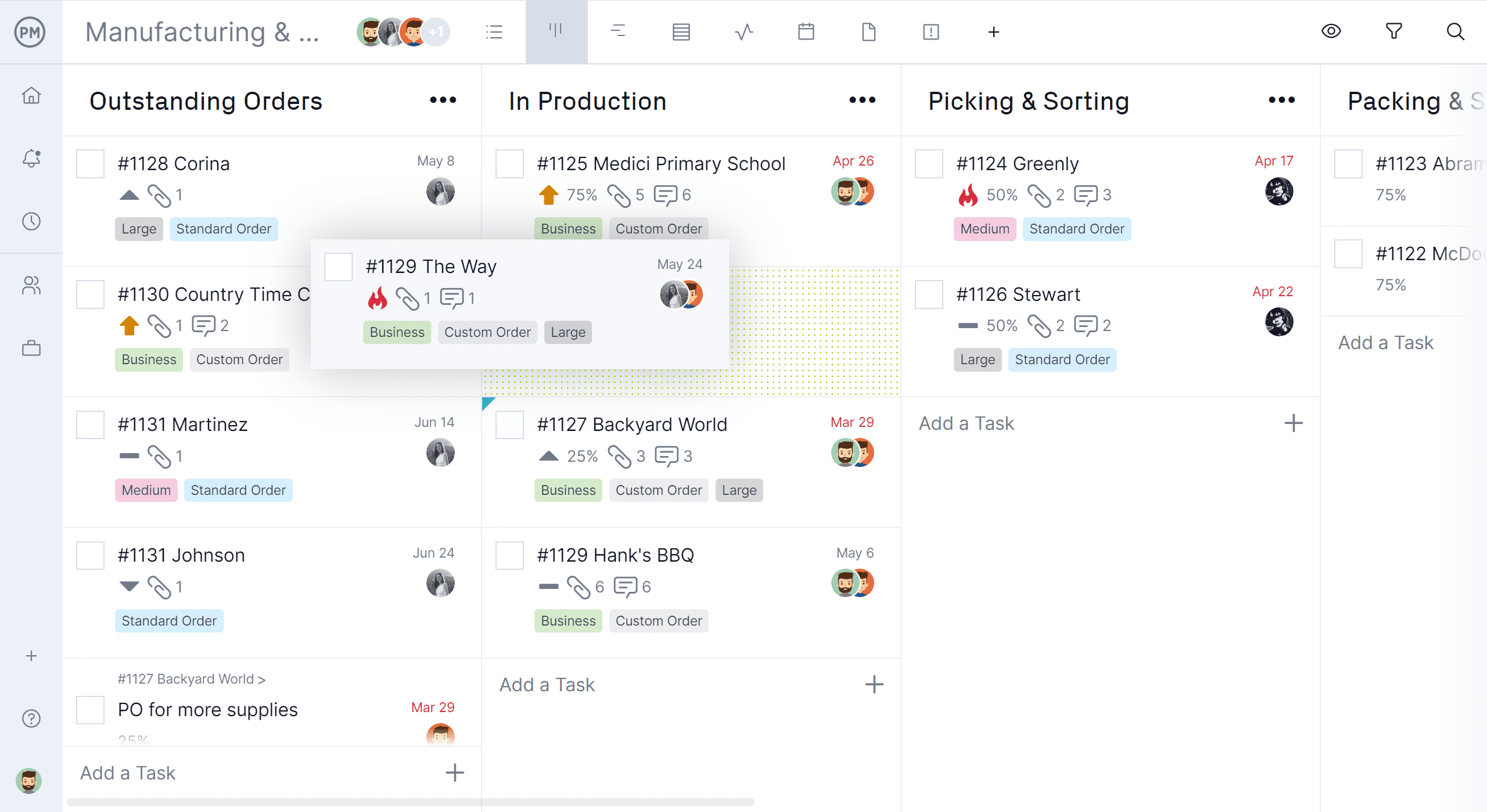
I built out a full project plan offline, complete with resource load charts and PERT diagrams, without ever needing an internet connection. Exporting to PDF, image, CSV, or Microsoft Project format all worked cleanly, which made handing off files to a client running MS Project painless.
The tradeoff is real, though. The interface feels dated next to modern cloud tools, and there’s no built-in real-time collaboration, so it’s best suited to a single planner rather than a team editing together live.
Pros:
- Completely free with no user, project, or feature caps
- Works fully offline as a native desktop app
- Includes resource load charts and PERT charts alongside the Gantt view
- Exports to PDF, image, CSV, and Microsoft Project formats
Cons:
- No built-in real-time collaboration or cloud sync
- Requires a download and install rather than working in-browser
Pricing:
100% free, open-source. No paid tier.
7. Toggl Plan – Best for Visualizing Team Workload
I linked Toggl Plan to Google Calendar while testing it, and that one integration changed how useful the timeline felt. Meetings and time off showed up right alongside project tasks, so the schedule reflected what people could realistically get done instead of an idealized version of their week.
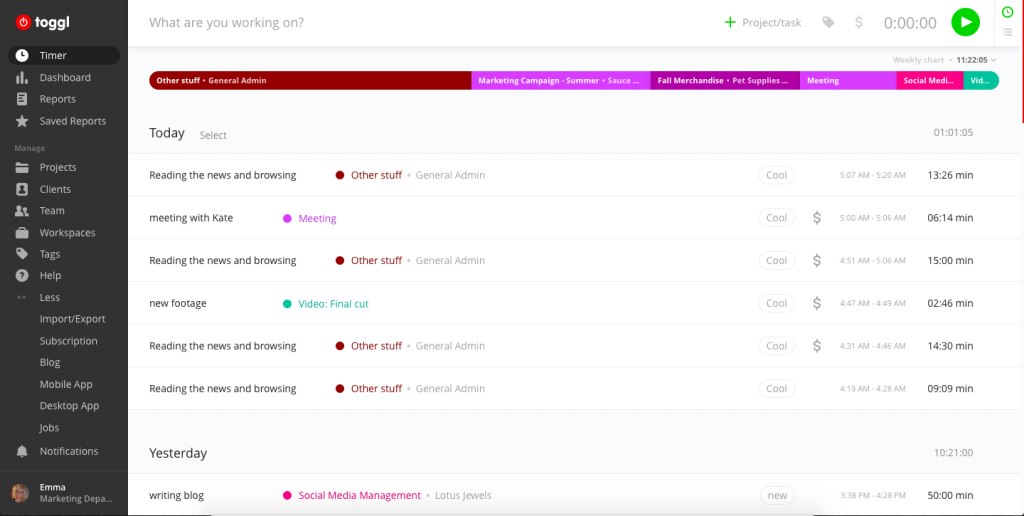
The Team Timeline view was the standout feature for me. Every person gets their own row, so spotting who’s overbooked and who has room to take on more work takes about five seconds. Dragging a task bar rescheduled it instantly, and dependencies shifted along with it.
Where it fell short was budget tracking. There’s no built-in time-estimate or cost tracking, so if profitability matters to your projects, you’ll need a second tool alongside it.
Pros:
- Dedicated Team Timeline view with one row per person for spotting overload
- Syncs with Google Calendar and Outlook for a realistic schedule
- Drag-and-drop rescheduling with automatic dependency shifts
- Shareable read-only links for clients or stakeholders
Cons:
- No built-in time-estimate or budget tracking
- Fewer integrations than larger, full-suite project management platforms
Pricing:
Free for up to 5 users. Paid plans start at $9/user/month.
8. Lucidchart – Best for Presentation-Ready Timelines
I’ve used Lucidchart for flowcharts and org charts for years, so trying its Gantt features felt like a natural next step. What stood out was how polished the output looked. I tweaked colors, added icons, and matched a client’s branding on the timeline itself, which made it feel more like a presentation asset than a bare project bar chart.
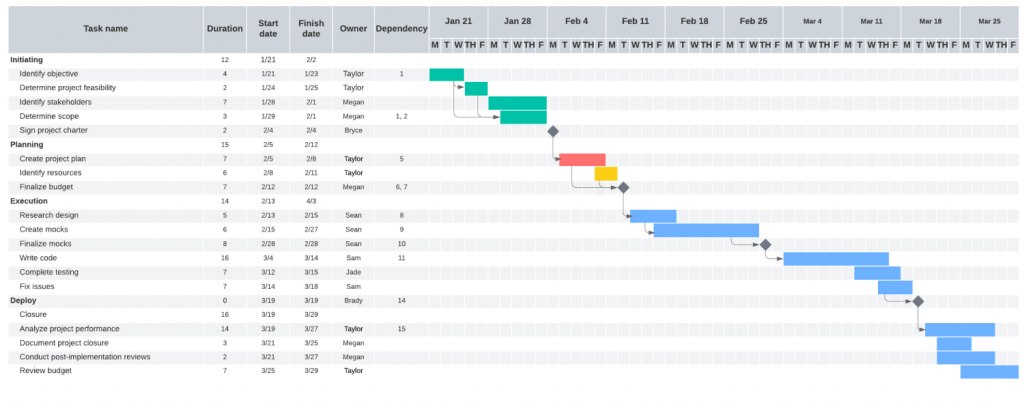
The part I didn’t expect to like was placing a marketing funnel flowchart right next to my Gantt timeline on the same canvas, since Lucidchart isn’t limited to a single diagram type. Real-time collaboration meant teammates could edit alongside me, Google Docs style, which worked well for a remote planning session.
Just know going in that it’s a diagramming tool first. There’s no task assignment, no automatic notifications, and the free plan tops out at three editable documents.
Pros:
- Highly customizable design, including colors, icons, and branding
- Combines Gantt timelines with flowcharts, org charts, or wireframes on one canvas
- Presentation mode turns a chart or diagram set into a slideshow
- Large library of pre-built Gantt and timeline templates
Cons:
- Free plan limited to 3 editable documents
- Not a full project management tool; no task assignment or notifications
Pricing:
Free for 3 editable documents. Paid plans start at $9/user/month.
9. Ganttic – Best for Resource Planning Across Projects
I used Ganttic while coordinating engineers and designers spread across a few parallel projects, and what set it apart from the other tools on this list is that it’s built around resource management first, not just tasks. Switching between a project Gantt view and a resource view showing every person and piece of equipment assigned across projects took one click.
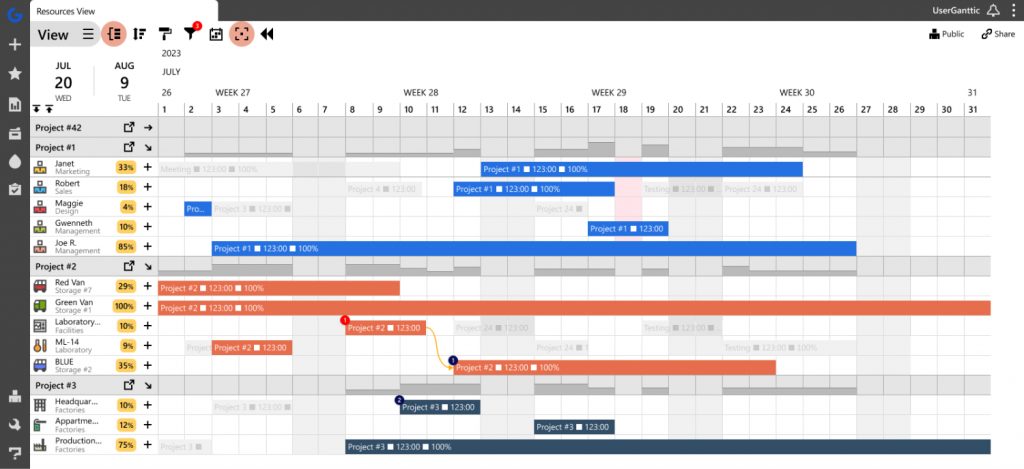
Setting weekly capacity per resource meant Ganttic automatically flagged anyone over-allocated before it became a scheduling crisis. Automated weekly email summaries kept stakeholders updated without me writing a status report by hand.
It does take longer to learn than a simple Gantt tool, and the free plan’s 10-resource cap means it’s really suited to a specific coordination problem rather than general team task tracking.
Pros:
- Dedicated resource view across people, teams, and equipment
- Capacity planning automatically flags over-allocated resources
- Supports both single-project and portfolio-level Gantt views
- Automated weekly reporting on resource utilization and progress
Cons:
- Free plan capped at 10 resources
- Not designed for large-scale, real-time multi-user editing
Pricing:
Free for up to 10 resources. Paid plans start at $25/month.
10. Tom’s Planner – Best for Simple Personal Use
Tom’s Planner was one of the first Gantt tools I ever used, years ago, for a quick project schedule, and revisiting it recently confirmed it hasn’t lost its charm. It’s built specifically for people who want to build a timeline fast without learning an entire platform.
I imported an existing schedule straight from Excel, which saved me from re-entering every task by hand, then assigned multiple people to a single task where work was genuinely shared. Visual cues like percent-complete bars and colored status indicators made the chart easy to read at a glance without extra explanation.
The free plan only covers one project schedule, and there’s no real-time multi-user editing on that tier, so it works best for a solo planner sharing a view-only link rather than a team editing together.
Pros:
- Extremely fast drag-and-drop chart building
- Supports assigning multiple people to a single task
- Imports schedules from Excel, Microsoft Project, or Trello
- Visual status cues like percent-complete bars and colored indicators
Cons:
- Free plan limited to one project schedule
- No real-time multi-user editing on the free tier
Pricing:
Free for 1 project schedule. Paid plans start at $9.95/month.
Is Free Gantt Software Better Than Excel?
Free gantt chart software beats a manual Excel or Google Sheets timeline once dependencies, team size, or update frequency grow past a handful of rows. Google Sheets has no native Gantt chart type, so most people fake one with a stacked bar chart and manual date math, which works for a small, static project but breaks down fast.
The moment a deadline shifts, someone has to manually recalculate every dependent row in a spreadsheet. In dedicated free gantt chart software, that update happens automatically the second you drag a task bar. If your project has more than about ten tasks or more than two people touching it, a dedicated tool will save you real hours over a spreadsheet.
According to PMI’s Pulse of the Profession research, organizations waste an average of 11.4 cents of every project dollar due to poor performance, much of it tied to the kind of manual replanning and miscommunication that spreadsheets make worse. A visual, auto-updating timeline directly attacks that waste.
How Did I Evaluate These Tools?
I ran this evaluation the same way I’d want a colleague to check my work before I trusted a recommendation, across six factors:
- User Reviews and Ratings: I pulled G2 and Capterra ratings for every tool to ground this list in real user experience, not just marketing copy.
- Essential Features and Functionality: I checked whether dependencies, milestones, and multiple views actually worked as advertised, not just whether they were listed on a pricing page.
- Ease of Use: I paid close attention to how long it took a first-time user to build a working timeline, since a Gantt chart nobody understands doesn’t get used.
- Customer Support: I looked at how each vendor supports free-tier users specifically, since free users are often an afterthought for support teams.
- Value for Money: I weighed what each free plan actually unlocks against its limits, and what the first paid tier costs once you outgrow it.
- Personal Experience: Every tool on this list, I either used directly or verified against detailed, hands-on reviews from other project managers, not secondhand marketing claims.
What Are My Top 3 Picks?
If you don’t want to read all ten entries, here’s where I’d start based on team size and what you’re actually trying to solve.
1. ProProfs Project
ProProfs Project is my top pick overall for free gantt chart software. ProProfs Project pairs Gantt charts with built-in time tracking and AI-assisted setup, all in a free plan built for teams that want simplicity without sacrificing power. Its workflow management also means recurring project types don’t need to be rebuilt from scratch every time. If you’re managing multiple small projects and want deadlines, dependencies, and time tracking working together out of the box, start here.
2. TeamGantt
TeamGantt is my pick for teams that want the fastest possible learning curve. If your team has never touched a Gantt chart before and you need something that clicks in the first ten minutes, TeamGantt’s drag-and-drop interface removes the intimidation factor entirely.
3. GanttProject
GanttProject is my pick for anyone who wants zero cost, zero caps, and doesn’t need real-time cloud collaboration. If you’re a solo planner, a student, or a team that genuinely just needs an offline planning tool without ever hitting a paywall, this is the one to install.
Save Hours With Free Gantt Chart Software
Free gantt chart software isn’t a compromise anymore. Whether you need AI to draft your first timeline, an offline desktop app, or a tool built specifically around resource capacity, there’s a genuinely usable free plan for it. The real mistake isn’t picking the “wrong” tool from this list, it’s staying in a spreadsheet past the point where your team actually needs a visual timeline.
My advice: pick one tool, load in a real project you’re currently running, and give it a week. You’ll know within a few days whether the dependencies, views, and collaboration features fit how your team actually works.
For what it’s worth, the one that’s held up best on my own desk is ProProfs Project, mostly because planning, time tracking, and reporting all live in the same place instead of three separate tools. But the honest answer is that the best free gantt chart software is whichever one your team actually opens every morning.
Frequently Asked Questions
What is free gantt chart software?
Free gantt chart software is a project planning tool that maps tasks on a visual timeline at no cost, showing dependencies, deadlines, and progress. Most free plans cap the number of users or projects, with full features unlocked on paid tiers.
Is there a completely free gantt chart maker with no limits?
GanttProject is the closest option, since it's fully free, open-source, and has no user or project caps. It runs as an offline desktop app rather than in the cloud, so it trades real-time collaboration for zero cost.
Does Excel or Google Sheets have a built-in Gantt chart?
No. Neither Excel nor Google Sheets has a native Gantt chart type. Most people fake one using a stacked bar chart and manual date formulas, which works for very small, static projects but breaks down once dependencies or team size grow.
What is the best free gantt chart software for a small team?
ProProfs Project and TeamGantt are the strongest picks for small teams. ProProfs Project supports unlimited projects and tasks for up to three users, while TeamGantt is built around an especially short learning curve.
Can I manage multiple projects on a free Gantt plan?
It depends on the tool. ProProfs Project and Nifty allow multiple projects on their free tiers, while TeamGantt and Tom's Planner cap the free plan at just one active project.
What should I look for before choosing free gantt chart software?
Check how dependencies behave when a date shifts, confirm the user and project limits actually fit your team, and verify the tool integrates with what you already use, like Outlook, Teams, or Google Calendar.
Can I switch to a paid plan later if my team outgrows the free version?
Yes, every tool on this list offers a straightforward upgrade path. Most retain your existing projects and data when you move from a free to a paid plan, so switching later doesn't mean starting over.
FREE. All Features. FOREVER!
Try our Forever FREE account with all premium features!