I can usually tell a project is heading for trouble when I hear this sentence: “It’s in my sheet somewhere.” I’ve watched teams lose hours to version confusion, shifting deadlines, and those endless “quick check-ins” that don’t actually move work forward. That’s why I keep coming back to free Gantt chart software when someone needs a visual plan fast, without adding another budget line.
In my experience, the real value isn’t the visually-appealing timeline. It’s what the timeline fixes. You can spot dependencies before they blow up, see who’s overloaded, and make schedule changes without rewriting your entire plan.
In this blog, I’ll walk you through the best free tools I’ve tested for building Gantt charts, plus what to look for so you don’t get trapped by “free” plans that limit the stuff you actually need. If you’re a project manager, team lead, or just the person trying to keep work on track, you’ll leave with a shortlist you can trust and a clear way to pick the right one.
For a more detailed review of each tool (and to discover the other picks), read the full comparison below.
1. ProProfs Project – Best for Planning, Collaborating & Delivering Projects on Time
ProProfs Project is my go-to free Gantt chart software, and I’m using it right now to manage my team’s projects. I can see deadlines and dependencies at a glance, and if a task shifts, the timeline updates automatically, which saves me a lot of manual work. Plus, the free plan still lets me create unlimited projects and tasks and invite my whole team.
What I like most is how much it adds beyond a Gantt chart. I can track time right from the Gantt view, compare estimated vs. actual hours, assign tasks easily, and balance workloads without guesswork. My team members can also switch between Gantt, Kanban, task list, and calendar views, and everything stays in sync.
Collaboration feels effortless, too. We can comment on tasks, share files, and rely on email notifications to stay aligned without constant meetings. Also, the interface is clean, so even non-technical teammates picked it up fast, making it a solid free option for small teams that want planning, tracking, and teamwork in one place.
One thing that’s saved me real setup time recently is the AI layer built into the platform. Instead of manually adding every task and setting every date to build the chart from scratch, I can describe the project in a sentence or two and it lays out the tasks, stages, and timeline automatically, so the Gantt chart is basically half-built before I’ve touched a single date field. There’s also an AI assistant I can ask direct questions like “which tasks are falling behind,” instead of scanning the whole timeline myself.
Pros:
- Provides robust task dependencies to ensure logical sequencing and prevent scheduling conflicts
- Automatically adjusts and updates timelines in real time as task dates or statuses change
- AI-assisted setup that builds out the initial Gantt timeline from a plain-language project description
- Manages team workload effectively with resource assignment and workload views (even in free plan)
- Offers multiple views (Gantt, Kanban, calendar, list) and detailed reporting to monitor project status and performance
- Includes built-in time tracking, task comments, notifications, and file sharing for efficient team collaboration
Cons:
- No downloadable or on-premise version
- Dark user interface option not available
Pricing:
Free plan available. Paid plans start at $39.97/month.
2. Nifty – Best for Project Portfolio Management
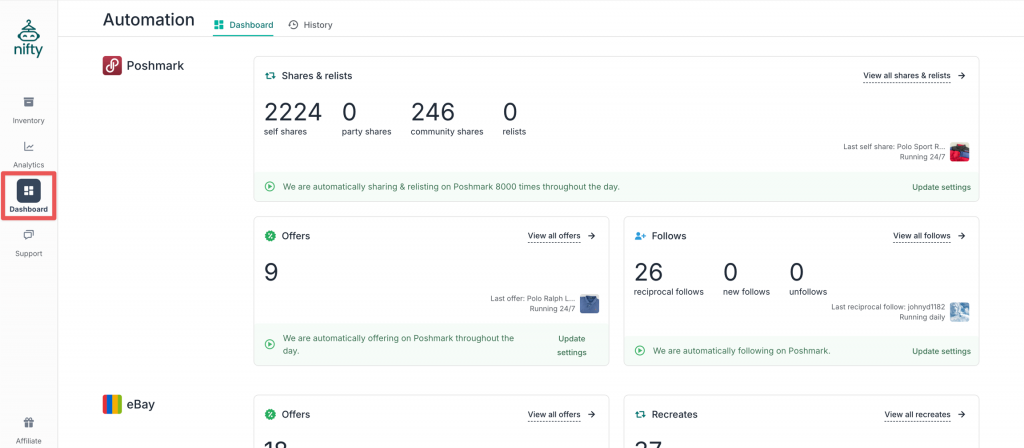
Image source: Nifty
Nifty is a solid free Gantt chart software for simplifying project planning, especially when you’re managing multiple projects. A friend of mine who runs operations at a nonprofit relies on it to keep timelines aligned, and when I tested it, the drag-and-drop Gantt interface stood out right away. You can move or stretch task bars on the timeline, and dependencies automatically shift to avoid scheduling conflicts.
It’s also great for real-time collaboration. Teammates can update progress and add comments, and everything reflects instantly in the live Gantt view, so it becomes a single source of truth. I also liked having milestones for key checkpoints and the option to view multiple projects in one consolidated Gantt timeline for quick oversight.
One thing to note is that the free plan comes with a limitation of 2 projects, which works for light use or testing but can feel tight for bigger portfolios. Features like workflow automation, time tracking, and custom reports are not part of the free version, but for straightforward timeline planning and collaboration, Nifty’s free Gantt chart does the job well.
Pros:
- Allows managing multiple projects on a single Gantt chart for a unified timeline view
- Easy drag-and-drop scheduling makes it quick to reorganize tasks and set dependencies
- Automated dependency adjustments to ensure that if one task date moves, all linked tasks shift accordingly
- Includes workload tracking so you can see team members’ task loads
Cons:
- Free plan is limited to 2 active projects, which can be restrictive
- No built-in workflow automation, time tracking, or advanced reporting in the free version
Pricing:
Free for up to 2 projects; Paid starts at $39/month.
3. TeamGantt – Best for Visual Project Management
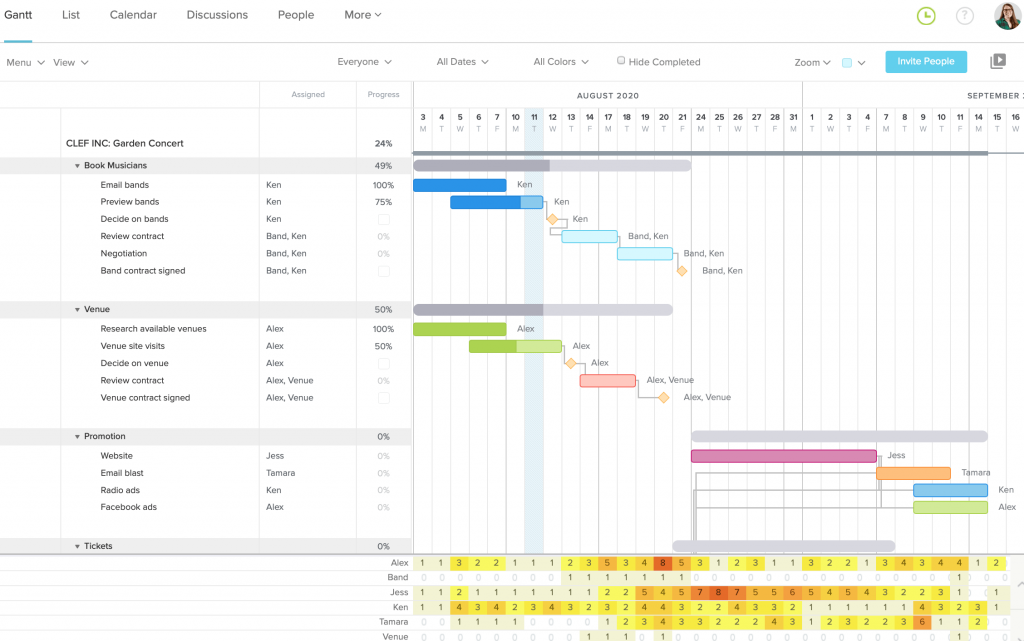
Image source: TeamGantt
TeamGantt is super visual and beginner-friendly, which is exactly why I liked using it while helping a small team plan a product launch. Creating a Gantt chart is simple: add tasks, set start and end dates, and the timeline bars appear instantly. The drag-and-drop setup makes it easy to adjust schedules, and you can connect tasks with dependencies using clear visual links.
It’s also strong for real-time collaboration. When teammates updated task progress or changed dates, I could see the updates instantly on the Gantt chart, which cut down on email back-and-forth.
I also liked that you can view multiple projects in one place, with color-coded tasks, which helps when you’re overseeing more than one stream of work. The main trade-off is the free plan is limited to 1 project and 2 collaborators, so it’s best for very small teams or a single project.
Pros:
- Intuitive timeline interface with drag-and-drop task bars
- Supports multiple projects on one Gantt view, so teams can track work in a single timeline
- Easy creation of task dependencies by simply connecting tasks
- Unique feature to auto-adjust dependent tasks if a preceding task’s timing changes
Cons:
- Free plan is limited to 1 project and 2 team members, which isn’t scalable
- Lacks some advanced project management features like built-in budgeting or invoicing
Pricing:
Free for 1 project & 2 users; Paid starts at $49/user/month.
4. Lucidchart – Best for Real-Time Collaboration & Diagramming
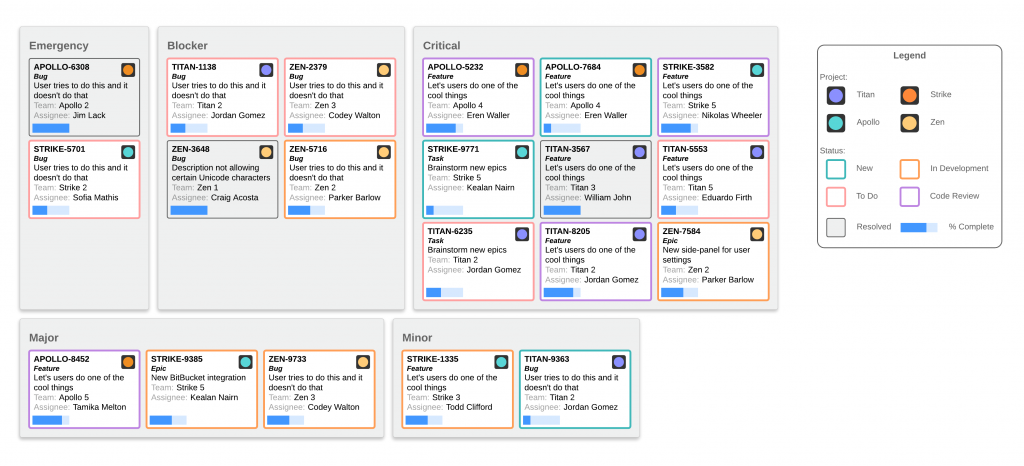
Image source: Lucidchart
Lucidchart isn’t a dedicated project management tool, but it’s a flexible online diagramming platform that can create really polished Gantt charts. I’ve used it for years for flowcharts and org charts, and when I tried its Gantt features for a side project. You can tweak colors, shapes, add icons or logos, and make the timeline match your branding or client-ready formatting.
Where Lucidchart really shines in combining visuals on one canvas. I built a project launch Gantt timeline and placed a marketing funnel flowchart and a quick org chart right beside it, so everything lived in one clean project overview. Collaboration is also real-time, so teammates can edit and comment together, Google Docs-style, which works great for remote planning sessions.
The main limitations are that the free plan allows only 3 editable documents, and Lucidchart doesn’t include PM features like task assignments, progress tracking, or notifications. So it’s best when you want to brainstorm, present, and share a polished project timeline, not run day-to-day project execution inside the tool.
Pros:
- Highly flexible customization, which allows you to tailor the Gantt chart’s design
- Supports embedding the Gantt timeline alongside other diagrams (flowcharts, mind maps, wireframes, etc.)
- Real-time collaboration allows multiple team members to edit the chart simultaneously
- Presentation mode can turn your Gantt chart or set of diagrams into a slideshow
Cons:
- The free plan limits you to 3 editable documents at once, which can be restrictive
- In the free version, some advanced collaboration features are not available
Pricing:
Free for 3 editable documents; Paid starts at $9/user/month.
5. Venngage – Best for Creating Visual Content
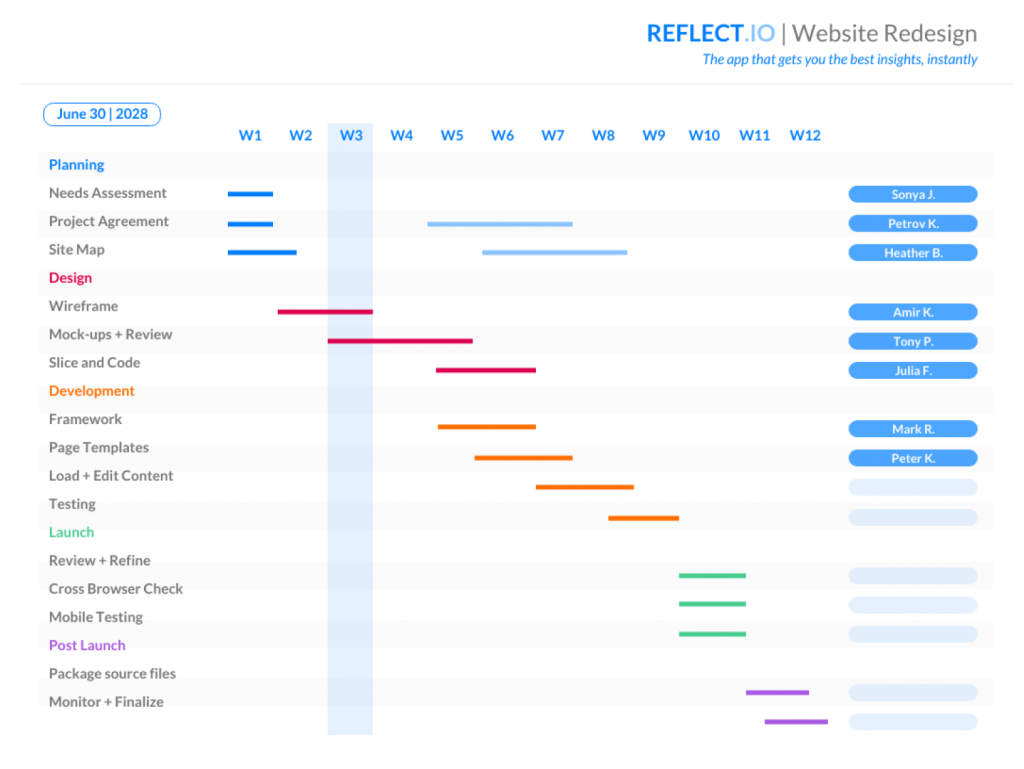
Image source: Venngage
Venngage is mainly a graphic design tool for infographics and presentations, but its Gantt chart templates look genuinely polished. I tried it when I needed a client-ready timeline, and it made the chart feel more like a presentation asset than a basic project bar chart. The drag-and-drop editor made it easy to tweak colors, fonts, and branding, including adding a logo.
What surprised me is that Gantt charts can still include useful planning details like milestones and dependencies, so the timeline isn’t just pretty; it’s clear and accurate, too. I also liked the export options, since I could download it as a high-res PNG or PDF, and there’s even a PowerPoint export option for slide decks.
The free plan is limited to 5 designs, and collaboration isn’t included, so it’s more suited for solo work. Also, the editor can slow down if the design gets heavy. If you need eye-catching Gantt charts for reporting and presentations, Venngage is a great pick, just not something I’d use for day-to-day project management.
Pros:
- Excellent visual clarity and aesthetics helps timelines come out clean, colorful, and professional
- Offers a range of pre-made templates for project timelines and Gantt charts
- Clearly displays task start and end dates on the timeline, with color-coded task bars
- Allows highlighting of critical milestones in your project with special markers
Cons:
- The free plan does not support real-time team collaboration; only one person can work on a design at a time
- Free users are limited to 5 designs in total
Pricing:
Free for up to 5 designs; Paid starts at $10/user/month.
6. Repsona – Best for Simple Work Management
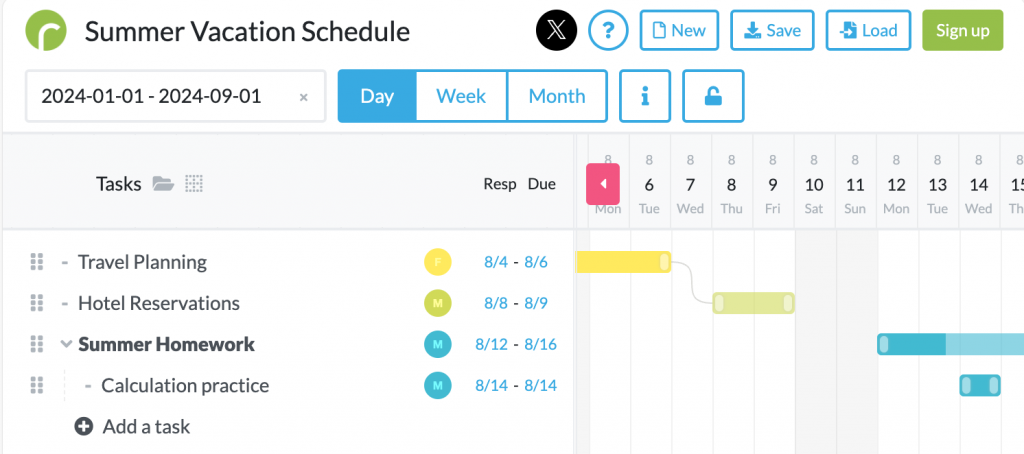
Image source: Repsona
Repsona (sometimes called “Gantt-san” in the app) is a lightweight work management tool that let me set up a Gantt chart in minutes. It runs fully in the browser, and the interface is clean and uncluttered. I just added tasks with start and end dates, and the timeline populated automatically with color-coded bars that made task ownership easy to spot.
It covers the essentials without feeling heavy. You can add task dependencies, set milestones, and adjust schedules with simple drag-and-drop editing. I also liked the option to lock the Gantt chart once the plan is finalized, which helps prevent accidental edits when multiple people are involved.
The trade-off is that it’s not built for power users. The free plan includes 1 GB storage for attachments, and customization is fairly basic, with no complex automation or advanced collaboration layers. Still, for small teams or student projects that want a clear, fuss-free Gantt chart with a minimal learning curve, Repsona is a strong free pick.
Pros:
- You can create a Gantt chart in minutes, making it ideal for small projects or teams
- Clean, color-coded timeline bars that show task progress at a glance
- Supports basic task dependencies, so you can link tasks and ensure that important sequences are followed
- Ability to add milestones on the chart to mark critical checkpoints or deadlines
Cons:
- The free plan includes 1 GB of storage for file attachments, which might become insufficient
- Lacks advanced customization and some project management features like complex workflow automation, subtasks hierarchies etc
Pricing:
Free for up to 5 team members; Paid starts at $7/user/month.
7. Toggl Plan – Best for Visualizing Project Workloads
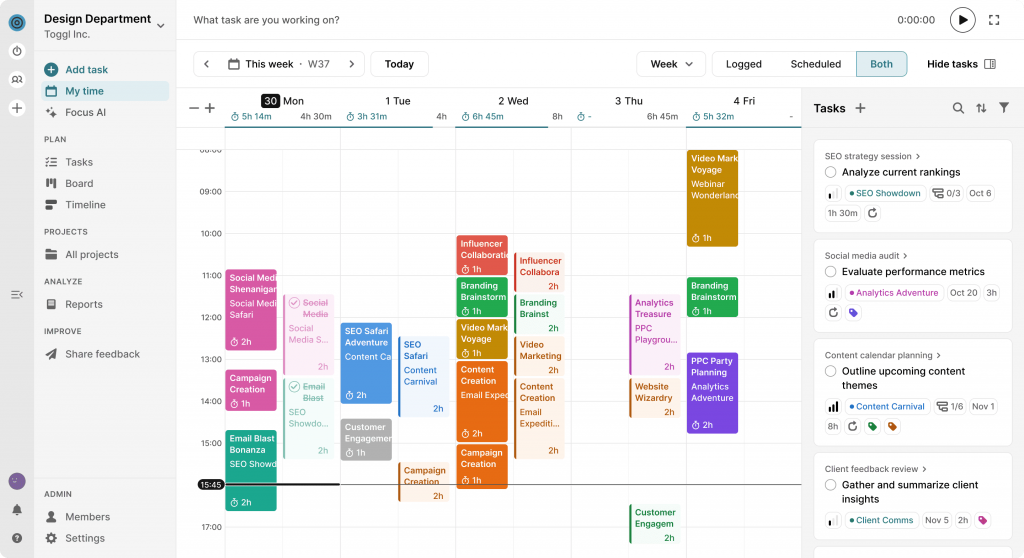
Image source: Toggl Track
Toggl Plan (part of the Toggl suite) is built for a clear visual roadmap of projects and team workload, and it has one of the cleanest interfaces I’ve used in a Gantt-style tool. The timeline is easy to read at a glance, and the Team Timeline view is especially useful since each person gets their own row, so you can instantly spot who’s overbooked and who has bandwidth.
I also liked the calendar integration. When I linked it with Google Calendar, the timeline became more realistic because it could account for meetings, vacations, or time off. It supports milestones, dependencies, and zoom views by week, month, or quarter, which is handy for detailed planning.
The free plan has a few limits: up to 5 users and 5 teams, and it doesn’t include estimation features like tracking estimated hours per task. Also, Toggl Plan and Toggl Track can require separate subscriptions if you want tightly integrated time tracking.
Pros:
- Visual timeline interface with color-codes tasks that is easy to read
- Team workload view is integrated: you can see each team member’s assignments on their own row
- Can sync with external calendars (Google Calendar, Outlook, etc.)
- Allows sharing read-only timeline links with clients or stakeholders,
Cons:
- The free plan does not include task time estimates or budget tracking
- Some users find the separation between Toggl Plan and Toggl Track a bit inconvenient
Pricing:
Free for up to 5 users; Paid starts at $5/user/month.
8. Tom’s Planner – Best for Simple, Flexible Online Gantt Charts
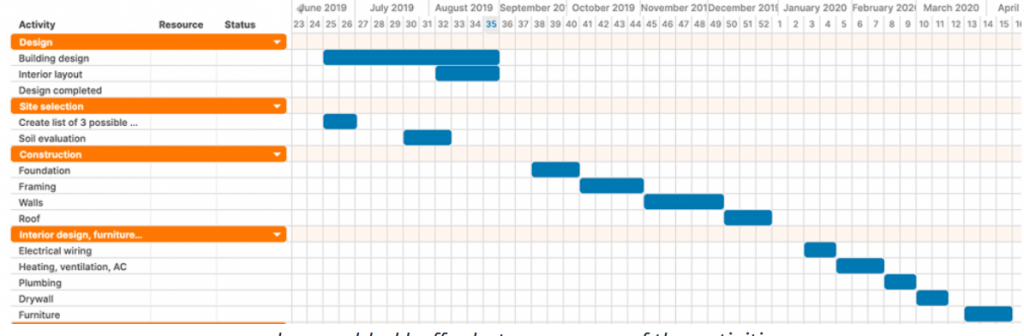
Image source: Tom’s Planner
Tom’s Planner is a long-time favorite for simple, no-frills Gantt charts. I used it years ago for a quick schedule and checked it again recently, and it’s still great if you want to build a timeline fast with basic drag-and-drop tasks. You can assign multiple people to a single task, which is handy when work is shared.
It’s also flexible with imports and sharing. You can import schedules from Excel, MS Project, or Trello, which saves time on re-entering tasks. There are also visual status cues like icons or “traffic lights,” and you can share via a read-only link or even embed the chart on a webpage.
The free plan is limited to one project schedule, and you won’t get advanced features like critical path analysis or resource leveling. Collaboration is also limited for free since you can share the chart but not have multiple editors unless you upgrade.
Pros:
- Extremely easy drag-and-drop interface
- Provides real-time updates on the chart without manual refreshing
- Offers neat visual customization options like percentage-complete bars, and colored “traffic light” indicators
- Allows importing schedules from other tools (Excel, MS Project, Trello, etc.)
Cons:
- The free plan is limited to one project timeline at a time
- The free version has no multi-user collaboration (view-only sharing), meaning only you can edit the chart
Pricing:
Free for 1 project schedule; Paid starts at $9.95/month.
9. Ganttic – Best for Resource Planning & Managing Portfolios
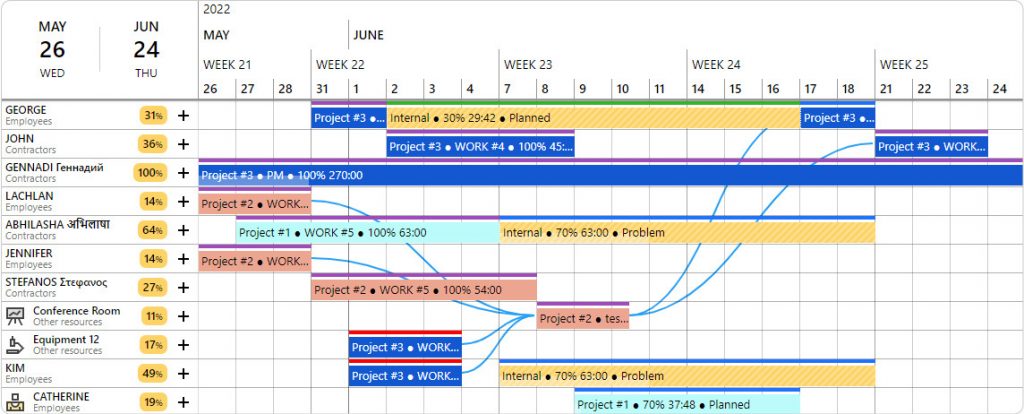
Image source: Ganttic
Ganttic is a strong free option if you’re managing resource-heavy work or juggling multiple projects at once. I used it while coordinating engineers and designers across parallel projects, and what stood out is that it’s built around resource management, not just tasks. You can switch between a project Gantt view and a resource view that shows each person (or equipment) and everything assigned to them across projects.
It handles dependencies, milestones, and even lets you set resource capacity (like hours per week), then flags when someone is over-allocated. I also liked the automated reporting and weekly email summaries for project progress and resource utilization.
The trade-off is a bit of a learning curve since it’s more complex than simpler Gantt tools. The free plan limits you to 10 resources, and it’s not ideal for true simultaneous multi-user editing because scheduling conflicts can happen. Still, if your biggest challenge is balancing people across multiple projects, Ganttic does that really well.
Pros:
- You can view and manage schedules by resource (person, team, equipment), not just by project
- Supports viewing multiple projects in one timeline and also a high-level portfolio view
- Dependency management and project forecasting tools allow you to see the ripple effects of delays or changes
- Automated reporting can send regular updates on project status or resource utilization
Cons:
- The interface can be a bit hard to learn initially
- Free plan limits you to 10 resources
Pricing:
Free for up to 10 resources; Paid starts at $20/month.
10. Ganttile – Best for User-Friendly Gantt Charts
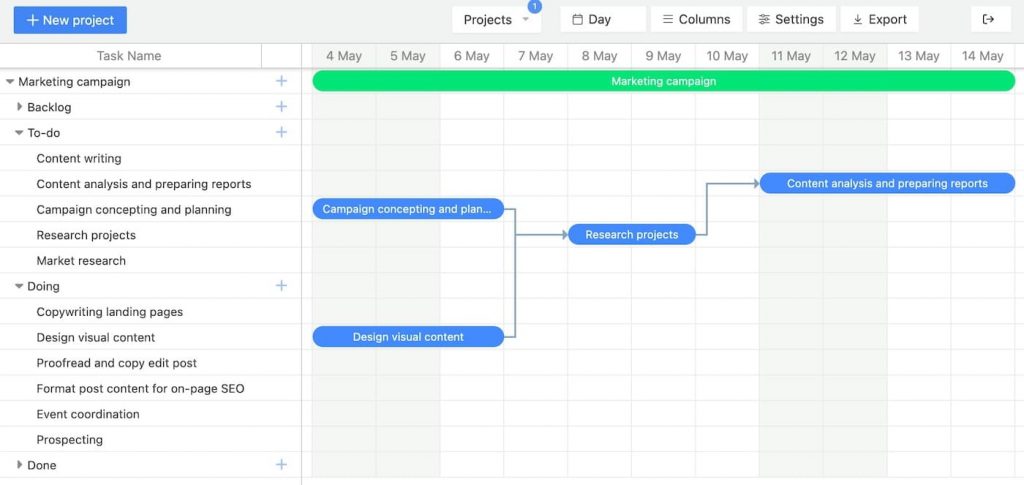
Image source: Gantile
Ganttile is a lightweight, free Gantt chart tool that feels genuinely straightforward. When I tried it for a personal project, I was able to create a timeline fast with just tasks and dates, and the minimal interface kept things focused.
Even though it’s simple, it has some surprisingly advanced features. You can manage multiple projects in one view, identify the critical path, and use auto-scheduling so dependent tasks shift when you move a task. It also supports exports to PDF, Excel, and even Microsoft Project (MPP), which makes it easier to share or use in more formal settings.
The trade-offs are that integrations are limited, and you won’t get resource management or time tracking. Collaboration is basic too, more about sharing the chart than real-time multi-user editing with separate accounts. Still, if you want a clean, fully free tool to draft timelines and schedules quickly, Ganttile is a solid hidden gem.
Pros:
- You get the full set of features without worrying about a trial or upgrading
- Very quick to create Gantt charts with minimal inputs without configuring a lot of settings
- Can handle multiple projects in one view
- Includes critical path identification, automatically highlighting the sequence of tasks
Cons:
- Does not provide advanced resource management features
- Lacks integration with other project management or communication tools
Pricing:
Free (100% free tool).
My Top 3 Picks for the Best Free Gantt Chart Software
Still unsure which tool to pick? Here are my top 3 picks to make the decision easier.
1. ProProfs Project
ProProfs Project is the best all-in-one free Gantt chart software for small teams. You get a clear timeline with tasks, deadlines, and dependencies, plus automatic timeline updates, time tracking, workload management, and progress reports, all on the free plan. It’s also the only tool on this list where AI helps build the chart itself, describe your project and the initial timeline is drafted for you.
2. Toggl Plan
Toggl Plan is a clean, user-friendly tool for simple project planning. It offers color-coded bars, drag-and-drop scheduling, and a free plan for up to 5 users, making it ideal for small teams that want a modern, clutter-free Gantt timeline.
3. Venngage
Venngage is perfect when you need presentation-ready Gantt charts for clients or executives. It has polished templates, a drag-and-drop editor, strong customization (colors, fonts, layouts), and supports milestones and dependencies for clear project timelines.
How I Evaluated These Free Gantt Chart Tools
Choosing the “best” software can be subjective, but I approached this list with a systematic evaluation to ensure it’s fair and relevant to real user needs. Here are the key factors and criteria I considered for each tool:
- Ease of Use: First and foremost, a free tool should be accessible. I looked at how intuitive the interface is, how quickly a new user can create a Gantt chart, and whether the tool avoids unnecessary complexity.
- Core Gantt Features & Functionality: I made sure each software truly provides Gantt chart capabilities like things like creating tasks with start/end dates, visual timelines, and dependency management.
- Collaboration & Team Features: Since many of us work in teams, I checked what collaboration features are available. Can you invite team members? Is there real-time update visibility? Are there communication tools (comments, notifications) within the app? Importantly, I noted which of these collaboration features are available in the free version and where some tools might limit them.
- Resource Management & Workload: For tools targeting project managers, being able to manage team workload or resources can be a big plus. I evaluated if and how each tool lets you assign people to tasks, view workloads or resource availability, and prevent overbooking.
- Integrations & Ecosystem: I looked at whether the free Gantt software integrates with popular apps and services (e.g. Google Calendar, Slack, Excel, Jira, etc.). This factor is important if you want your Gantt chart to fit into your existing workflow.
- Limitations of the Free Plan: Let’s face it, “free” often comes with caveats. I paid close attention to what each tool restricts on the free tier: number of projects, number of users, features that are gated behind a paywall, storage limits, etc. The goal was to include tools that have genuinely useful free plans, and to be transparent about what you don’t get until you pay.
- User Reviews & Reliability: Lastly, I took into account feedback from users on forums and review sites. If people frequently praised or complained about something (for example, “Tool X’s free version keeps crashing” or “Tool Y’s customer support is great even for free users”), I factored that into my evaluation. Software that consistently performs well and is reliable earned extra points.
By weighing these criteria, I aimed to ensure the tools listed here aren’t just theoretically “best” but are actually practical and trustworthy for day-to-day project management tasks.
Evaluate free Gantt chart software alongside the best Gantt chart software overall. Detailed guide: Best Gantt Chart Software & Tools.
Key Features to Look for in a Free Gantt Chart Tool
When choosing free Gantt chart software, consider the following important features (many of which came from the pain points and priorities I’ve seen real users express):
1. Task Dependencies
Ensure the tool lets you link tasks with finish-to-start (and other types of) dependencies. This is crucial for maintaining logical order. You want the software to automatically adjust dates if a predecessor task changes.
2. Multiple Views or Modes
While Gantt view is the star, having alternative views (like a Kanban board, calendar view, or task list) can be very useful for day-to-day task management. Some team members might prefer checking off a task list, but you as a manager might prefer the timeline – the tool should accommodate both if possible.
3. Ease of Adoption
A free tool should ideally have a gentle learning curve. Look for an intuitive interface, drag-and-drop functionality, and maybe templates for common project types. You don’t want MS Project-level complexity (one reason many seek free alternatives is to avoid that!).
4. Collaboration & Permissions
If you’ll use the tool with a team, check what collaboration features are available for free. Can you invite team members and assign tasks to them? Will they get notifications for deadlines or changes? Also, consider if you can add guests or external viewers (for example, a client) without paying per seat.
5. Notifications and Reminders
Staying on top of deadlines is easier if the tool sends reminders – e.g., an email or in-app notification when a due date is approaching or if a task becomes overdue. See if the free version includes these, as they can significantly improve accountability.
6. Reporting or Dashboards
Some tools give you basic reports even in free plans (like a summary of tasks completed vs pending, or a dashboard of project progress). While not all free tools have advanced reporting, having at least an export or simple report can save time when communicating status.
7. Storage and Attachments
If your project involves documents or images attached to tasks, note the storage limit on the free plan. Many free plans cap storage (e.g., 100MB or 1GB). If that’s a concern, either ensure the tool integrates with cloud storage (Google Drive, Dropbox) or consider one with a higher free limit.
8. Integration with Other Apps
Does the Gantt tool connect with your existing ecosystem? For example, integrating with Google Drive for attachments, with Slack or Microsoft Teams for notifications, or with an API for custom workflows. Free plans might have limited integrations, but some offer critical ones (calendar sync is a big plus).
9. Export Options
Even if you plan to primarily use the software online, it’s good to have the ability to export your Gantt chart (to PDF, PNG, or Excel). This lets you share it or present it easily. Check if the free plan watermarks exports or has any restrictions on this.
10. Scalability and Upgrade Path
While you may want to stick to free, it’s wise to consider what happens if your needs grow. A tool that offers a solid free plan plus reasonable pricing for upgrades gives you a safety net. You can start free, and if your team or project load grows, you won’t have to migrate all your data to a new tool – you can just upgrade your current one.
11. AI-Assisted Setup
A newer feature to watch for: some tools now let you describe a project in plain language and have the initial task list and timeline generated for you. This won’t replace your judgment on sequencing and dependencies, but it can save real time on the first draft, especially useful if you’re building Gantt charts from scratch regularly.
Free vs. Paid Gantt Chart Software: What’s the Difference?
It’s important to set the right expectations: free Gantt chart software can be incredibly useful, but it often comes with limitations compared to paid versions. Here’s a quick rundown of how free and paid plans typically differ:
1. User and Project Limits
Free plans often cap the number of users, projects, or tasks you can have. For example, a free plan might allow 5 users and 1 active project. Paid plans usually lift or greatly increase these limits (unlimited projects, hundreds of users, etc.).
2. Feature Access
Many software providers reserve advanced features for paid tiers. In free plans, you’ll get the basics: Gantt chart creation, simple dependencies, and maybe file attachments or comments.
Paid plans might add features like resource management, advanced reporting, time tracking, priority support, or integrations with enterprise tools. For instance, as we noted above, Nifty’s free plan lacks time tracking and reporting, which are present in its paid plan.
3. Collaboration & Permissions
Free versions might limit collaboration – perhaps only one or two people can edit, or you don’t get granular permission settings (like role-based access control). Paid plans often allow full-team collaboration with admin controls, guest accounts, and more robust communication (like @mentions, custom notifications).
4. Storage and Support
Free plans typically come with minimal online support (community forums or knowledge base access) and limited storage for any uploaded files. Paid users usually get more storage and faster or more personalized support (some companies even assign account managers to larger clients).
5. No Ads/White-labeling
Some completely free tools might show ads or have their branding on exports. Paid versions remove ads and let you use the tool more professionally (e.g., export a PDF with no watermark of the software’s logo).
So, which should you choose?
If you’re a small team or trying out Gantt charts for the first time, start with a free plan. In fact, many teams use free plans as a long-term solution for relatively modest projects. All the tools listed in this blog have free versions that are usable in their own right.
However, if you find yourself needing a feature that’s missing (like more users, advanced integrations, or specific reports), consider that a signal to evaluate the cost of upgrading.
Decide between Gantt chart vs Kanban board after exploring free Gantt chart software. Comparison and use cases: Gantt Chart vs Kanban Board: Which One Should You Use?.
Tips for Making the Most of a Free Gantt Tool
Regardless of which software you choose, here are a few tips to maximize the value of a free Gantt chart tool:
- Leverage Templates: If the tool offers project templates or example Gantt charts, use them. Templates can save time by providing a pre-structured timeline that you just tweak instead of starting from scratch.
- Keep It Simple (at first): Especially if your team is not used to Gantt charts, start with a basic timeline. Don’t overload it with every single tiny task or complex dependency on day one. Begin with major milestones and phases, then gradually detail out tasks.
- Encourage Team Engagement: A tool is only useful if the team actually uses it. Encourage team members to regularly update their task status on the Gantt or add comments. Many free tools send notifications for due dates. Make sure these are enabled and that your team knows to pay attention to them.
- Regularly Review and Adjust: Set a routine (maybe a weekly review meeting or personal review) to check the Gantt chart. Is everything on track? If a task is delayed, adjust its bar and see if you need to move dependent tasks. The power of a Gantt chart is in dynamic replanning.
- Utilize Export/Sharing Features: Even if you prefer working within the app, sometimes exporting a PDF or image of the timeline to include in an email or report can be impactful. It can communicate progress to someone who isn’t logging into the tool. Also, if your software has a read-only share link, consider sharing that with clients or other departments so they can self-serve updates by checking the link.
- Stay Aware of Free Limits: Keep an eye on how close you are to any limits (many tools will warn you). For example, if you approach the 5 user cap or the project limit, you might need to archive old projects or remove inactive users. With storage, you can integrate cloud links instead of uploading huge files if needed.
By following these practices, you’ll ensure you’re squeezing all the utility you can out of a free Gantt chart software and setting your team up for project success without spending a penny.
Track Projects in Real-Time (Without Breaking the Bank)
Switching to a Gantt chart view can make project planning feel far clearer, and you don’t need a big budget to get there. The free tools in this list can help you map timelines, spot dependencies, and adjust quickly when plans change.
If you’re still managing projects in spreadsheets or scattered tools, it’s worth trying a dedicated Gantt tool. When I moved to ProProfs Project, everything became easier to see at a glance: deadlines, overlaps, assignments, and how one delay could impact the rest. That visibility cuts down on last-minute surprises and constant status chasing.
If you want a strong all-rounder, ProProfs Project is a great starting point with time tracking, multiple views, and reports on the free plan. But the right pick depends on your needs, so choose one tool, plug in a real project, and test it. Best case, you save hours and run smoother projects without spending anything.
Frequently Asked Questions
Can I create a Gantt chart in Google Sheets for free?
Yes. You can create a free Gantt chart in Google Sheets using a stacked bar chart method: list tasks, add start date and duration, insert a stacked bar chart, and hide the “start” series so the duration bars line up as a timeline. It’s a solid DIY option when you want something quick and shareable.
Is the Google Gantt chart free?
If you mean “a Gantt chart made in Google Sheets,” then yes, it can be free because Sheets is free for many users and the Gantt itself is just a spreadsheet setup. But it’s not a dedicated Gantt product, so you may hit limits around automation, dependency handling, change tracking, and collaboration controls as your project grows.
How do I insert a Gantt chart in a spreadsheet quickly?
The fastest approach is to start with a template, then replace the sample tasks with yours. Templates usually already include the date math, formatting, and timeline layout, so you only edit task names, owners, dates, and progress. If you prefer building from scratch, use a stacked bar chart approach in Sheets or a prebuilt Gantt template in Excel.
Does Microsoft Excel have a Gantt chart?
Excel doesn’t have a single “Gantt chart” button by default, but it does have plenty of Gantt templates you can use right away. Most templates rely on a stacked bar chart plus date formulas. This is great for static plans, but it can become hard to maintain when tasks shift often or when multiple people need to update the plan.
Where is the Gantt Chart Wizard in Excel?
In most cases, people mix this up with Microsoft Project. Microsoft Project supports adding a “Gantt Chart Wizard” command to the ribbon. Excel typically uses templates (or a stacked bar chart you build yourself) rather than a dedicated wizard. If you’re specifically looking for the wizard workflow, it’s generally associated with Project, not Excel.
What should I look for in truly useful free Gantt chart software?
Look beyond “free.” Check whether the free plan includes dependencies, drag-and-drop schedule changes, multiple views (Gantt + list + Kanban/calendar), reminders, and basic reporting. Also confirm the real constraints: user limits, project limits, storage limits, export options, and whether guests/clients cost extra. That’s where “free” often gets sneaky.
What is the best free app to create a Gantt chart on mobile?
The best option depends on whether you need simple viewing or real scheduling. Many tools let you view timelines nicely on mobile but restrict editing. If you plan to update tasks on the go, prioritize an app with quick edits, comments, notifications, and offline-friendly behavior. For field teams, mobile usability matters as much as Gantt features.
Can I make a Gantt chart that updates automatically when dates change?
In spreadsheets, “automatic” usually means formulas update bars when you edit dates, but dependencies won’t truly reschedule tasks unless you build more logic. In dedicated Gantt tools, moving one task can automatically shift dependent tasks and keep the timeline consistent. If your work shifts a lot, dependency-driven rescheduling is a huge time saver.
How do I share a Gantt chart with clients without paying for extra seats?
Look for tools that offer guest access, read-only links, or follower roles so clients can view timelines and comment without becoming paid users. This is a big deal for agencies, consultants, and teams with external reviewers. If a tool charges per viewer, “free” becomes expensive the moment you involve stakeholders.
Can I import an Excel/Sheets Gantt into a Gantt tool later?
Often, yes. Many tools let you import CSV/Excel task lists with fields like task name, start date, end date, owner, and status. The catch is dependencies and custom fields may need cleanup after import. If you want a smoother migration, structure your sheet cleanly from day one and keep columns consistent.
Are there better alternatives to Gantt charts for some projects?
Yes, sometimes. If your work is fast-moving and priority-driven, a Kanban board can be easier than a timeline. If you’re planning long, dependency-heavy work (construction, product launches, multi-team ops), Gantt shines. Many teams use both: Kanban for daily execution, and Gantt for long-term scheduling and stakeholder visibility.
FREE. All Features. FOREVER!
Try our Forever FREE account with all premium features!