Most teams don’t fail because they lack ambition. They fail because tasks live in inboxes, deadlines exist only in someone’s head, and no one actually knows who owns what. I’ve seen this pattern across teams of 5 and teams of 50, and the fix is almost always the same: one shared place to manage work.
The problem is that most task management software charges per seat, which makes scaling expensive fast. According to a study by Statista in 2024, the global project management software market is on track to exceed $15 billion by 2030 driven largely by small teams looking for affordable ways to stay organized. That demand has pushed vendors to build genuinely useful free plans, not just watered-down trials.
I’ve tested dozens of these tools with real teams across marketing, IT, HR, and operations. This guide covers the 10 free task management software available right now, what each one actually gives you for free, who it’s built for, and where it falls short.
What Is Free Task Management Software?
Free task management software is a digital platform that lets teams create tasks, set deadlines, assign owners, and track progress, at no ongoing cost. Unlike spreadsheets or email threads, these tools give everyone on the team a shared, real-time view of what needs to get done and who is responsible for it.
The key difference between a truly free tool and a “free trial” is longevity. A genuine free plan works indefinitely, even if it limits users, storage, or advanced features. A trial gives you full access for 14–30 days and then locks you out. If you want a deeper dive into how these platforms work, this guide on what task management software is covers the fundamentals well.
Why Does Your Team Need a Free Task Management Tool?
Teams waste time when work is fragmented across email, chat, and sticky notes. A dedicated task management system solves this by centralizing ownership, deadlines, and progress in one place.
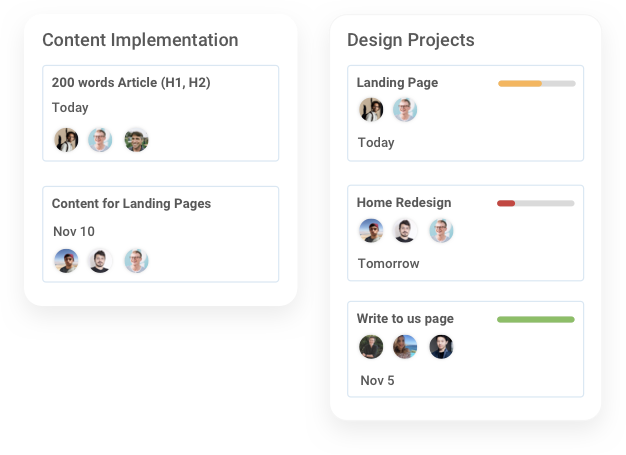
Here are the problems a free task management tool directly fixes:
- No Task Ownership: Tasks assigned verbally or over chat get forgotten. A task management tool logs every assignment with a named owner and due date.
- Zero Progress Visibility: Managers spend hours chasing status updates. A shared board gives everyone live visibility without a single follow-up message.
- Missed Deadlines: Without automated reminders and due dates, things slip. Task tools flag overdue work automatically.
- Too Many Disconnected Tools: When files, conversations, and tasks live in separate apps, context gets lost. The right task management platform consolidates them.
- No Record Of Completed Work: Spreadsheets don’t show history. Task tools log what was done, by whom, and when.
If your team also struggles with managing multiple tasks across different projects simultaneously, a structured task tool makes an even bigger difference.
The 10 Best Free Task Management Software in This Year
Here’s a quick look at all 10 tools, including free plan limits and starting prices, before we get into the full breakdown.
| Tool | Best For | Free Plan Users | Free Plan Limit | Paid Plans From |
|---|---|---|---|---|
| ProProfs Project | Planning, collaborating & delivering projects on time | Unlimited | Gantt + Kanban + time tracking | Free plan available. Paid plan starts at $39.97/month |
| ClickUp | Flexible multi-view task management | Unlimited | 100MB storage | $7/user/month |
| Trello | Visual Kanban task tracking | Unlimited | 10 boards/workspace | $5/user/month |
| Asana | Structured workflow management | Up to 10 | Unlimited tasks + projects | $10.99/user/month |
| Notion | Docs + lightweight task management | Unlimited (personal) | Limited team sharing | $10/user/month |
| Todoist | Personal and small team task tracking | Up to 5 projects | Basic features only | $4/user/month |
| Monday.com | Visual work management | Up to 2 users | Limited boards | $9/user/month |
| Airtable | Database-style task tracking | Unlimited | 1,000 records/base | $20/user/month |
| Wrike | Team project management | Unlimited | Limited views + features | $10/user/month |
| Basecamp | All-in-one team collaboration | Up to 3 projects | 1GB storage | $15/user/month |
1. ProProfs Project – Best for Planning, Collaborating & Delivering Projects on Time
ProProfs Project is the tool I rely on for managing projects end to end, and it continues to impress me with how much it offers without a paywall. The moment I log in, everything I need is right there with Gantt charts, Kanban boards, time tracking, task comments, and file sharing all in one place. For a free plan, the depth of features is genuinely hard to match.
What I appreciate most is that it never forces a tradeoff between visual planning and structured task management. I use the Kanban board for daily task flow and switch to the Gantt view when I need to map out timelines and dependencies. Both views are clean, responsive, and easy to navigate without any training.
The collaboration layer works well, too. My team uses @mentions and task comments to stay aligned without jumping between apps, and the built-in time tracking makes it easy to log hours directly on tasks. For client-facing teams, the billing and invoicing features are a genuine bonus that most tools reserve for premium plans.
Pros:
- Unlimited tasks, subtasks, and projects
- Kanban board view for visual task tracking
- Gantt chart view for timeline and dependency management
- Built-in time tracking at the task level
- @mentions, task comments, and file attachments for team collaboration
- Real-time project progress reporting
- Billing and invoicing features for client-facing teams
- Customizable workflows to match different project types
Cons:
- No downloadable or on-premise version
- No dark mode interface
Ideal for: Small and growing teams managing real client projects or cross-departmental work who need both task management and project planning in one free tool.
Pricing: Free plan available. Paid plans start at $39.97/month.
G2 Rating: 4.4/5
2. ClickUp – Best for Flexible Multi-View Task Management
I came into ClickUp skeptical, every tool claims to do everything, and most of them don’t. But after running a few real projects through it, I had to admit the flexibility was unlike anything I had used before. The ability to switch between list, board, Gantt, and calendar views on the same project, without paying for it, was a genuine surprise.
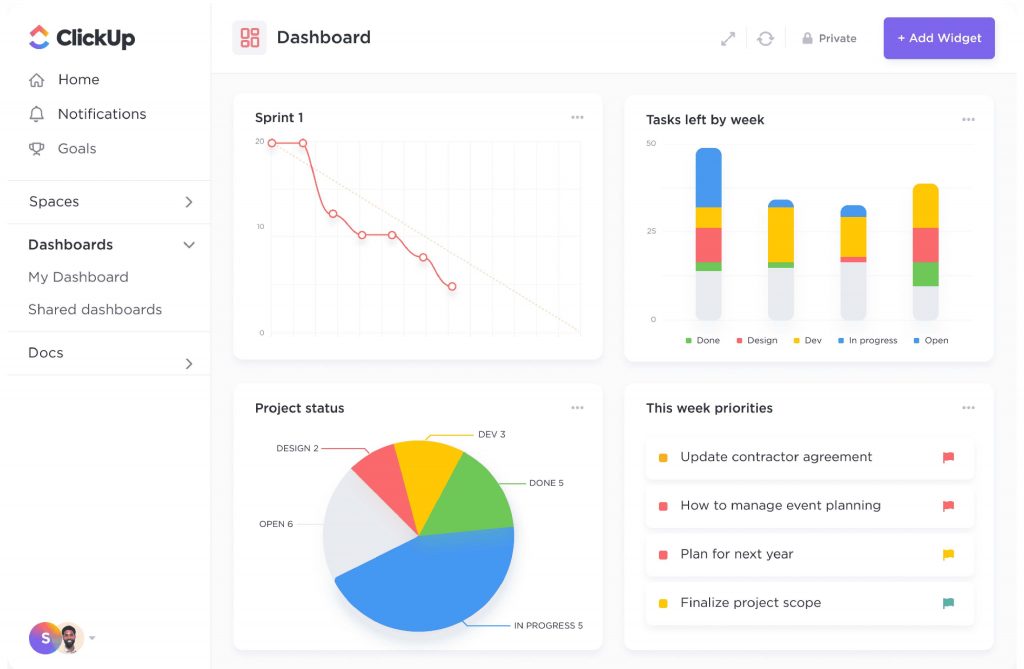
The setup took longer than I expected. The sheer number of customization options felt overwhelming in the first week, and I made the mistake of trying to configure everything before actually using it. Once I simplified and built workflows around how my team actually operated, it started to click.
Where ClickUp fell short for me was on mobile. The desktop experience was smooth and responsive, but the app lagged noticeably when switching between projects or loading task details. For a team working primarily from laptops, that was a minor issue. For anyone relying on mobile, it was a friction point worth knowing about before committing.
Pros:
- Unlimited tasks and unlimited team members
- List, Kanban, Gantt, calendar, and timeline views
- Custom task statuses and custom fields
- Goal tracking and sprint management
Cons:
- 100MB storage cap on the free plan
- The depth of customization creates a steep learning curve for new users
Ideal for: Teams that need maximum flexibility — sprint-based dev teams, agency project managers, or ops leads who want to build a fully customized workflow without paying.
Pricing: Free plan available. Paid plans start at $7/user/month.
G2 Rating: 4.7/5
3. Trello – Best for Visual Kanban Task Tracking
I first tried Trello when my team was drowning in email threads and needed something we could all get into without a two-hour onboarding session. We were up and running within the hour, which still stands out to me as the fastest adoption I have seen with any project tool.
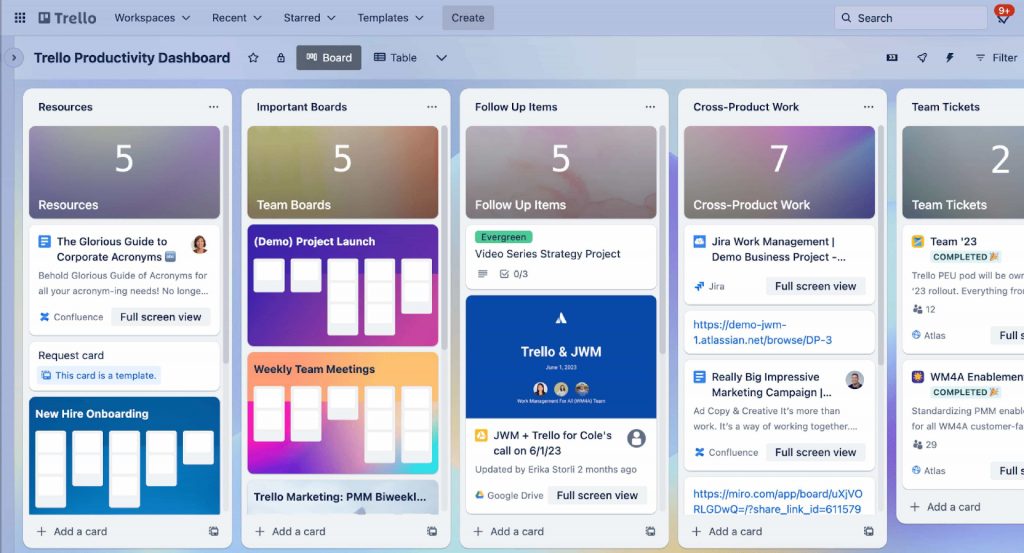
The drag-and-drop Kanban interface was intuitive enough that even the least technical people on the team figured it out without any help. Cards held everything we needed, checklists, due dates, attachments, labels, and comments — and Butler automation handled the repetitive stuff like moving cards when a status changed or sending reminders before deadlines.
The limitations became apparent as the team grew. Once we started managing more complex projects with dependencies and cross-functional timelines, Trello started to feel like it was built for a simpler version of our work. For straightforward task tracking, it remained solid. But for anything that required a timeline view or structured workflows, we had to look elsewhere.
Pros:
- Up to 10 Kanban boards per workspace
- Unlimited cards with checklists, due dates, attachments, and labels
- Butler automation to move cards, set due dates, and trigger notifications
- Card aging to highlight stalled tasks
Cons:
- No native Gantt chart or timeline view on the free plan
- The 10-board limit can become restrictive for growing teams
Ideal for: Small teams running simple to moderately complex projects who need a visual task board they can set up and use without any training.
Pricing: Free plan available. Paid plans start at $5/user/month.
G2 Rating: 4.4/5
4. Asana – Best for Structured Workflow Management
Asana was the first proper task management tool I used with a team larger than five people, and it set a high bar for what structured workflow management should look like. The interface was cleaner than anything else I had tried at the time, and getting the team to actually adopt it was easier than expected.
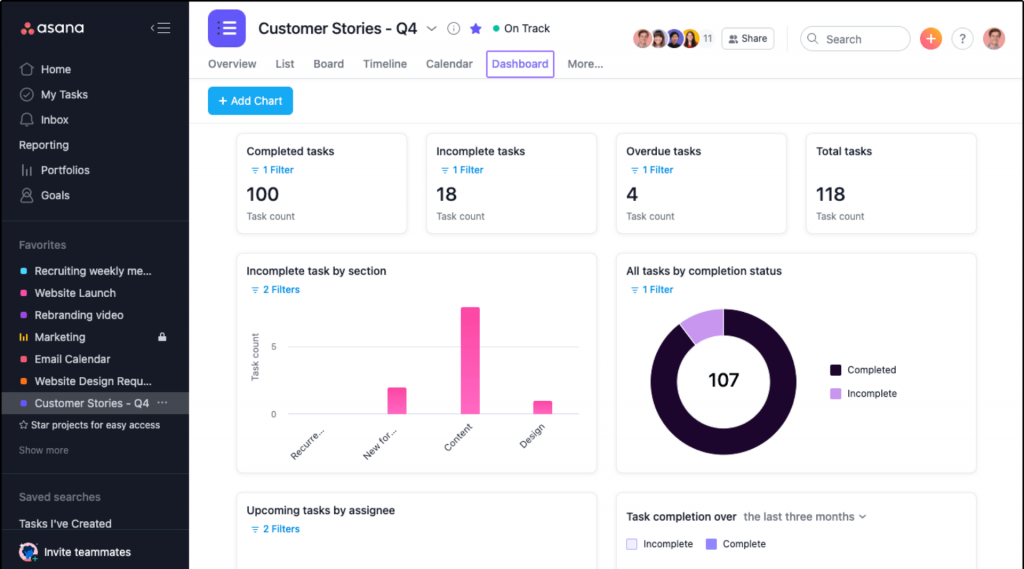
The task dependency feature was what kept me coming back. Being able to mark a task as waiting on another one gave the whole team a shared understanding of sequencing without anyone having to explain it in a meeting. For marketing campaign pipelines and product launch checklists, that kind of structure made a real difference.
The free plan served us well until we needed Gantt charts and more detailed reporting. Both are locked behind a paid upgrade, which felt limiting once our projects grew in complexity. For a team of 10 or fewer running process-driven work, the free plan hit a comfortable sweet spot. Beyond that, the gaps started to show.
Pros:
- Unlimited tasks, projects, messages, and activity logs
- List, board, and calendar views
- Inbox to centralize all task notifications
- Basic reporting and project status updates
Cons:
- Hard cap of 10 users on the free plan
- Gantt charts and timeline views are paid-only
Ideal for: Marketing teams running campaign pipelines, product teams managing launch checklists, or any team that needs structured sequential task management.
Pricing: Free plan available (up to 10 users). Paid plans start at $10.99/user/month.
G2 Rating: 4.4/5
5. Notion – Best for Docs, Wikis, and Lightweight Task Management
Notion took me three attempts to actually stick with. The first two times I tried it, I set up a beautiful workspace, used it for a week, and then slowly drifted back to whatever I was using before. The third time, I stopped trying to make it do everything and used it for what it actually does well, documentation and lightweight task tracking alongside a knowledge base.
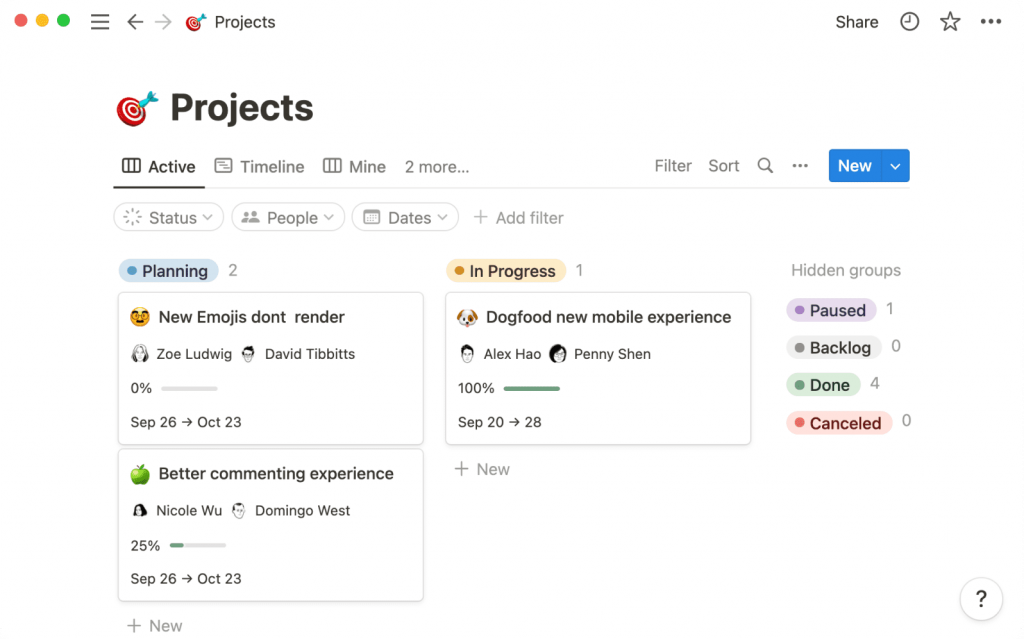
Once I narrowed my use case, it delivered. Pages were fast to create, the database views gave me a flexible way to track tasks without the rigidity of a dedicated project tool, and the real-time co-editing made collaborative writing far smoother than passing documents back and forth. The template library saved significant setup time across different team functions.
The honest limitation is that Notion is not a project management tool, no matter how much you want it to be. Without native time tracking or a Gantt chart, it works best as a companion to a dedicated task tool rather than a replacement for one. Teams that go in with that expectation tend to get a lot out of it.
Pros:
- Unlimited pages and blocks for individual users
- Real-time co-editing with comments and @mentions
- Rich template library for tasks, wikis, and project planning
- Notion AI for writing assistance and summarization
Cons:
- No native time tracking or Gantt chart
- Free plan limits collaboration features for teams (guest access is restricted)
Ideal for: Small teams or solo operators who need a flexible workspace that doubles as a documentation hub and lightweight task tracker.
Pricing: Free personal plan available. Paid plans start at $10/user/month.
G2 Rating: 4.7/5
6. Todoist – Best for Personal and Small Team Task Tracking
Todoist was the tool I used before I started working with larger teams, and it did its job cleanly and without fuss. I was managing solo client work at the time, and having a simple, fast interface for capturing tasks, setting due dates, and flagging priorities was exactly what I needed without any overhead.
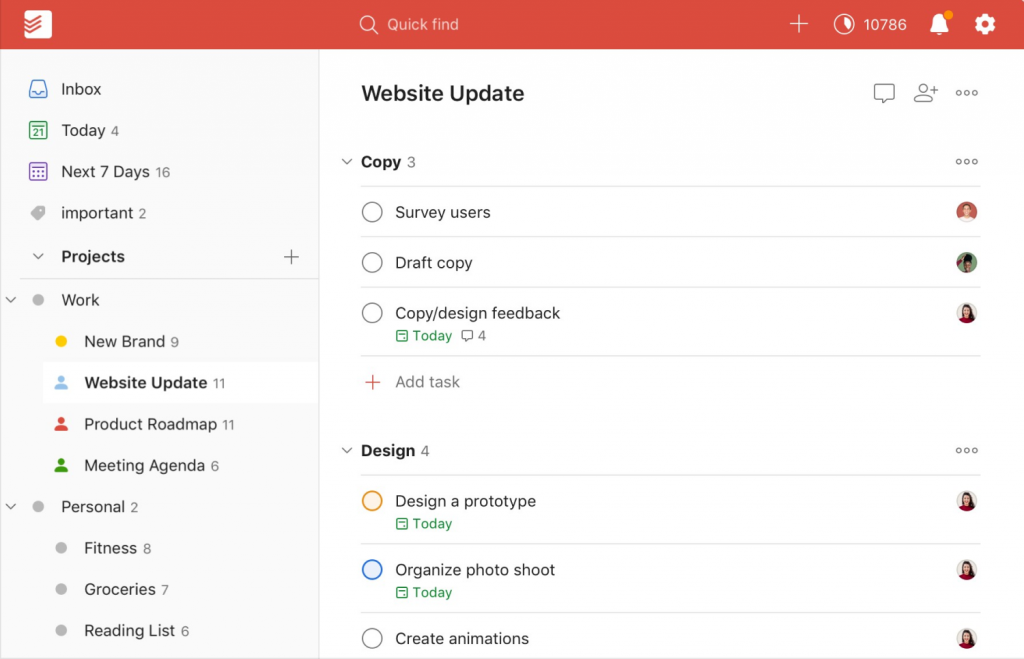
The recurring task feature was one of the most practical things about it. Setting up weekly check-ins, monthly reports, and repeating client deliverables once and having them appear automatically saved more time than I expected. The Google Calendar integration also meant deadlines showed up where I was already looking every morning.
The 5-project cap on the free plan was the reason I eventually moved on. Once I started juggling more than five workstreams, Todoist stopped working as a central system. For a freelancer or someone managing a contained set of responsibilities, it remained a genuinely good tool. For anything beyond that, the limits were hard to work around.
Pros:
- Up to 5 active projects
- Unlimited tasks and subtasks within projects
- Due dates, labels, and priority flags
- Integrations with Google Calendar, Slack, and Gmail
Cons:
- 5-project cap makes it impractical for teams managing multiple workstreams
- No Kanban board or Gantt chart view on the free plan
Ideal for: Freelancers, consultants, or very small teams (2–3 people) who need a dead-simple task list without the overhead of a full project management tool.
Pricing: Free plan available. Paid plans start at $4/user/month.
G2 Rating: 4.4/5
7. Monday.com – Best for Visual Work Management (With Limits)
Monday.com was one of those tools I went into with high expectations, mostly from how often I had seen it recommended. The visual board interface lived up to the reputation, color-coded columns, flexible views, and a clean layout that made it easy to see the state of a project at a glance.
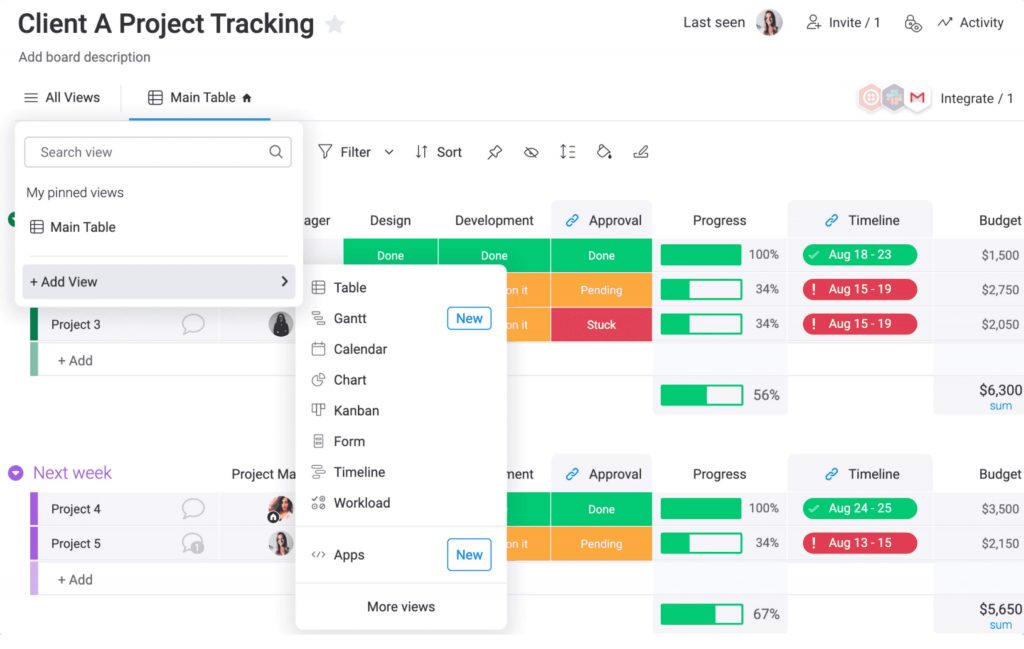
The free plan stopped that momentum pretty quickly. The 2-user cap meant I could not bring the rest of my team in without upgrading, which made it impossible to evaluate the tool in any meaningful real-world context. I spent most of my time testing it as a solo user, which is not how project management tools are meant to work.
What I took away from the experience was that Monday.com is a well-built product that hides most of its value behind a paywall. Automations, integrations, and the timeline view, all the features that would have made it genuinely useful were unavailable on the free plan. If the budget exists for a paid plan, it is worth a serious look. As a free tool for a real team, it did not deliver.
Pros:
- Up to 3 boards, enough for small teams to organize work across a few active projects without any cost.
- Unlimited docs, so you can create and store as many documents as you need directly within your workspace.
- 200+ templates to get started quickly with ready-made layouts for tasks, workflows, and project tracking.
- iOS and Android mobile apps to manage tasks and updates on the go from any device.
Cons:
- 2-user cap makes it unsuitable for any real team
- Automations, integrations, and timeline view are all paid-only
Ideal for: Solo freelancers or two-person teams evaluating whether Monday.com’s visual board style fits their workflow before committing to a paid plan.
Pricing: Free plan available (2 users only). Paid plans start at $9/user/month.
G2 Rating: 4.7/5
8. Airtable – Best for Database-Style Task Tracking
Airtable surprised me. I went in expecting a glorified spreadsheet and came out with a genuinely different way of thinking about how tasks and data could be organized together. The relational database structure made it possible to connect records across different bases in ways that standard task tools simply do not support.
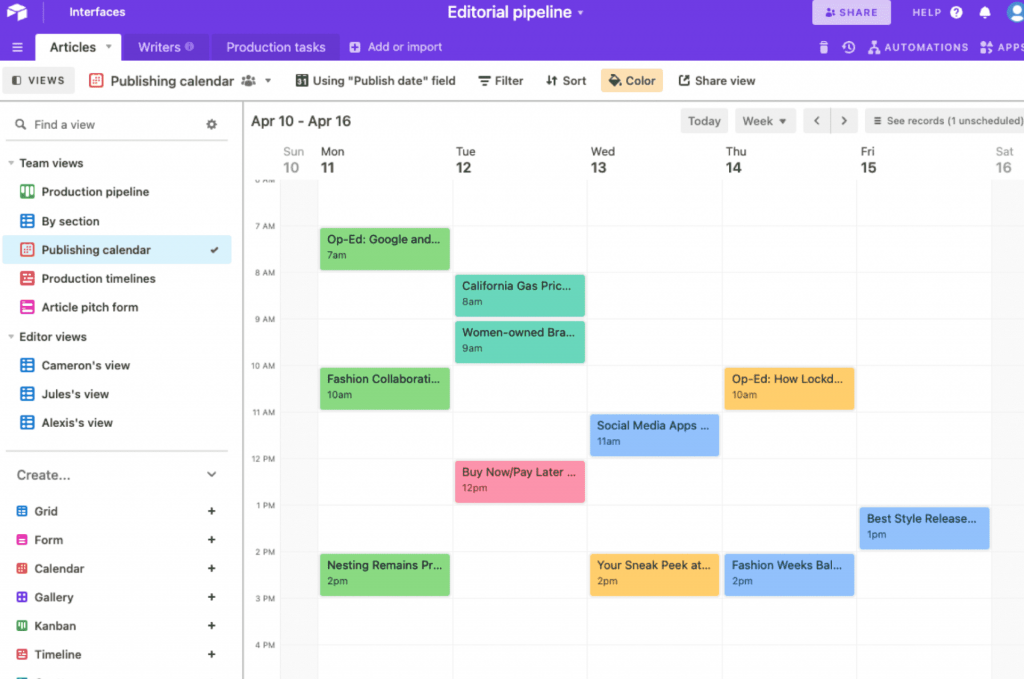
The multiple views were a highlight. Switching between a grid for data entry, a Kanban board for workflow visibility, and a calendar for deadline tracking on the same dataset was something I had not experienced in a free tool before. For an editorial team managing a content calendar or an ops team tracking recurring processes, the structure worked very well.
The 1,000 record cap per base caught up with us faster than I expected on active projects. Once we started logging tasks, subtasks, notes, and attachments together, the limit filled up within a couple of months. The lack of native time tracking was also a gap that required a workaround. For teams comfortable with its database logic, it remained a strong option, just one that requires knowing its limits going in.
Pros:
- Unlimited bases with up to 1,000 records each, giving teams enough room to organize tasks, contacts, or content in separate structured databases.
- Grid, Kanban, calendar, and gallery views so your team can switch between formats depending on how they prefer to visualize work.
- Unlimited users on the free plan, making it one of the few tools that doesn’t penalize you for growing your team.
- 2GB attachment storage to keep files, images, and documents connected directly to the relevant records.
Cons:
- 1,000 record cap per base limits scale for active task-heavy teams
- Automations and advanced views are paid-only
Ideal for: Teams that think in spreadsheets and want to manage tasks in a structured, relational format — editorial teams managing content calendars, operations teams tracking inventory, or product teams logging feature requests.
Pricing: Free plan available. Paid plans start at $20/user/month.
G2 Rating: 4.7/5
9. Wrike – Best for Team Project Management at Scale
Wrike was a tool I tested specifically to understand how it handled scale, since it is often positioned as a solution for larger teams. The unlimited users and unlimited projects on the free plan stood out immediately, and getting a big team into a shared workspace without hitting a user cap was a genuine advantage over most other tools.
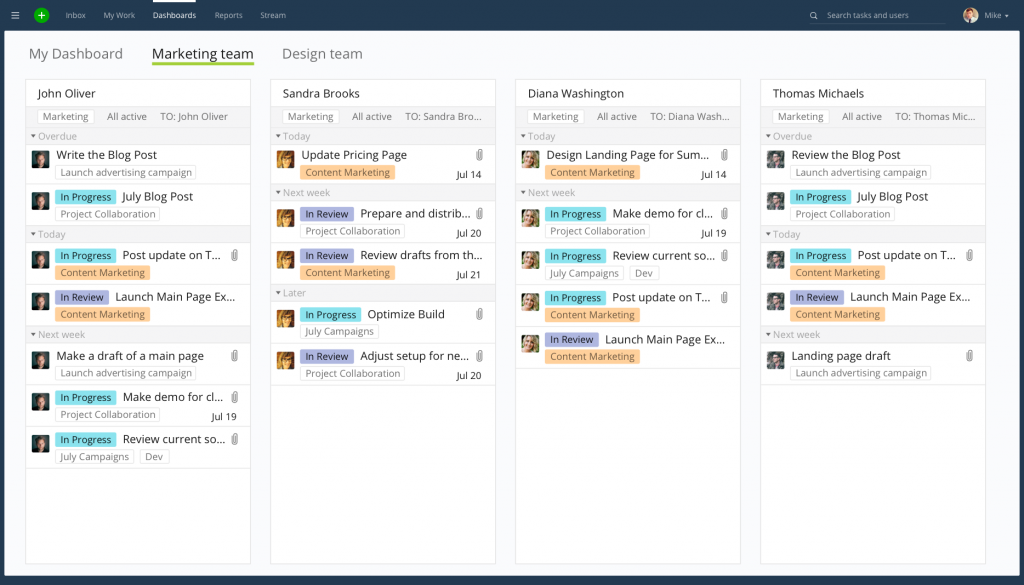
The day-to-day experience on the free plan was functional but thin. Task and subtask management worked well, the real-time activity stream kept everyone informed, and the cross-platform availability meant the team could access work from anywhere. But the absence of a Gantt chart, calendar view, and reporting meant we were operating with limited visibility into how projects were actually progressing.
The gap between the free plan and what Wrike can actually do became clearer the longer we used it. Dashboards, automations, and timeline views all required an upgrade, and without them, the tool felt like a stripped-down version of itself. For large teams that need a shared workspace and basic task tracking while evaluating a paid plan, it served that purpose well.
Pros:
- Unlimited users and unlimited projects, so growing teams can onboard new members and add new workstreams without hitting a ceiling on the free plan.
- Task and subtask management to break down complex work into smaller, actionable steps with clear ownership at every level.
- File sharing up to 2GB so teams can attach and exchange documents, images, and assets directly within their tasks.
- Real-time activity stream to keep everyone updated on project changes, task completions, and new assignments as they happen.
Cons:
- No Gantt chart, timeline, or calendar view on the free plan
- Reporting, dashboards, and automations are paid-only
Ideal for: Larger teams evaluating a scalable task management platform before committing to a paid plan particularly useful for teams in marketing, creative, or professional services.
Pricing: Free plan available. Paid plans start at $10/user/month.
G2 Rating: 4.2/5
10. Basecamp – Best for All-in-One Team Collaboration
Basecamp was the first tool I used that tried to replace the entire communication and task stack in one place, and at the time, it felt like a revelation. No more switching between a task tool, a file storage app, and a messaging platform, everything lived together, and the team actually used it because the interface was simple enough that nobody needed instructions.
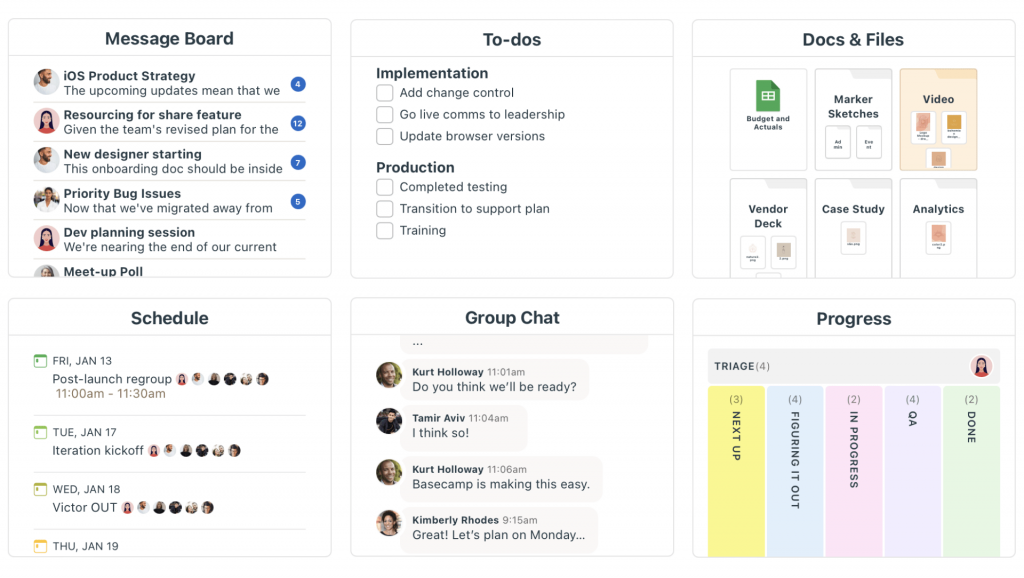
The message boards kept project discussions organized in a way that email threads never managed to. Files were easy to find because they were attached to the relevant project rather than buried in someone’s inbox. The group chat feature, Campfire, covered quick team communication without pulling anyone out of the tool.
The 3-project cap on the free plan was a hard constraint for anything beyond a very small operation. Once we needed to run more than three concurrent workstreams, the free plan stopped working as a practical option.
Pros:
- Up to 3 active projects, giving small teams enough space to run a few concurrent workstreams without paying anything.
- To-do lists with assignments and due dates so every task has a clear owner and deadline from the moment it’s created.
- Message boards for project discussions to keep conversations organized by project rather than scattered across email threads.
- File and document storage up to 1GB so teams can centralize important assets and reference materials in one place.
Cons:
- 3-project cap is restrictive for any team running more than a few concurrent workstreams
- No time tracking, Gantt chart, or Kanban view
Ideal for: Small teams or remote-first teams that want a single tool to replace email, file storage, and task tracking especially if they don’t need Gantt charts or advanced reporting.
Pricing: Free plan available (3 projects, 1GB storage). Flat-rate paid plan at $299/month for unlimited everything.
G2 Rating: 4.1/5
Evaluation Criteria
The evaluation of tools chosen for this article follows an unbiased, systematic approach that ensures a fair, insightful, and well-rounded review. This method employs six key factors:
- User Reviews and Ratings: Direct experiences from users, including ratings and feedback from reputable sites like G2 and Capterra, provide a ground-level perspective. This feedback is critical in understanding overall satisfaction and potential problems.
- Essential Features and Functionality: The value of a product is ascertained by its core features and overall functionality. Through an in-depth exploration of these aspects, the practical usefulness and effectiveness of the tools are carefully evaluated.
- Ease of Use: The user-friendliness of a product or service is assessed, focusing on the design, interface, and navigation. This ensures a positive experience for users of all levels of expertise.
- Customer Support: The quality of customer support is examined, taking into account its efficiency and how well it supports users in different phases — setting up, addressing concerns, and resolving operational issues.
- Value for Money: Value for money is evaluated by comparing the quality, performance, and features. The goal is to help the reader understand whether they would be getting their money’s worth.
- Personal Experience and Experts’ Opinions: This part of the evaluation criteria draws insightful observations from the personal experience of the writer and the opinions of industry experts.
My Top 3 Picks for the Best Free Task Management Software
After testing all 10 tools on real projects with real teams, three consistently delivered the most value without asking for a credit card. Here’s why they made the shortlist.
1. ProProfs Project
ProProfs Project is the one I keep coming back to when recommending a free task management tool for small teams, and it’s easy to understand why. It’s the only tool on this list that combines Gantt charts, Kanban boards, built-in time tracking, and team collaboration features, all on its free plan without treating any of those features as premium add-ons. Whether you’re managing a client project, coordinating across departments, or just trying to get your team aligned on what’s due and when, ProProfs Project covers the full scope without ever pushing you toward an upgrade wall.
2. ClickUp
ClickUp earns its place as the best free option for teams that want to build a workflow around the way they actually work, rather than adapting to how a tool thinks work should flow. The combination of unlimited tasks, unlimited users, and multiple project views like list, board, Gantt, calendar on the free plan is genuinely hard to match. It has a learning curve, but teams that invest the time to set it up properly tend to stick with it.
3. Trello
Trello is the tool I recommend most often to teams picking up task management software for the first time. The visual Kanban board is intuitive enough that most people are up and running within an hour, no training, no lengthy onboarding, no documentation required. It won’t handle complex multi-phase projects with dependencies, but for teams that need a clean, visual way to see who owns what, Trello on the free plan delivers exactly that.
Which Free Task Management Software Is Right for Your Team?
Different teams need different tools. Here is a direct use-case match:
| Your Situation | Best Free Tool | Why |
|---|---|---|
| Managing projects end-to-end | ProProfs Project | Gantt + Kanban + time tracking, all free |
| Need maximum workflow flexibility | ClickUp | Most views + unlimited users on free plan |
| First-time users, zero learning curve | Trello | Visual Kanban, set up in under an hour |
| Sequential, process-driven projects | Asana | Task dependencies on the free plan |
| Documentation + lightweight tasks | Notion | Flexible docs + database views combined |
| Solo or two-person team | Todoist or Monday.com | Lightweight, minimal overhead |
| Database-style task organization | Airtable | Relational structure with multiple views |
| Large team, basic task visibility | Wrike | Unlimited users, structured task lists |
| Replace email + files + tasks | Basecamp | All-in-one communication and task tool |
How to Choose the Right Free Task Management Tool for Your Team
Follow these six steps before committing to any tool. For a broader look at what to weigh when selecting any project management tool, this guide on choosing project management software is a solid starting point.
1. Define Your Biggest Pain Point First
Is it unclear ownership? Missed deadlines? No progress visibility? The tool you pick should solve this specific problem, not just look good in a demo. Reading up on common task management tips can help you pinpoint exactly where your current workflow breaks down.
2. Check The Free Plan Limits Against Your Team Size
A tool with a 10-user cap is useless if you have 15 people. Verify user limits, project caps, and storage before signing up.
3. Identify The Views You Need
If your team needs Gantt charts for timeline planning, eliminate tools that don’t offer Gantt on the free plan. If Kanban is enough, you have more options. Understanding the difference between Gantt charts and Kanban boards helps here.
4. Test On A Real Project, Not A Sandbox
Run an actual in-progress project through the tool for two weeks. Fake tasks with made-up deadlines don’t reveal friction; real work does.
5. Check Integration With Tools You Already Use
The best task management tool is one that connects to your existing stack, like Google Workspace, Slack, Microsoft 365, or your CRM. Switching tools is hard enough; rebuilding your entire workflow at the same time is worse.
6. Evaluate The Upgrade Path
If you start on a free plan, check what the paid plan costs when you eventually need more. Per-seat pricing that scales with headcount gets expensive fast. Tools like ProProfs Project use flat-rate paid plans, which makes scaling significantly more predictable.
Manage Tasks Like a Pro, Even When You’re On a Budget
The best task management system is the one your team will actually use. Not the one with the longest feature list, the slickest UI, or the biggest brand name. The one that solves your actual problem and keeps working as your team grows.
In 2026, there is no reason to pay per seat just to see who owns what and when it’s due. The free plans on this list are genuinely functional, not just 14-day previews designed to push you toward a sales call.
If you are not sure where to start, pick one tool and run a real project through it this week. Most teams find their answer within the first two weeks of actual use. If you want a tool that covers the full scope with task management, project planning, time tracking, and team collaboration without gating anything behind an upgrade, ProProfs Project is the place to start.
Frequently Asked Questions
Is free task management software safe for business data?
Yes. Most reputable free task management tools use HTTPS encryption and comply with standard cloud security protocols. Tools like ProProfs Project, Asana, and ClickUp follow industry-standard data security practices. For compliance-sensitive environments (HIPAA, SOC 2, GDPR), review each vendor's security documentation, advanced compliance features are typically on paid plans.
How many users can use a free task management tool?
It depends on the tool. ProProfs Project and ClickUp offer unlimited users on their free plans. Asana limits the free plan to 10 users. Monday.com's free plan supports only 2 users. Trello does not cap users but limits workspace boards to 10. Always verify user limits before onboarding your team.
Can free task management tools handle complex projects?
Yes, with caveats. Tools like ProProfs Project and ClickUp handle moderately complex projects on their free plans, including task dependencies, multiple views, and time tracking. For enterprise-grade complexity (resource leveling, portfolio management, advanced risk tracking), a paid plan or dedicated enterprise tool is more appropriate.
What is the difference between a task management tool and a project management tool?
A task management tool focuses on individual work items, creating, assigning, and completing tasks. A project management tool adds timeline planning, resource management, milestone tracking, and reporting on top of task management. ProProfs Project covers both: it functions as a task tracker for daily work and a project planning tool for deadline-driven initiatives.
Do free task management tools integrate with google workspace or microsoft 365?
Most do. ClickUp, Trello, Asana, and ProProfs Project all integrate with Google Workspace tools like Drive, Calendar, and Gmail. Microsoft Teams and Outlook integrations are available on ClickUp and Asana. Verify the specific integration before committing; some deep integrations (two-way sync, automated workflows) require a paid plan.
What is the difference between a task management system and a to-do list app?
A to-do list app (like Todoist or Apple Reminders) manages individual tasks for a single user. A task management system manages work across a team with assigned owners, shared visibility, comment threads, file attachments, and reporting on team-wide progress. If you have more than 2 people collaborating on shared deliverables, you need a task management system, not a to-do list.
Can I track time on a free task management tool?
Not on most as time tracking is frequently a paid feature. ProProfs Project is a notable exception: it includes built-in time tracking at the task level on its free plan. ClickUp also includes basic time tracking on the free plan. Asana, Trello, and Notion require third-party integrations or a paid upgrade for time tracking.
What happens when a free task management tool's limits are reached?
When you hit a free plan's user cap, storage limit, or project limit, the tool either blocks new additions or prompts an upgrade. To avoid disruption, monitor usage against the tool's limits regularly. If your team is growing quickly, choose tools like ProProfs Project or ClickUp that offer generous free plans or predictable flat-rate paid plans rather than per-seat pricing that scales aggressively.
Is monday.com free task management software worth using?
Monday.com's free plan is limited to 2 users and 3 boards, which makes it impractical for most teams. It is useful as a preview of the platform's visual board interface before deciding whether to purchase a paid plan. For actual team use, ProProfs Project, ClickUp, or Trello offer significantly more functionality at no cost.
How does free task management software compare to using spreadsheets?
Spreadsheets require manual updates, have no real-time collaboration features, offer no task assignment notifications, and don't track history automatically. Free task management software automates all of this, updates happen in real time, team members get notified when tasks are assigned or overdue, and the full history of a task is logged automatically.
What should I look for when choosing a free task management platform?
Look for five things: a permanent free plan (not a trial), task assignment with named owners and due dates, at least one visual view (Kanban or Gantt), integration with tools your team already uses, and a clear upgrade path when you eventually need more. ProProfs Project checks all five and uniquely offers Gantt charts and time tracking on its free plan, which most competitors reserve for paid tiers.
FREE. All Features. FOREVER!
Try our Forever FREE account with all premium features!