
Last spring, a friend who runs a four-person video studio walked me through how she tracked a single brand film: a shot list in one app, client notes in email, edit versions in a shared drive, and billable hours in a spreadsheet. The film shipped on time. The invoice went out three weeks late.
That’s the gap video production project management software is meant to close. Shoots, edits, revision rounds, and client approvals all move at different speeds, and a generic task list rarely keeps up.
So I’ve rounded up 10 tools, from production-specific apps to general project management tools that track client work, hours, and invoices together. Each entry covers who it suits, pricing, pros and cons, and the catch.
What Is Video Production Project Management Software?
Video production project management software is a tool that plans, tracks, and coordinates every stage of making a video, from the script and shoot schedule to edits, client review, delivery, and billing. It keeps tasks, files, feedback, and deadlines in one place, so producers, editors, and clients all work from the same plan.
Most tools in this category cover some or all of these stages:
- Pre-production: Scripts, shot lists, storyboards, locations, crew, and call sheets.
- Production: Shoot-day schedules, crew assignments, equipment, and on-set changes.
- Post-production: Edit tasks, version tracking, and handoffs for color, sound, and graphics.
- Review and approval: Time-stamped feedback, revision rounds, and client sign-off.
- Delivery and billing: Final exports, logged hours, and client invoices.
Coordinating all of that gets harder as output grows. A study by Wyzowl in 2026 found that 91% of businesses use video as a marketing tool, so more crews are juggling more projects at once. Take a 60-second product video as an example. It might involve a one-day shoot, three edit versions, and two rounds of client revisions. Without a shared tool, each step lives in a different inbox. With one, the producer can see what’s blocked, and the editor always knows which cut is current.
10 Best Video Production Project Management Software
Some of these tools are built specifically for film and video crews, while others are general project management tools that video teams adapt. Here’s how they compare on fit, starting price, and G2 rating.
| Tool | Best For | Pricing | G2 Rating |
| ProProfs Project | Simplest Project Management Tool for SMBs With Client Invoicing, Time & Billing | Free plan available. Paid plan starts at $39.97. | 4.4/5 |
| StudioBinder | Pre-Production and Call Sheets | Free plan available (1 project); paid from $29/month for 1 user (billed monthly) | 3.7/5 |
| Frame.io | Frame-Accurate Video Review | Free plan available (2 members, 2 projects); paid from $15/member/month | 4.5/5 |
| Assemble | Timeline-Based Content Production | 14-day free trial; paid from $5/teammate/month | N/A |
| monday.com | Visual Production Boards | Free plan available (up to 2 seats); paid from $9/seat/month (billed annually, 3-seat minimum) | 4.7/5 |
| ClickUp | All-in-One Production Workspace | Free plan available; paid from $7/user/month (billed annually) | 4.6/5 |
| Asana | Repeatable Content Workflows | Free plan available; paid from $10.99/user/month (billed annually) | 4.4/5 |
| Wrike | In-House Video Teams | Free plan available; paid from $10/user/month (billed annually) | 4.2/5 |
| Trello | Solo Creators and Small Crews | Free plan available; paid from $5/user/month (billed annually) | 4.4/5 |
| Notion | Scripts and Pre-Production Docs | Free plan available; paid from $10/member/month (billed annually) | 4.6/5 |
1. ProProfs Project – Simplest Project Management Tool for SMBs With Client Invoicing, Time & Billing
My team plans its client video work in ProProfs Project, from a two-day product shoot to a monthly batch of social cuts. As video production project management software, it covers the business side of creative projects: who’s doing what, how many hours each revision round took, and what the client owes.
Revision rounds are where video budgets leak, which is why time tracking matters here. Editors log billable and non-billable hours against each task, and invoicing turns those hours into client invoices without a spreadsheet in between. ProProfs Project is the simplest project management tool for SMBs with client invoicing, time & billing. The Business plan is also a flat price for unlimited users, so bringing in a freelance editor or a second shooter doesn’t raise the bill.
Each production runs on the Gantt chart, where dependencies do the rescheduling. When the shoot slips a day, the edit, review, and delivery dates move with it. Editors move cuts across a Kanban board from rough cut to final, and clients follow along through guest access, where they can view or comment.
AI reports answer questions like “which projects are overrunning?” from live data on every plan. On the Business plan, AI project creation builds a new shoot’s tasks and stages from a short description. The free plan covers 3 users and 50 open tasks, enough to run one real production before moving the whole team over.
Pros:
- Time tracking logs billable and non-billable hours per task, so every revision round is accounted for.
- Invoicing turns logged hours into client invoices on every plan, including Free.
- Gantt dependencies shift edit, review, and delivery dates automatically when a shoot moves.
- Guest access lets clients view or comment on a project while roles and permissions control what they can change.
- The Business plan includes unlimited storage and a flat price for unlimited users.
Cons:
- No downloadable or on-premise version
- Dark user interface option not available
Pricing: Free plan available. Paid plans start at $39.97.
Cleveland University’s creative team, led by Senior Graphic Designer Emma Cook, uses ProProfs Project to track progress, stay focused on its projects, and keep work organized.
2. StudioBinder – Best for Pre-Production and Call Sheets
A documentary producer I know runs every shoot through StudioBinder because it speaks the language of film sets. Scripts turn into breakdowns, breakdowns into shooting schedules, and schedules into call sheets her crew receives the night before.
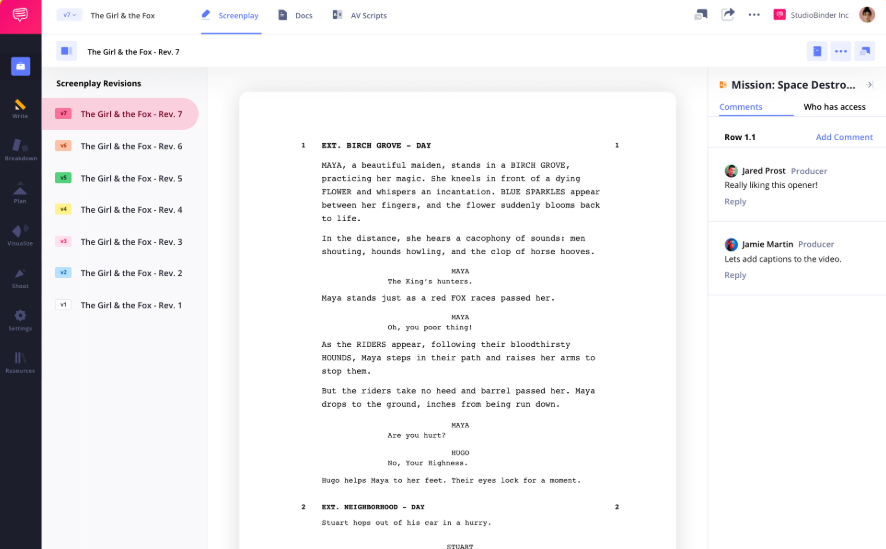
What she valued most was having pre-production in one connected flow. Shot lists, storyboards, stripboards, and a production calendar all tied back to the same script, so changing a scene updated everything downstream. Crew and talent contacts lived in the same project, which made sending call sheets a two-minute job.
The limits show up in the plan structure. The free plan allows only 1 project, and paid plans cap both users and projects: Starter, at $29 per month, covers 1 user and 10 projects, while unlimited projects only come with Professional at $99 per month for 4 users. Her team also handled post-production review in a separate tool.
Pros:
- Script breakdowns feed directly into shooting schedules and call sheets.
- Shot lists, storyboards, and stripboards stay linked to the same script.
- Call sheets are built around how film and video crews actually work.
- Yearly billing takes 15% off every paid plan.
Cons:
- The free plan is limited to 1 project.
- Paid plans cap users and projects, with unlimited projects only on Professional at $99 per month.
Pricing: Free plan available. Paid plans start at $29/month for 1 user (billed monthly).
3. Frame.io – Best for Frame-Accurate Video Review
I sent client review cuts through Frame.io for a run of explainer videos, and it ended the “at about 1:12, the logo looks off” emails. Clients left comments pinned to the exact frame and drew directly on the image, so I knew precisely what they meant.
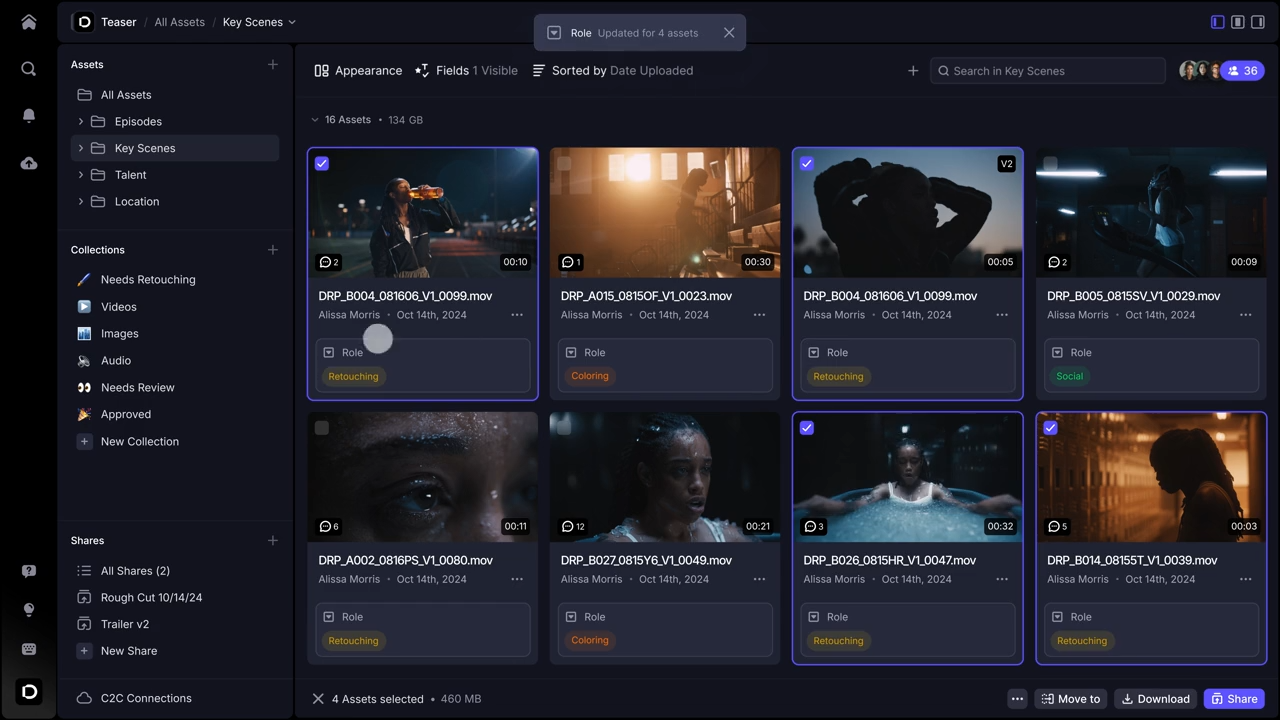
The editing integrations saved the most time. Comments flowed into Premiere Pro and Final Cut Pro, so I could work through feedback inside the timeline instead of switching windows. Share links could be branded, protected with a passphrase, and set to expire on paid plans, which made sending cuts to clients feel professional.
It’s a review tool, though, not a full project manager. Shoot schedules, task assignments, and budgets still needed another app. The free plan also stops at 2 members, 2 projects, and 2GB of storage, so any real client work meant moving to Pro at $15 per member, which caps at 5 members.
Pros:
- Time-stamped, frame-accurate comments and drawn annotations remove guesswork from feedback.
- Premiere Pro and Final Cut Pro integrations bring comments into the editing timeline.
- Paid plans add branded, passphrase-protected share links with expiration dates.
- The Pro plan includes 2TB of storage plus 2TB for each additional member.
Cons:
- The free plan is limited to 2 members, 2 projects, and 2GB of storage.
- Internal team-only comments require the Team plan at $25 per member per month.
Pricing: Free plan available. Paid plans start at $15/member/month.
Keep Every Cut, Note, and Client Comment on One Task
4. Assemble – Best for Timeline-Based Content Production
A content producer I know at a marketing agency picked Assemble because it organizes everything by time. Every task, file, note, and conversation sits on a calendar, so she can see a whole campaign’s shoots and edits laid out across the month.
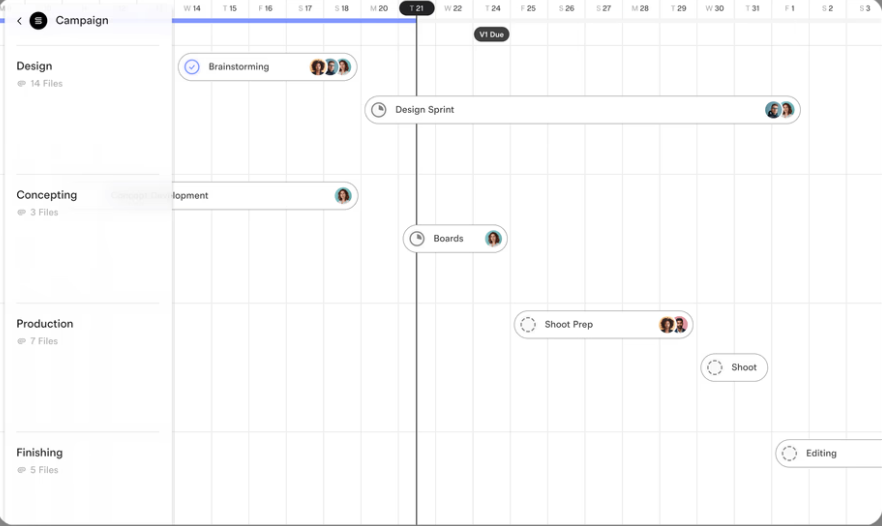
Client collaboration was the other draw. She shares her calendar and cuts as review links clients can open in a browser without logging in, and clients can proof assets right inside tasks with annotations and version control. Paid seats only cover her core team, while clients join as unlimited free guests.
There’s no free plan, only a 14-day trial, and the Starter plan, at $5 per teammate per month, includes only 1 guest team. Password-protected links, custom branding, and unlimited guest teams for separating clients require Pro at $10 per teammate billed annually, or $12 monthly. Assemble also has a much smaller review footprint than the bigger tools here, so there’s less peer feedback to go on.
Pros:
- A calendar-first timeline shows every project’s tasks and files in one view.
- Login-free review links let clients view tasks and attachments in the browser.
- Asset proofing with annotations and version control happens inside tasks.
- Unlimited free guests mean you only pay for your core team.
Cons:
- There’s no free plan, only a 14-day trial.
- The Starter plan allows only 1 guest team; branding and password-protected links need Pro.
Pricing: Paid plans start at $5/teammate/month.
5. monday.com – Best for Visual Production Boards
A social video lead I worked with uses monday.com to keep a weekly content slate moving. Each video is a row on a colorful board, with columns for script, shoot date, editor, and status, so the whole team can see where every piece stands at a glance.
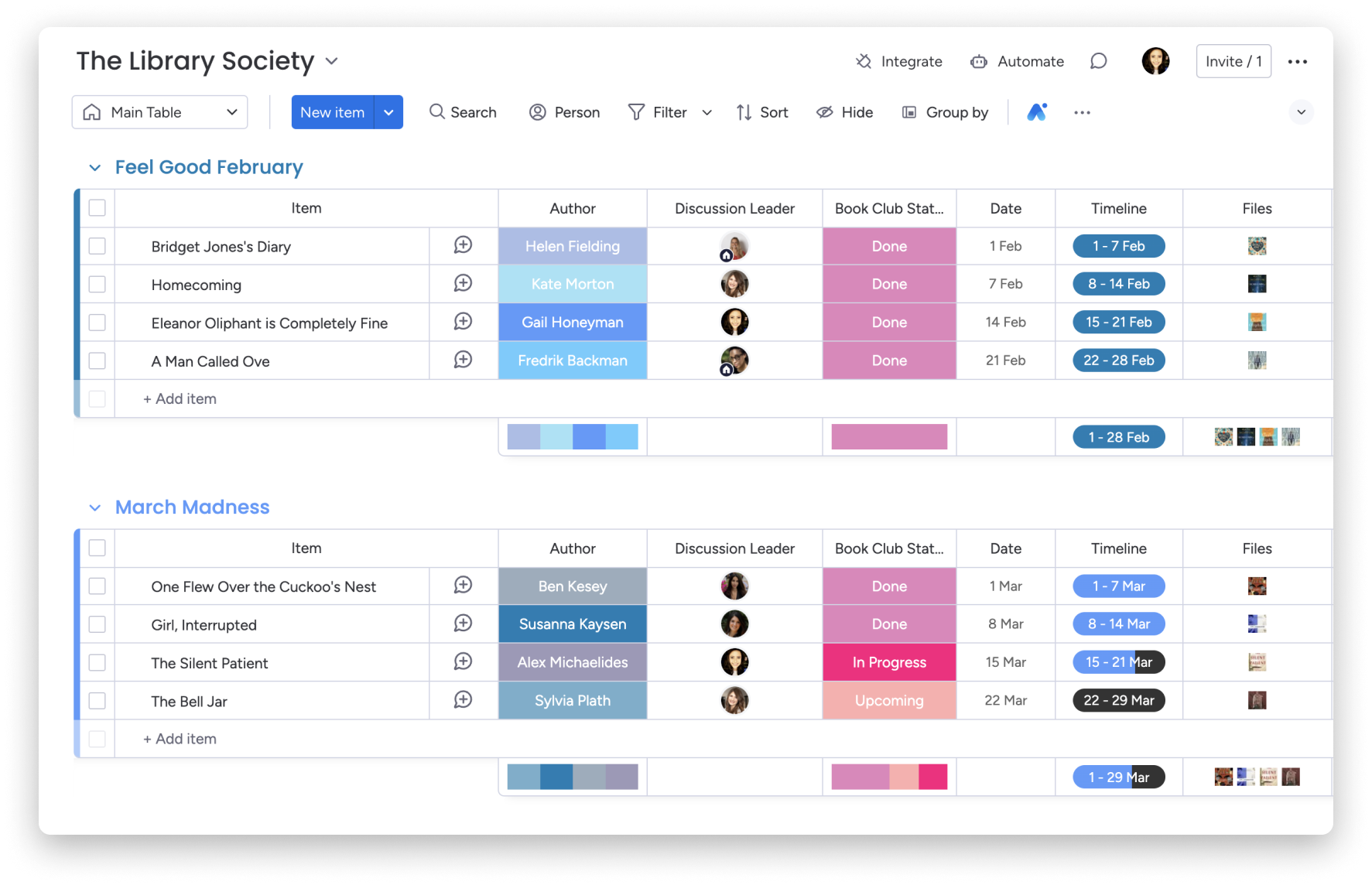
Its flexibility is the strength. She built separate boards for shoots and post-production, set automations to notify the editor when footage landed, and used the Standard plan’s Gantt and calendar views to map shoot days against publish dates. More than 200 templates gave her a starting point instead of a blank board.
The pricing structure took more planning. Every paid plan requires at least 3 seats, and time tracking and task dependencies only come with Pro at $19 per seat per month, billed annually. For a team that bills clients by the hour, that meant either upgrading or adding a separate time tracker. Her team also looked at these monday.com alternatives before deciding.
Pros:
- Colorful, customizable boards make production status easy to read.
- Gantt, timeline, and calendar views start on the Standard plan.
- Automations notify teammates when a task’s status changes.
- More than 200 templates speed up board setup.
Cons:
- Every paid plan requires at least 3 seats.
- Time tracking and task dependencies require the Pro plan at $19 per seat per month.
Pricing: Free plan available. Paid plans start at $9/seat/month (billed annually, 3-seat minimum).
6. ClickUp – Best for an All-in-One Production Workspace
A YouTube channel manager I know moved her four-person team to ClickUp so scripts, edit tasks, and publishing schedules could live in one place. Each video became a task with subtasks for scripting, filming, editing, and thumbnails, and the script itself sat in a doc right next to it.
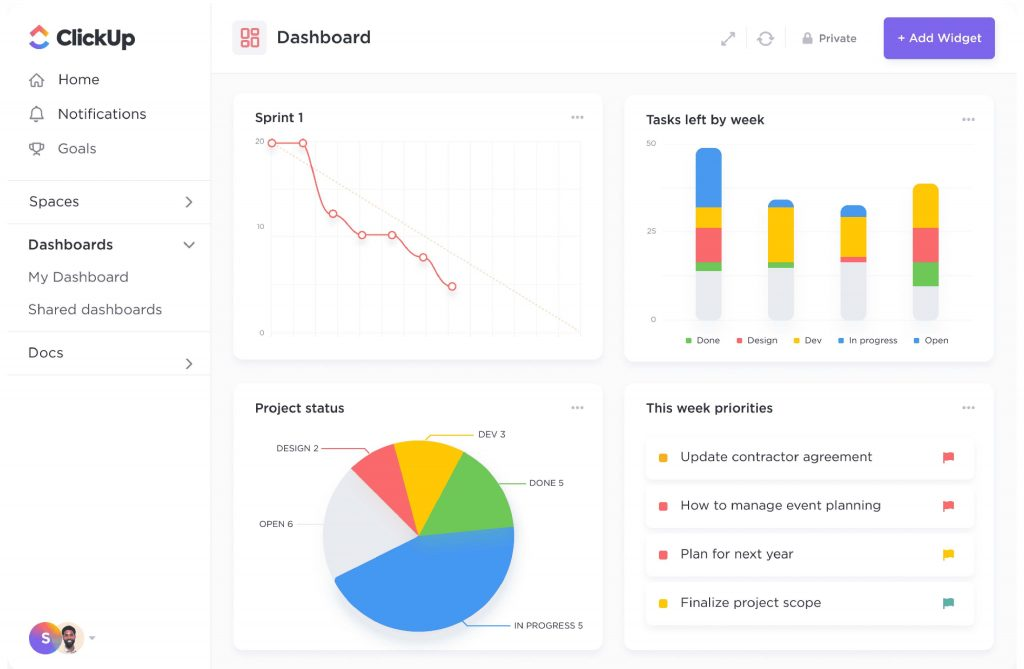
Value is what kept her there. The Unlimited plan, at $7 per user per month billed annually, adds Gantt charts, unlimited storage, and native time tracking, so the team could see the upload calendar and how long each edit took. The free plan has no cap on members, which let her test the setup with the whole team before paying.
The setup took longer than she expected. ClickUp has so many views and settings that her team spent a few weeks agreeing on one structure. The free plan’s 60MB of storage also filled up almost immediately once raw clips and thumbnails were attached, and ClickUp’s AI features cost extra per user on top of any plan.
Pros:
- Docs, tasks, and subtasks keep scripts and edit work in one workspace.
- The Unlimited plan adds Gantt charts, unlimited storage, and native time tracking at $7 per user per month.
- The free plan includes unlimited members, so a whole team can test it before paying.
- The Business plan adds 5,000 automations a month and timeline views.
Cons:
- The free plan caps storage at 60MB, which video files outgrow fast.
- AI features cost extra per user on top of any plan.
Pricing: Free plan available. Paid plans start at $7/user/month (billed annually).
7. Asana – Best for Repeatable Content Workflows
Repeatability is what a brand content manager at a SaaS company needed. Her team produced the same kinds of videos every month (customer stories, product demos, and webinar recaps), and Asana let her turn each format into a template with the same steps, owners, and review stages every time.
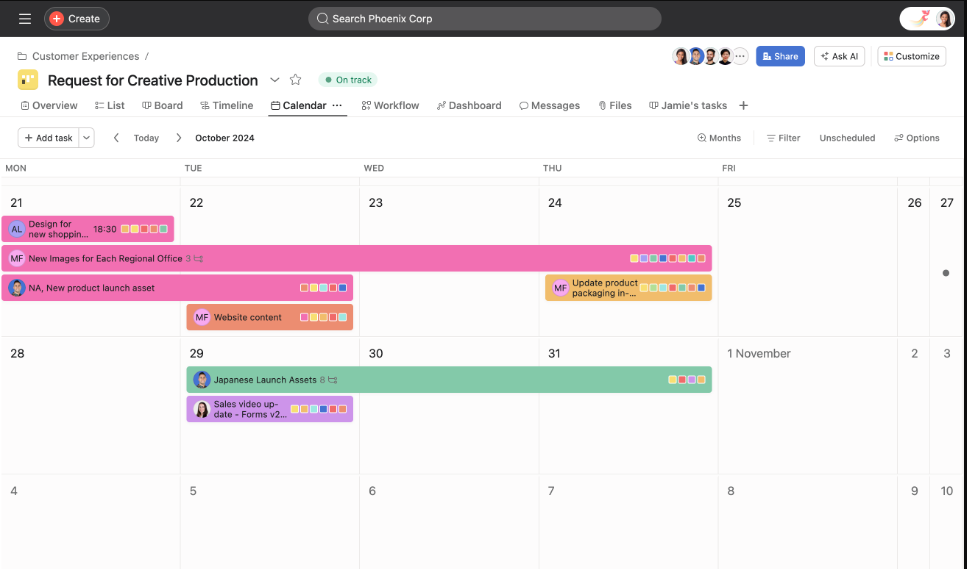
The Starter plan, at $10.99 per user per month billed annually, gave her Timeline and Gantt views, custom fields for tracking video length and channel, and forms that turned incoming video requests from other departments into tasks. The Workflow Builder mapped how each request moved from brief to final cut.
Her limit came when leadership wanted to know how much time each video took. Native time tracking and workload management only start on the Advanced plan at $24.99 per user, so measuring editor hours meant a big price jump or a separate tool. Teams weighing that trade-off can compare these Asana alternatives.
Pros:
- Project templates turn recurring video formats into repeatable workflows.
- Forms on Starter turn video requests from other teams into tasks.
- The Starter plan adds Timeline and Gantt views, custom fields, and dashboards.
- Single-assignee tasks make ownership clear at every production stage.
Cons:
- Native time tracking and workload management require the Advanced plan at $24.99 per user per month.
- Goals and portfolios aren’t included on Starter.
Pricing: Free plan available. Paid plans start at $10.99/user/month (billed annually).
8. Wrike – Best for In-House Video Teams
A former colleague who runs an in-house video team at a retail brand chose Wrike because his work never came from just one department. Marketing, HR, and product all requested videos, and he needed one system to take those requests in, schedule them, and get them approved.
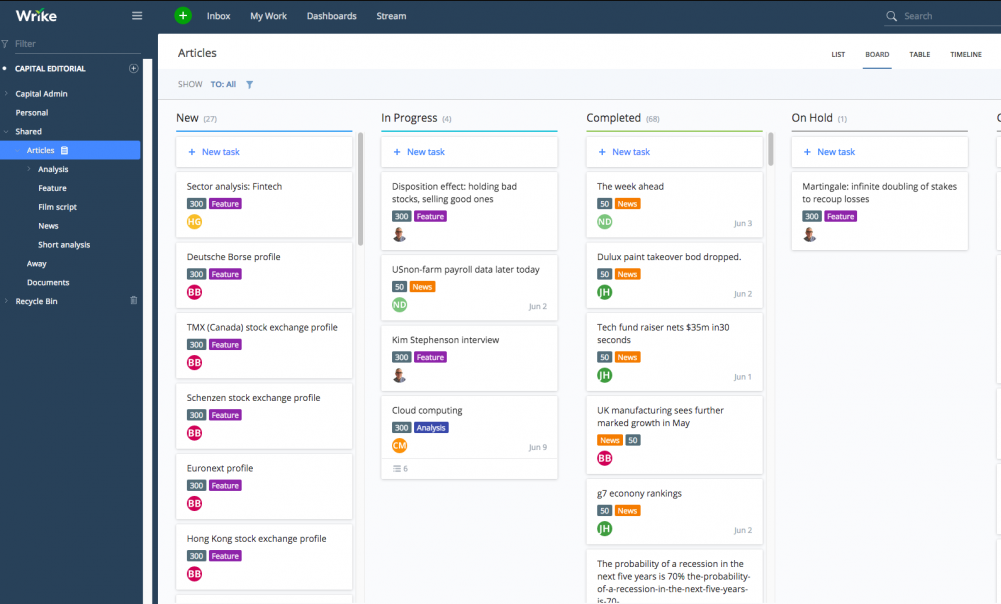
On the Business plan, file proofing let stakeholders mark up cuts and graphics directly in Wrike, and approval steps kept feedback moving in order instead of arriving all at once. Workload views showed which editors were already booked, so new requests didn’t land on someone with a full week. Time tracking on the same plan showed leadership where production hours went.
Those features all sit on the Business plan, though. The Team plan, at $10 per user per month billed annually, caps at 15 users and doesn’t include resource views or time tracking. He also said new requesters needed a walkthrough before they could submit work correctly, which is why some teams look at Wrike alternatives for something lighter.
Pros:
- Request forms and custom workflows handle video requests from multiple departments.
- File proofing on the Business plan lets reviewers mark up cuts directly.
- Workload views show which editors have capacity.
- Interactive Gantt charts, available from the Team plan, map production timelines.
Cons:
- Proofing, resource views, and time tracking require the Business plan.
- The Team plan caps at 15 users.
Pricing: Free plan available. Paid plans start at $10/user/month (billed annually).
Turn a One-Line Brief Into a Full Production Plan
9. Trello – Best for Solo Creators and Small Crews
I tracked a short series of product videos on Trello, with one board and a list for each stage: Idea, Scripting, Filming, Editing, and Published. Each video was a card, and dragging it to the next list was all the status update anyone needed.
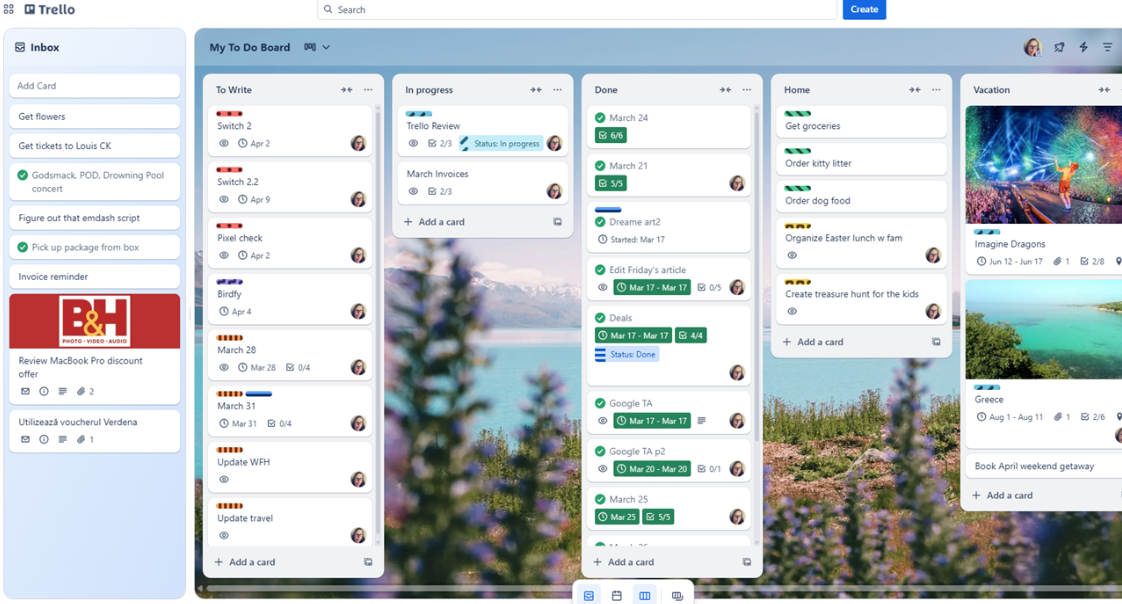
For a small crew, that simplicity is the appeal. The free plan covers up to 10 collaborators per workspace, and its built-in automation let me assign the editor automatically whenever a card landed in Editing. Attaching the script and storyboard to each card kept the references with the video.
It started to feel thin once the series grew alongside other projects. The free plan caps each workspace at 10 boards, and the Standard plan, at $5 per user per month billed annually, still sticks to the board view. Timeline and calendar views for planning shoot days come only with Premium at $10 per user. I compared a few options in this list of Trello alternatives.
Pros:
- Drag-and-drop Kanban boards map neatly to production stages.
- Built-in automation is available on every plan, including Free.
- The free plan supports up to 10 collaborators per workspace.
- The Standard plan adds unlimited boards and custom fields for $5 per user.
Cons:
- The free plan is limited to 10 boards and 250 automation runs a month per workspace.
- Timeline and calendar views require the Premium plan.
Pricing: Free plan available. Paid plans start at $5/user/month (billed annually).
10. Notion – Best for Scripts and Pre-Production Docs
A freelance director friend keeps her entire pre-production process in Notion. Treatments, scripts, shot lists, and location notes each live on a page, and every shoot is a database entry linked to all of them.
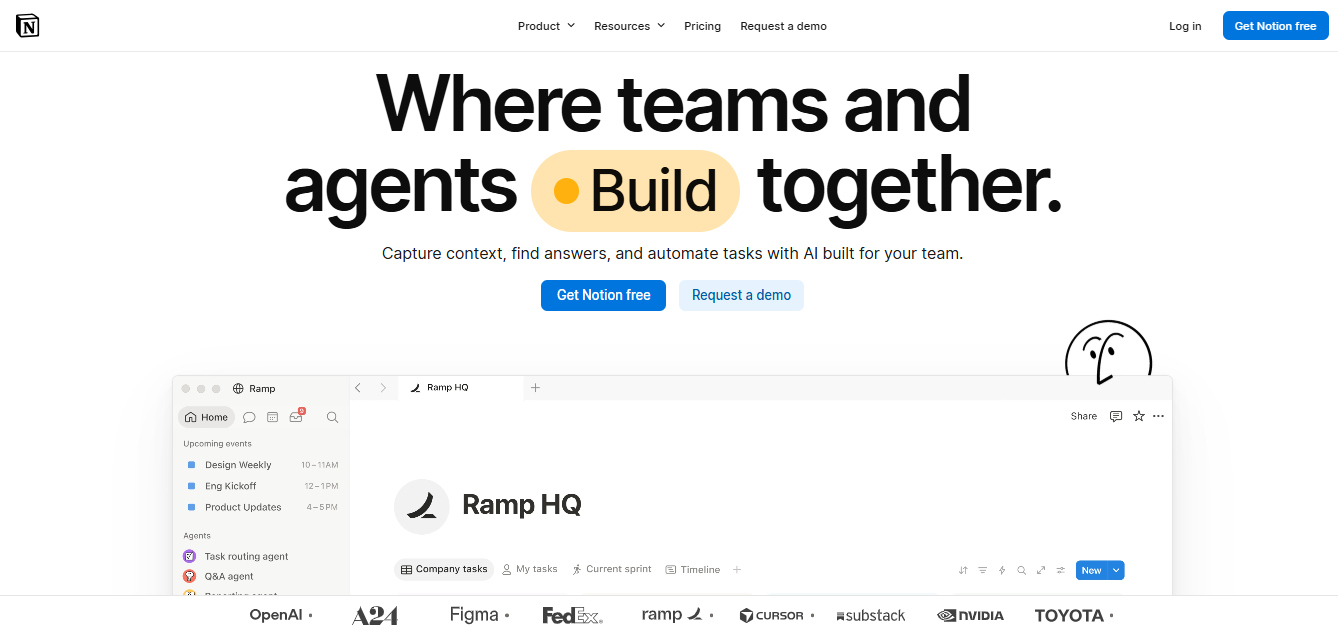
That linking is what she likes most. Opening a shoot shows its script, mood board, crew list, and call times in one place, and the same database switches between a board view for production status and a calendar view for shoot dates. Clients can be invited as guests to review a treatment without joining her workspace as members.
Notion is a workspace first and a project tool second, though. There’s no built-in time tracking, so she logs billable days elsewhere, and it took her a few weekends to build templates she was happy with. Full Notion AI features also require the Business plan at $20 per member per month.
Pros:
- Scripts, shot lists, and treatments live on linked pages next to each shoot.
- Board, timeline, and calendar views run on the same production database.
- Guests can review shared pages without becoming full members.
- The Plus plan costs $10 per member per month, billed annually.
Cons:
- There’s no built-in time tracking.
- Full Notion AI features require the Business plan at $20 per member per month.
Pricing: Free plan available. Paid plans start at $10/member/month (billed annually).
How Did I Evaluate These Tools?
Picking the wrong tool costs a production team time it doesn’t have. A study by Capterra in 2025 found that only 34% of software buyers successfully adopt the tool they buy. So I judged each option on six factors that predict whether a video team will actually keep using it:
- User Reviews and Ratings: I checked every tool’s rating on G2 in October, using each product’s own listing rather than a vendor-wide average. I also read recent reviews for complaints that came up again and again, such as storage running out or setup taking weeks, and those patterns shaped each tool’s cons. Where a listing had very few reviews, as with StudioBinder’s 15, or none at all, as with Assemble, I relied more on verified plan details and documentation.
- Essential Features and Functionality: I mapped each tool against the five stages of a video project: pre-production, the shoot, post-production, client review, and delivery with billing. I gave extra weight to features video teams can’t easily work around, including project scheduling with dependencies for shoot days, version tracking for cuts, time-stamped feedback, and logging hours per revision round. No tool covers every stage equally well, so each entry says which stages it handles best.
- Ease of Use: Three types of users touch every video project, a producer, an editor, and a client, so I considered how quickly each could find what they needed without training. I looked at how much setup each tool needs before a production board is usable, based on my own use and the experiences of the teams I spoke with, and whether clients need a paid seat or even an account just to leave feedback. Tools that let clients review in the browser without logging in, or join as free guests, scored higher here.
- Customer Support: I compared the support channels on each plan, including whether live chat or phone help is reserved for higher tiers. I also looked at the quality of help docs, templates, and video tutorials, since most small studios set up their tool without an onboarding call.
- Value for Money: I checked every price against the vendor’s own pricing page and confirmed billing terms, seat minimums, user caps, project limits, and storage. Then I looked at which plan unlocks the features video teams actually need. For example, time tracking requires monday.com’s $19-per-seat Pro plan but comes with ClickUp’s $7 plan, and free-plan storage ranges from 60MB on ClickUp to 2GB on Frame.io, which matters when every project carries gigabytes of footage.
- Personal Experience: I used three of these tools myself: ProProfs Project for client productions, Frame.io for review cuts, and Trello for a small video series. For the other seven, I relied on producers, editors, and creators who have run real productions in them, and I checked their accounts against each vendor’s documented features and plan limits.
What Are My Top 3 Picks for Video Production?
Each of these fits a different kind of video team:
1. ProProfs Project
Choose ProProfs Project if you run client productions and need to know what each video actually costs. Time tracking and invoicing come with every plan, Gantt dependencies reschedule edits and deliveries when a shoot slips, and Business plan pricing stays the same as you add freelancers. Start with a single client project on the free plan to test it under real deadlines.
2. Frame.io
Choose Frame.io if client feedback is your biggest time sink. Frame-accurate comments and drawn annotations show exactly what needs changing, and the feedback flows straight into Premiere Pro or Final Cut Pro. Pair it with a project management tool for scheduling, since review is all it does.
3. StudioBinder
Choose StudioBinder if your pain is pre-production. Scripts, breakdowns, shot lists, and call sheets stay linked, so a scene change updates everything downstream. Keep an eye on the plan caps, though, since unlimited projects only come with the $99 Professional plan.
Let Clients Check Progress Without Another Status Email
Do You Need a Dedicated Production Tool or a General PM Tool?
It depends on where your bottleneck is. Dedicated tools like StudioBinder and Frame.io go deep on one stage of production, such as call sheets or frame-accurate review. General project management tools cover the whole project, including schedules, workloads, budgets, hours, and billing. Many video teams end up using one of each.
Here’s a quick way to decide:
| If your biggest problem is… | Look for… | Example tools |
| Organizing scripts, shot lists, and call sheets | A pre-production tool | StudioBinder, Notion |
| Slow, vague feedback on cuts | A frame-accurate review tool | Frame.io, Assemble |
| Missed deadlines across several productions | Gantt scheduling with dependencies | ProProfs Project, Wrike, monday.com |
| Revision rounds eating into your margins | Time tracking and invoicing on the same plan | ProProfs Project |
| Production budgets and expenses tracked in spreadsheets | Project estimates, expense tracking, and budget reports | ProProfs Project |
| Seat costs rising every time you hire a freelancer | Flat pricing for unlimited users | ProProfs Project |
| Editors booked on overlapping projects | Workload and resource views | ProProfs Project, Wrike |
| Clients asking for status updates by email | Client guest access | ProProfs Project, Assemble |
| The same video formats every month | Project templates and recurring tasks | ProProfs Project, Asana |
| Too many video requests from other teams | Request forms and repeatable workflows | Asana, Wrike |
Most of a production’s business side lives outside the edit: schedules, crew, budgets, client updates, and invoices. A general tool covers those across every project. A dedicated tool usually handles just one stage. That’s why a small studio might run shoots, hours, and billing in ProProfs Project and send cuts for review in Frame.io, while a solo creator may only need a Trello board. Start with the stage that causes the most rework, and add a second tool only if the first can’t cover it.
Deliver Every Video on Time and on Budget
Video production has more moving parts than most projects: shoots, edits, revision rounds, and client approvals, all on tight deadlines. The right video production project management software keeps those parts on one plan, so nothing slips between the shoot and the final invoice.
Before you choose, map out your last production and find the stage that caused the most rework. Then pick one tool from this list, run a real project through it, and give it a full production cycle. Whether you’re comparing media production project management software or a simple board, that test will tell you more than any feature list.
If your team bills clients for its time, I’d start with ProProfs Project. It’s how my team keeps shoots, hours, and invoices together, and the free plan is enough to run one real production. If it doesn’t fit how your team works, you’ll know by the end of that first project.
Frequently Asked Questions
What does video production project management software do?
It gives a video team one place to run each production, from the first script draft to the final invoice. Producers schedule shoots and assign edits, editors track versions and revision rounds, and clients follow progress and leave feedback. The result is fewer missed handoffs and a clear record of where time and budget went on every project.
What features should video production project management software have?
Look for Gantt scheduling with dependencies, so edit and delivery dates move when a shoot slips. Add version tracking for cuts, time-stamped client feedback, and storage large enough for footage. If you bill clients, time tracking and invoicing on the same plan matter most, since revision rounds are where video budgets usually run over.
How is project management for video production different from regular project management?
Video projects have more handoffs and more rework than most projects. A single video moves from script to shoot to edit to review, often with several revision rounds and outside freelancers. That means scheduling around shoot days, tracking versions, and logging time per revision matter more than they do for a typical internal project.
Can the same software work for film production?
Yes, for most short-form and commercial work. General project management software for film production handles schedules, crew assignments, budgets, and client approvals well. Longer films with large casts usually also need specialized pre-production tools for script breakdowns, stripboards, and call sheets, which general project management tools rarely include as standard features.
What is content production management software?
Content production management software helps teams plan, create, review, and publish content such as videos, articles, and social posts on a schedule. It usually combines a content calendar, task assignments, approval workflows, and asset storage. Video-heavy teams often use the same tool for production schedules and editorial calendars so everything ships from one plan.
How do video teams track revision rounds and billable hours?
The simplest way is to log time against each revision task as it happens, marking hours as billable or non-billable. Tools like ProProfs Project then turn those logged hours into client invoices, so extra revision rounds show up on the bill instead of quietly eating into your margin at the end of the project.
Do I need separate tools for production management and client review?
Not always. If your clients only need to see status and leave general comments, guest access in a project management tool is usually enough. If they give detailed feedback on specific frames, a dedicated review tool saves time, and many studios pair it with a project management tool for schedules, hours, and billing.
Does ProProfs Project work for video production teams?
Yes, especially for studios and agencies producing client videos. ProProfs Project schedules productions on Gantt charts with dependencies, tracks billable hours per revision, and turns those hours into invoices on every plan. Clients follow progress through guest access, and the Business plan includes unlimited storage and a flat price for unlimited users.
FREE. All Features. FOREVER!
Try our Forever FREE account with all premium features!