If you are looking for project management software, chances are the countless options on the internet have already confused you. On top of that, if you have a startup or SMB, the research process is even lengthier, where you need to tick every box, like –
- The software should have XYZ features
- It should fall under a strict budget limit
- The UI should not take years for your team to understand
- There should be a free plan available (or at least a free trial)
- The customer support team should be fairly responsive to eliminate roadblocks fast
And the list goes on and on.
Scary enough? Don’t worry – I already did the hard work for you. Explore the 20 best project management tools to consider in 2025 in this blog.
Here’s your first look at these tools –
| Project Management Software | Best For | Pricing Starts From |
| ProProfs Project | Planning, Collaborating & Delivering Projects on Time | A freemium plan is available for up to 5 users. Paid options start from $39.97/month. |
| Zoho Projects | Task Automation | $4/user/month |
| monday.com | Managing Project Resources | $27/month/3 seats |
| Asana | Strategic Project Planning | $10.99/user/month |
| ClickUp | Generating Detailed Reports | $7/user/month |
| Trello | Workflow Automation | $5/user/month |
| Teamwork.com | Client Management | $10.99/user/month |
| Wrike | Automating Administrative Workflows | $9.80/user/month |
| Basecamp | Remote Work Collaboration | $15/user/month |
| Freedcamp | Managing Tasks & Assignments | $1.49/user/month |
| Smartsheet | Real-Time Project Collaboration | $9/member/month |
| Notion | Building Product Roadmaps | $10/seat/month |
| Jira Software | Project Issue Tracking for Developers | $8.15/user/month |
| Bitrix24 | Remote Task Management | $49/month/5 users |
| ProofHub | Built-in Proofing Tools | $79/month/10 users |
| Nifty | Project Portfolio Management | $39/month/10 members |
| nTask | Online Task Management | $3/month |
| TeamGantt | Visual Project Management With Gantt Charts | $49/manager/month |
| Paymo | Project Management & Time Tracking | $5.9/user/month |
| ProjectManager | Agile Project Management | $13/user/month |
Which Is the Best Project Management Software?
Running short on time? Want to know which are the three best choices, according to me? Here you go –
- ProProfs Project: The software is perfect for beginners. Its clean interface skips the learning curve, letting you assign tasks and set deadlines in minutes. The visual timeline keeps everyone on track, and built-in collaboration tools boost teamwork. Plus, the time tracking feature saves you from extra software costs.
- Notion: A roadmap powerhouse! The software consolidates notes, tasks, and calendars for a central hub of project info. Customizes templates and timelines to visualize phases, set milestones, and make roadmap sessions a breeze. Plus, you can embed images and files for clear, engaging communication.
- Basecamp: Perfect for remote work collaboration. It centralizes to-do lists to keep everyone on track, message boards replace email chaos, and “Campfire” fosters team communication. While not the strongest on individual tasks, it aces remote collaboration.
For a more detailed review, consider reading the full comparison below.
List of the 20 Best Project Management Software
I connected with multiple businesses across different domains (software, IT, construction, etc.) to discuss which project managing software they’d consider and why. This list is based on the most recommended names.
But is that all? No.
I tried many of them, read feedback from existing users (from software review sites), and then created this comparison. I hope it helps!
1. ProProfs Project – Best for Planning, Collaborating & Delivering Projects on Time
ProProfs Project stands out as an easy-to-use solution—perfectly suited for teams new to project management. Its clear, straightforward interface caught my attention because it eliminates the usual steep learning curve associated with project tools.
Setting up a project is intuitive. I had tasks assigned within minutes and deadlines set. The timeline view is a personal favorite as it visually tracks progress, making it easier to meet deadlines.
Features like file sharing and discussion boards really enhance teamwork, allowing for seamless collaboration. Plus, the built-in time tracking is an excellent addition to avoid the extra costs of getting a separate tool.
What you’ll like:
- Gantt charts software for scheduling and real-time progress tracking
- Provides detailed reports and dashboard insights
- Customizable workflows to suit various project types
- Time tracking capabilities to oversee time spent on different tasks
- Allows budget management and automated expense tracking
What you may not like:
- Dark user interface option not available
- No dedicated account manager for the free plan, unlike paid
Pricing: A freemium plan is available for up to 5 users. Paid options start from $39.97/month.
2. Zoho Projects – Best for Task Automation
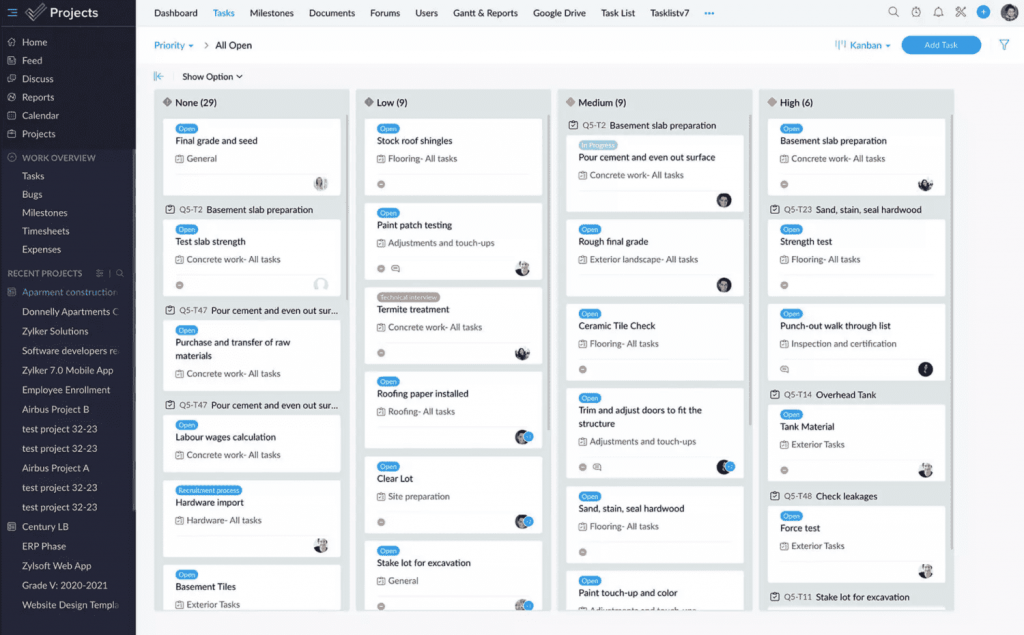
Zoho Projects can be one of the best project management tools if you use Zoho’s suite of products. During my time with the software, I found its automation capabilities to be pretty good for daily project management tasks.
For instance, it automatically updates task assignments and sends notifications, saving considerable time. The customizable workflows are particularly beneficial, helping tailor project steps to our specific needs, which is critical for diverse projects.
Integrating Zoho Projects with other Zoho apps like Google and Slack can make your communication flow much smoother.
What you’ll like:
- Automated task assignments based on rules
- Integration with Zoho suite of tools for seamless information flow
- Time tracking integrated directly into tasks and projects
- Gantt charts to visualize project timelines and dependencies
- Issue tracker to manage and resolve discrepancies quickly
What you may not like:
- No project templates in the free plan
- Some users reported having limited customization options for task views
Pricing: A free plan is available for up to 2 projects. Paid options start from $4/user/month.
3. monday.com – Best for Managing Project Resources
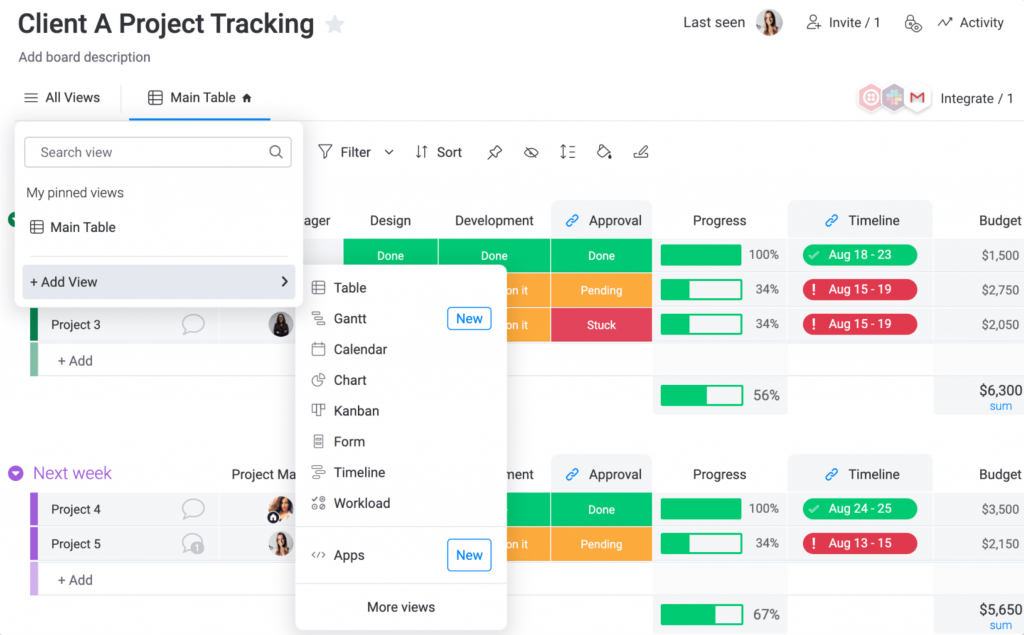
monday.com is a project management software I found to be incredibly effective at decoding the complexities of resource management.
The platform’s visual interface is a standout feature for me—it transforms dense data into clear, actionable insights. You’d love the customizable dashboards – perfect for quickly checking resource allocations and project progress without sifting through numerous spreadsheets.
The software has Gantt charts and Kanban boards. They do their jobs brilliantly, i.e., helping you adjust schedules, visualize workflows, and track task progress in real time.
What you’ll like:
- Customizable columns to track specific project data
- Automation of routine tasks reduces manual input
- Integrations with popular tools like Slack and Google Drive
- Visual project timelines simplify scheduling and planning
- Workload view for balanced resource allocation
What you may not like:
- Paid plans require purchasing for at least 3 users
- No other dashboard views except the Kanban board in the free plan
Pricing: A free plan is available for up to 2 seats. Paid options start from $27/month/3 seats (at $9/seat).
4. Asana – Best for Strategic Project Planning
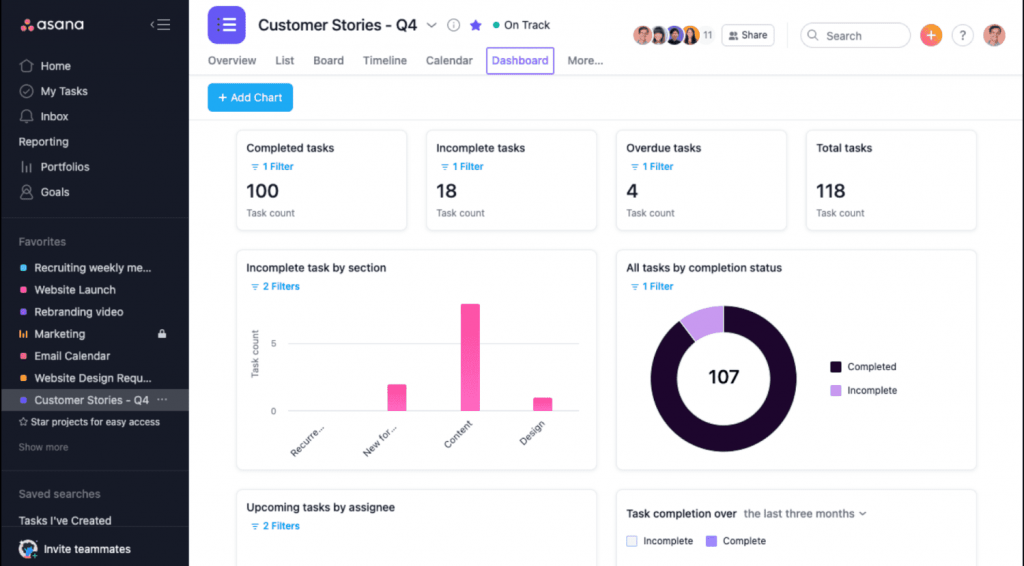
From my experience using Asana to manage multiple projects, I have found it pivotal in maintaining clarity across complex initiatives. I’ll tell you what that means.
The platform’s ability to switch between list, board, and timeline views makes it incredibly easy to adapt to different project needs and track progress visually. You’ll find the task prioritization feature particularly useful. It helps in focusing on what’s most critical, ensuring you never miss a deadline.
The automated reminders feature nudges you about upcoming due dates, so nothing slips away. And with real-time collaboration, you can transform the way you communicate with instant updates and feedback.
What you’ll like:
- Task prioritization and assignment to streamline workflows
- Automated reminders keep projects on track
- Portfolio management for overseeing multiple projects
- Custom fields and templates to tailor project tracking
- Real-time feedback tools facilitate instant communication
What you may not like:
- Some users complained of having limited customization for dashboards
- The free plan misses many key features like project dashboards, task dependencies, etc.
Asana Pricing: A free plan is available for up to 10 teammates. Paid options start from $10.99/user/month.
5. ClickUp – Best for Generating Detailed Reports
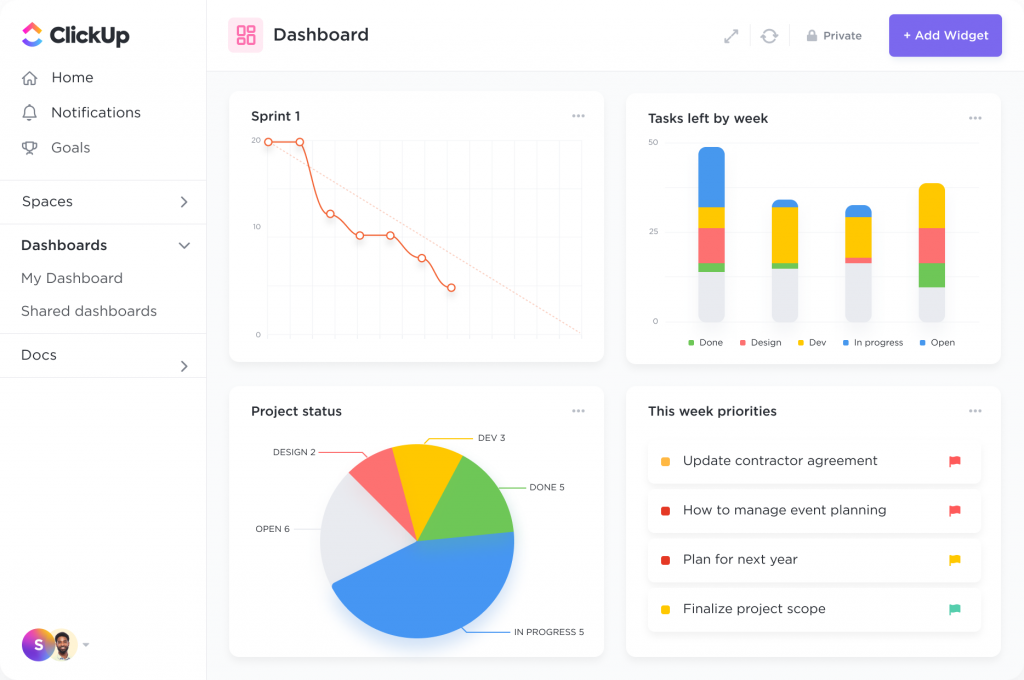
If you are specifically looking for project management software that can really drill down into data, I’d suggest ClickUp. What set it apart for me was its superior reporting capabilities—these aren’t just basic charts and numbers.
The software lets you customize dashboards to see exactly what matters most—from team productivity rates to individual task completion statuses. This feature has been critical in helping us understand where our projects are at any given moment.
Integrating it with other tools like Slack and Google Drive was seamless – an absolute game changer in centralizing communications and data.
What you’ll like:
- Highly customizable dashboards for tracking key metrics
- Goal-setting features to align team objectives with project outcomes
- Dependency tracking to visualize task relationships
- Time tracking embedded within tasks for precise productivity analysis
- Advanced reporting features for data analysis and performance tracking
What you may not like:
- The mobile app sometimes lags behind in functionality, as reported by some users
- Only 60 (times) usage access to Gantt charts in the free plan
Pricing: A free plan is available with limited file storage space. Paid options start from $7/user/month.
6. Trello – Best for Workflow Automation
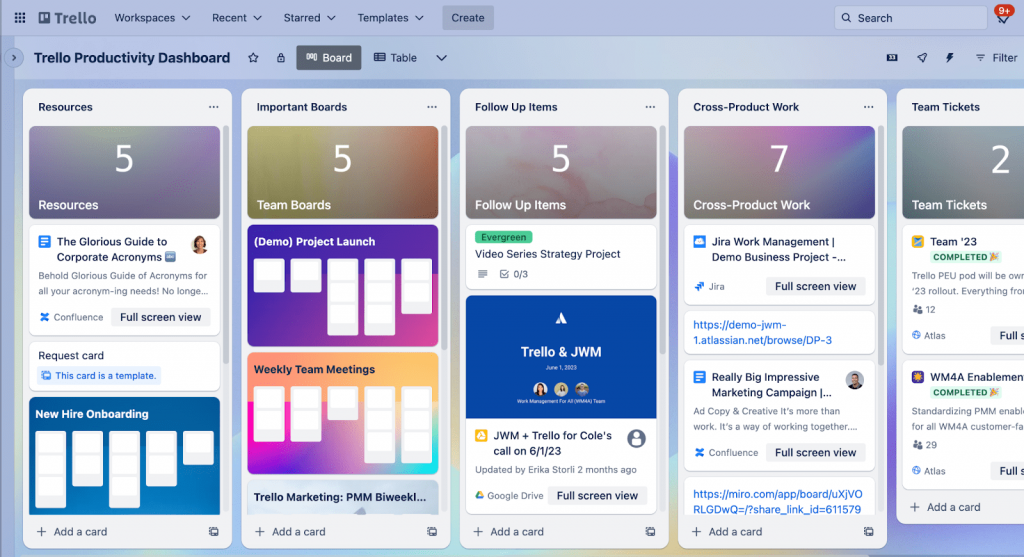
Trello is significant for project management for small businesses. The software’s card-based system is the make-or-break factor. Many people seem to like and dislike it.
Keeping the aesthetics apart – from a functionality point, it is pretty good.
For example, I could move cards around as priorities changed and update statuses to reflect progress. I could also add labels and due dates directly on the cards—this keeps each task clear. Moreover, Trello’s power-ups, like the integration with Slack, have significantly improved my workflow.
What you’ll like:
- Intuitive drag-and-drop interface simplifies task management
- Automation via Butler to reduce repetitive tasks
- Power-Ups enhance functionality, allowing for custom integrations
- Card aging feature to highlight inactive tasks
- Customizable board backgrounds and stickers for visual appeal
What you may not like:
- No timeline, map, calendar, table, and other views in the free plan
- Limited reporting capabilities without third-party integrations
Pricing: A free plan is available for up to 10 boards per workspace. Paid options start from $5/user/month.
7. Teamwork.com – Best for Client Management
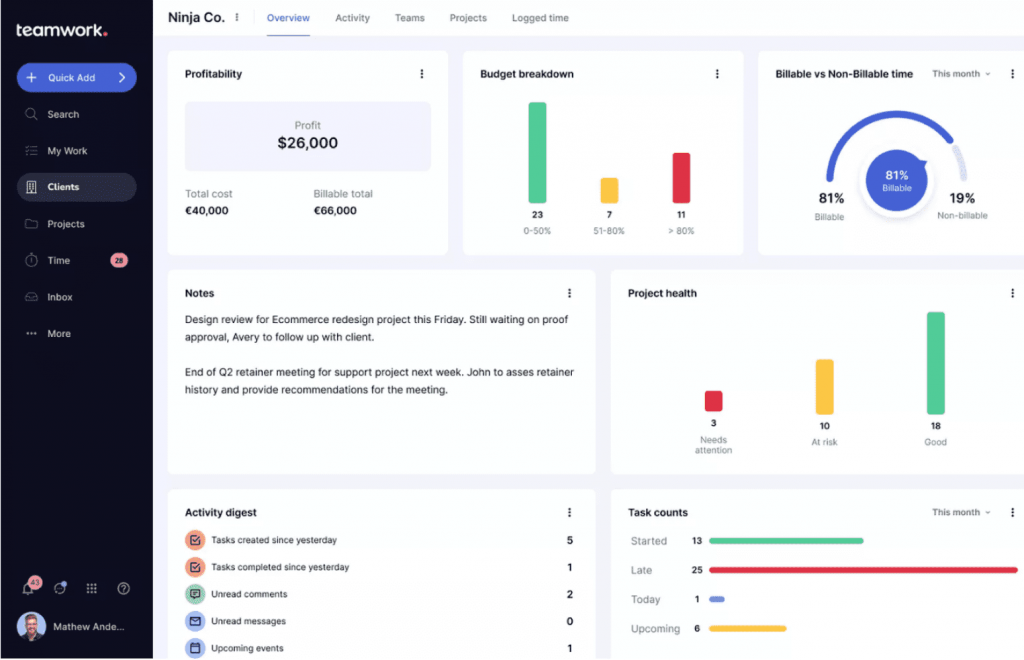
As a project manager, you’re always searching for a platform that makes client management easier. With Teamwork.com, that hunt meets its end.
The software’s client portals transformed how I interacted with clients. These portals provide a window for clients to see real-time updates and project milestones. That surely improves transparency and trust in client relationships.
Next, the software offers task management features – all the basics, nothing fancy. Another feature I appreciate is time tracking—it greatly helps billing and project analysis. You also get detailed reports, which you can use to streamline review and feedback cycles.
What you’ll like:
- Client portals for transparent communication and updates
- Task templates for recurring projects and client work
- Time tracking to ensure accurate billing and project accounting
- Gantt charts for detailed project scheduling and management
- Advanced reporting features for client reporting
What you may not like:
- The initial learning curve can be steep for new users
- Only 100 automation actions can be done in a month from the free plan
Pricing: A free plan is available for up to 5 users. Paid options start from $10.99/user/month.
8. Wrike – Best for Automating Administrative Workflows
I heard about Wrike from an industry peer who works in a manufacturing firm. Their team shared how using the software has improved their handling of administrative tasks. Let me tell you about that briefly.
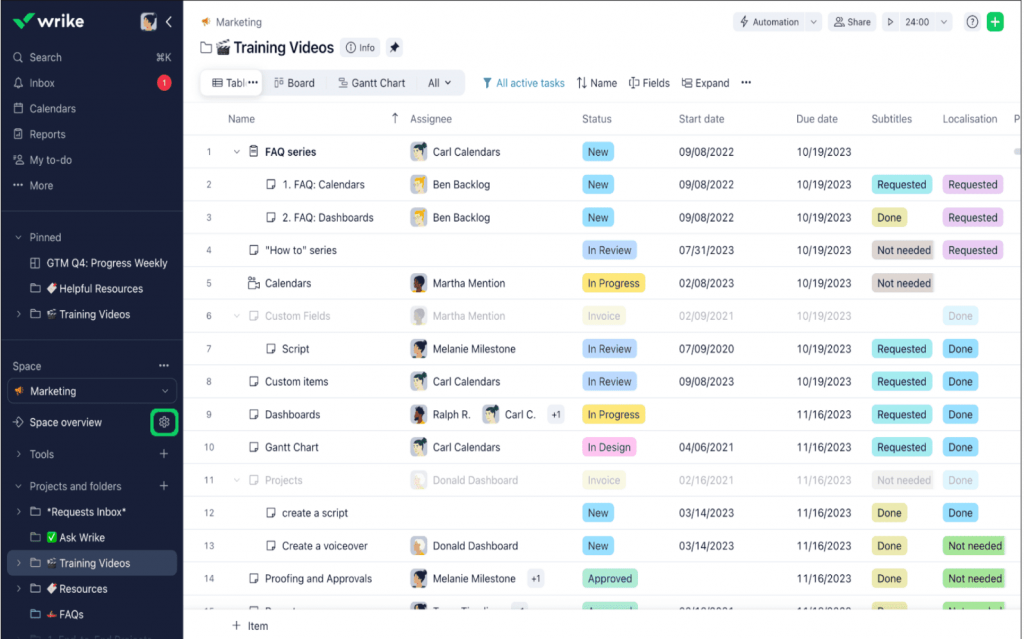
I was impressed by how it effortlessly streamlines repetitive tasks such as updates and notifications. Needless to say, that frees up a lot of time for strategic tasks. You’ll also like Wrike’s customizable dashboards. They are great for quickly capturing project health and progress and adjusting resources as needed.
The software also has a time-tracking feature, which helps you get a better understanding of expenses, and you can optimize workflows accordingly.
What you’ll like:
- Real-time updates and collaborative editing for immediate feedback
- Custom workflows to match team processes
- Detailed analytical reports for monitoring project health
- Dynamic request forms streamline task creation and assignment
- Integrations with enterprise tools like Salesforce and Adobe
What you may not like:
- Only 2 GB storage space per account in the free plan
- Some users opine customization features require a learning period to master
Pricing: A free plan is available with limited storage space. Paid options start from $9.80/user/month.
9. Basecamp – Best for Remote Work Collaboration
A few years ago, when our team transitioned to remote work, quite a few things needed sorting. Keeping everyone aligned and maintaining the flow of communication was one of them. That’s when we tried Basecamp. So, how did it go?
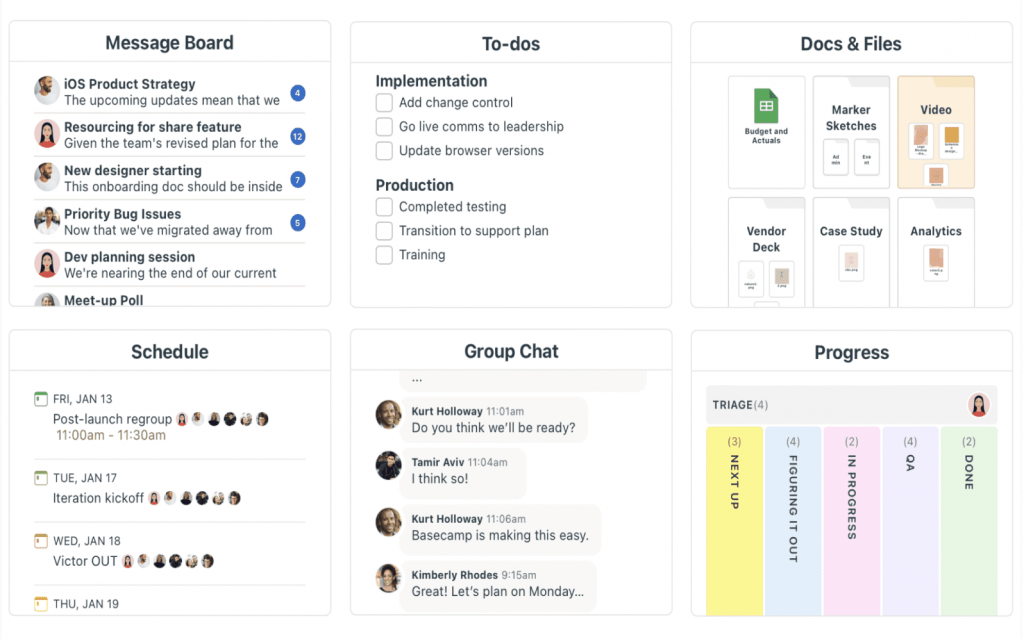
We started using the centralized to-do lists, which proved invaluable for efficiently tracking tasks and deadlines. The message boards replaced our overwhelming email threads, and the ‘Campfire’ feature quickly became our go-to for quick, informal chats. That brought a sense of camaraderie to our virtual office.
However, even though Basecamp proved to be an outstanding project managing software for remote teams, it wasn’t the best task management software. That’s a caveat you may need to make peace with.
What you’ll like:
- To-dos, schedules, and file storage are centrally located
- Automated check-in questions foster team interaction
- Campfires and message boards for less formal communication
- Simple, flat-rate pricing makes it easy to budget
- Focus mode helps reduce distractions during work hours
What you may not like:
- Limited task management features compared to other tools
- No native time tracking; requires third-party integration
Pricing: Starts at $15/user/month.
10. Freedcamp – Best for Managing Tasks & Assignments
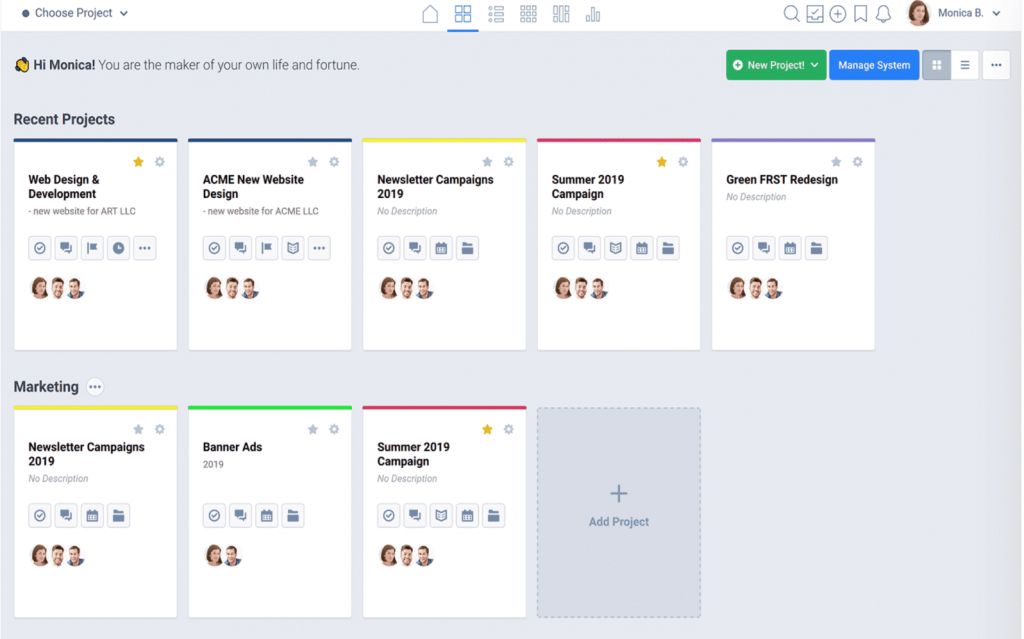
When I first tried Freedcamp, I wasn’t expecting such a simple tool. Freedcamp’s user-friendly interface was a relief—it allowed us to get up and running quickly.
The task management features stood out – particularly the ability to customize tasks with subtasks and dependencies. The integrated calendar and discussion boards were vital in keeping everyone on the same page.
I was slightly surprised to find an issue-tracking feature in the software. It proved indispensable for quickly addressing roadblocks and ensuring smooth project progression.
What you’ll like:
- Task lists with subtasks and dependencies for detailed organization
- Calendar and event scheduling integrates seamlessly with tasks
- Discussion forums encourage team collaboration and communication
- Time tracking for productivity insights
- Customizable widgets tailor the dashboard to team needs
What you may not like:
- No project progress views, custom fields, or reports in the free plan
- Some users feel the interface can feel clunky with a large number of tasks
Pricing: A free plan is available with limited features. Paid options start from $1.49/user/month.
11. Smartsheet – Best for Real-Time Project Collaboration
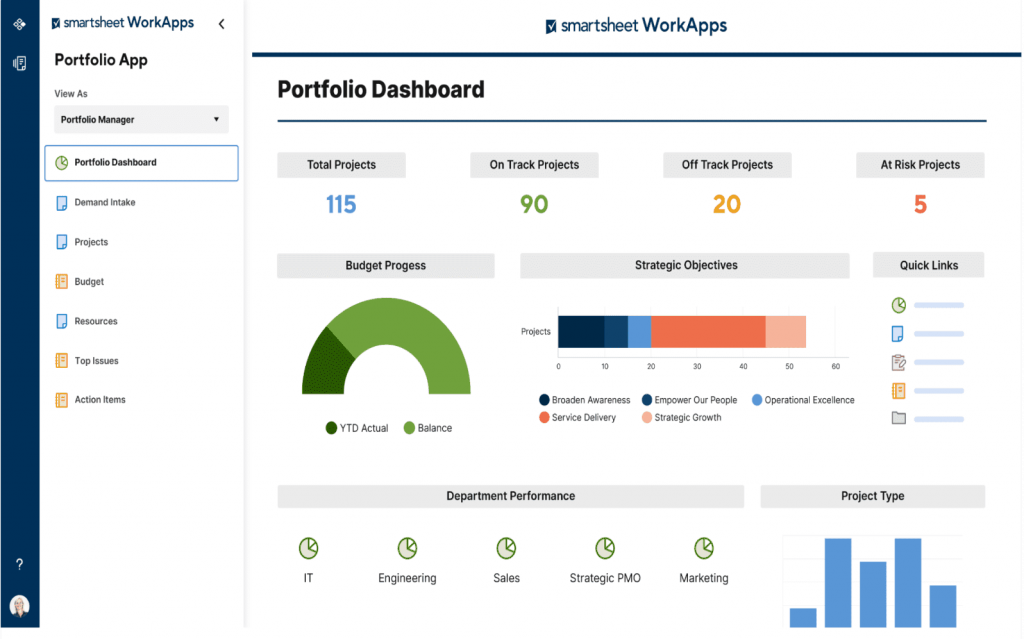
Smartsheet is one of the few project management tools that come with a spreadsheet-like interface. But that’s not the only highlight of the tool.
The software updates data in real time, so every team member, regardless of location, is always informed of the latest information. This can dramatically reduce miscommunications and delays.
I also used it to create customizable workflows to automate routine updates and notifications, That did save me significant time. The software’s interactive dashboards are another favorite, as they give us quick insights into project statuses, keeping everyone proactive.
What you’ll like:
- No-code automation for workflow management
- Gantt charts for tracking tasks and timelines
- Customizable templates for various use cases
- Document storage with collaboration tools embedded directly within sheets
- Advanced analytics with color-coded graphs and charts
What you may not like:
- Some users report performance issues with very large data sets
- No team workload tracking or timeline view in the basic plan
Pricing: Starts at $9/member/month.
12. Notion – Best for Building Product Roadmaps
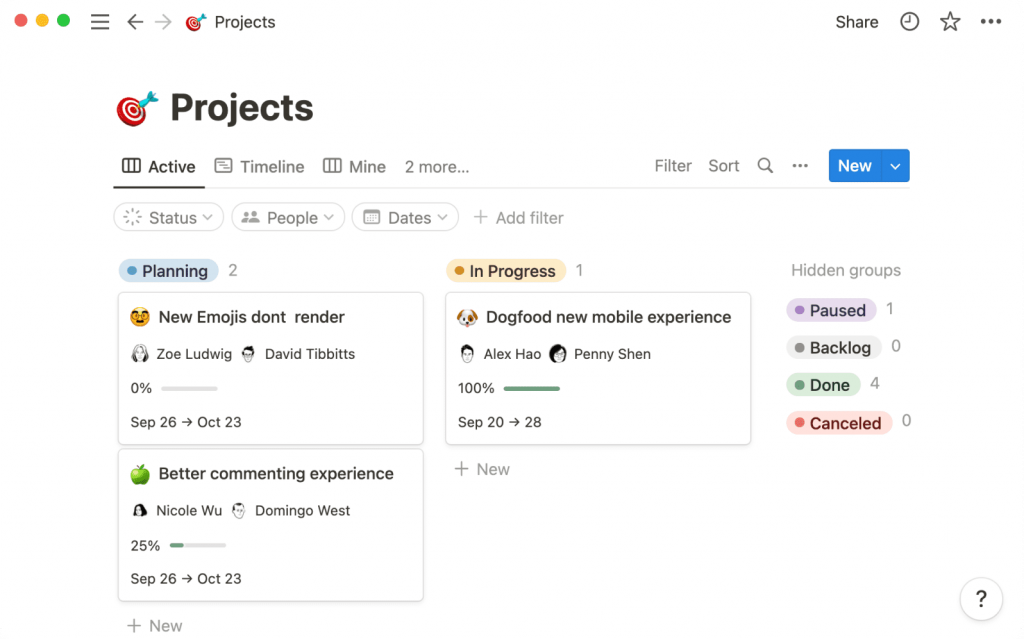
If you are looking for project management software, particularly for building detailed product roadmaps, try Notion. The software integrates notes, tasks, databases, and calendars into one platform, keeping all project information in one place.
What stands out is the ability to customize templates and timelines, which helps visualize each project phase and set clear milestones. This feature alone made my roadmap sessions much more productive during my usage.
Something else that caught my attention was that the software let me add images and files directly into project notes. This not only makes them informative but also visually engaging.
What you’ll like:
- Highly customizable pages that combine text, tasks, and databases
- Seamless integration of knowledge bases with project management
- Visual timelines and roadmaps for clear, strategic planning
- Collaborative workspace that supports real-time edits and updates
- Extensive template library for quick setup of new projects
What you may not like:
- File upload allowance is limited to only 5 MB per file in the free plan
- Some users feel that the interface could be more streamlined for handling multiple projects efficiently
Pricing: A free plan is available for up to 10 guest invites. Paid options start from $10/seat/month.
13. Jira Software – Best for Project Issue Tracking for Developers
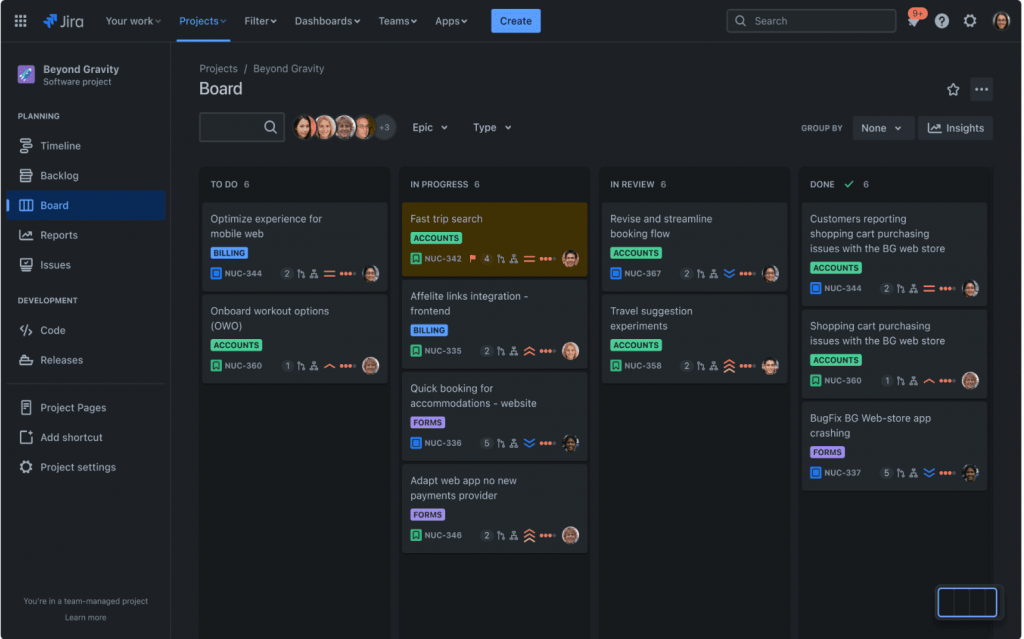
Jira is a popular name in the world of project management tools. It is tailored specifically for software development projects, focusing on agile methodologies and issue tracking.
The software provides Scrum and Kanban boards, essential for visualizing task progress in real time. It facilitates agile ceremonies like daily standups and sprint planning. I found that these boards are highly customizable, allowing each team to adapt them according to their specific workflow needs.
One of Jira’s key strengths is its detailed reporting capabilities. It tracks everything from sprint performance to overall project velocity.
The only caveat is that many users feel the software is complex. That said, it’s still a good option for teams that have used project management software before.
What you’ll like:
- Agile reporting features like velocity charts and burn-downs
- Customizable Scrum and Kanban boards for agile methodologies
- Advanced issue tracking system with detailed customization
- Integration with development tools like Bitbucket and Confluence
- Roadmaps for visualizing project progress and planning
What you may not like:
- Primarily designed for technical users, which can alienate non-tech staff
- Only 2 GB storage space in the free plan
Pricing: A free plan is available for up to 10 users. Paid options start from $8.15/user/month.
14. Bitrix24 – Best for Remote Task Management
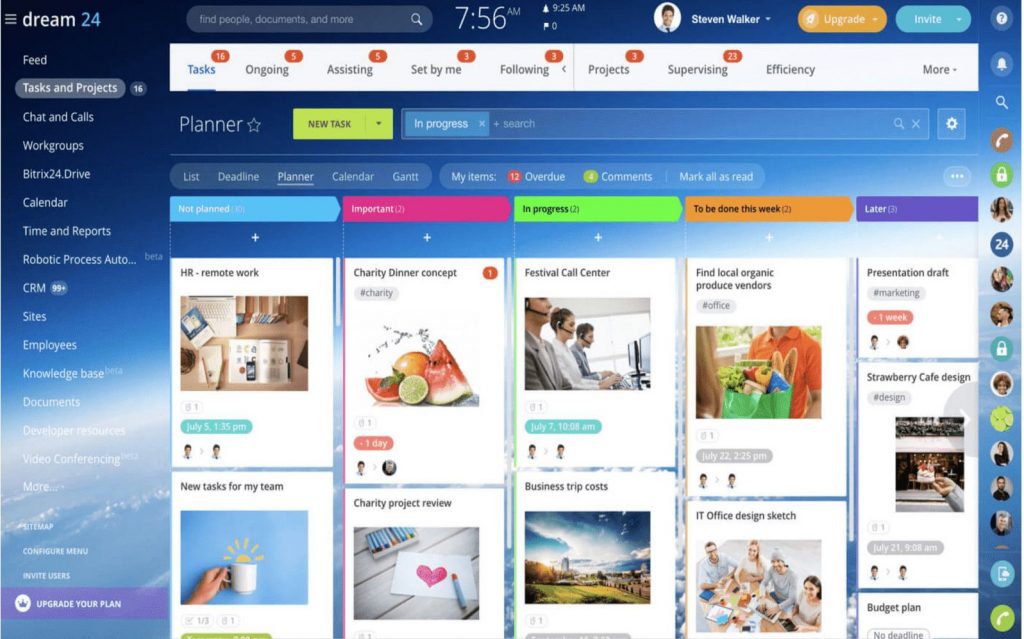
Bitrix24 is an all-in-one project management and collaboration tool that offers a wide range of features tailored to startups and SMBs. It combines project management, CRM, communication tools, and more into a single platform.
I like how it stands out with its powerful automation capabilities, which can streamline repetitive tasks. It supports customizable workflows, allowing you to automate processes such as task assignments, status updates, and notifications. This level of automation saves time and reduces the risk of human error, ensuring that projects stay on track.
I also found that it has a social intranet feature. This feature should help create a sense of community within the team and promote better internal communication.
What you’ll like:
- Task and project management with detailed task lists
- Gantt charts for project planning and timeline visualization
- Time tracking and reporting for monitoring project progress
- Collaboration features, including group chat and file sharing
- CRM integration for managing client interactions
What you may not like:
- No task delegation or custom fields in the free plan
- Some users think the initial setup and customization is complex, necessitating adaptation
Pricing: A free plan is available with a limited storage allowance. Paid options start from $49/month/5 users.
15. ProofHub – Best for Built-in Proofing Tools
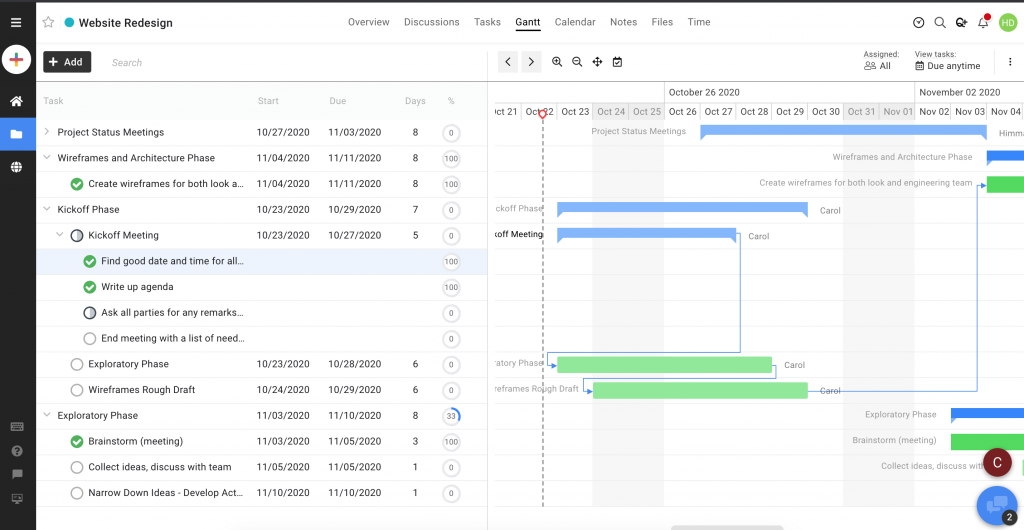
ProofHub stands out for its robust proofing tools, dramatically simplifying the review and approval stages. The ability to annotate directly on design files streamlines feedback sharing, significantly speeding up revisions without the back-and-forth emails.
I found the task lists and Gantt charts helpful for keeping projects on track and transparent to all team members. The time tracking feature allows you to stay on deadline and monitor the hours spent on each task efficiently.
You can also set custom roles and permissions to control project visibility. That is crucial for maintaining the integrity of sensitive content.
What you’ll like:
- Integrated proofing and file approval directly within the platform
- Task management with custom roles and assignments
- Time tracking feature integrated with tasks
- Discussion boards for team communication
- Custom reports to track project health and team performance
What you may not like:
- Some users have reported that the training modules are quite basic and not very helpful
- No workflows or reporting capabilities in the basic plan
Pricing: Starts at $79/month/10 users.
16. Nifty – Best for Project Portfolio Management
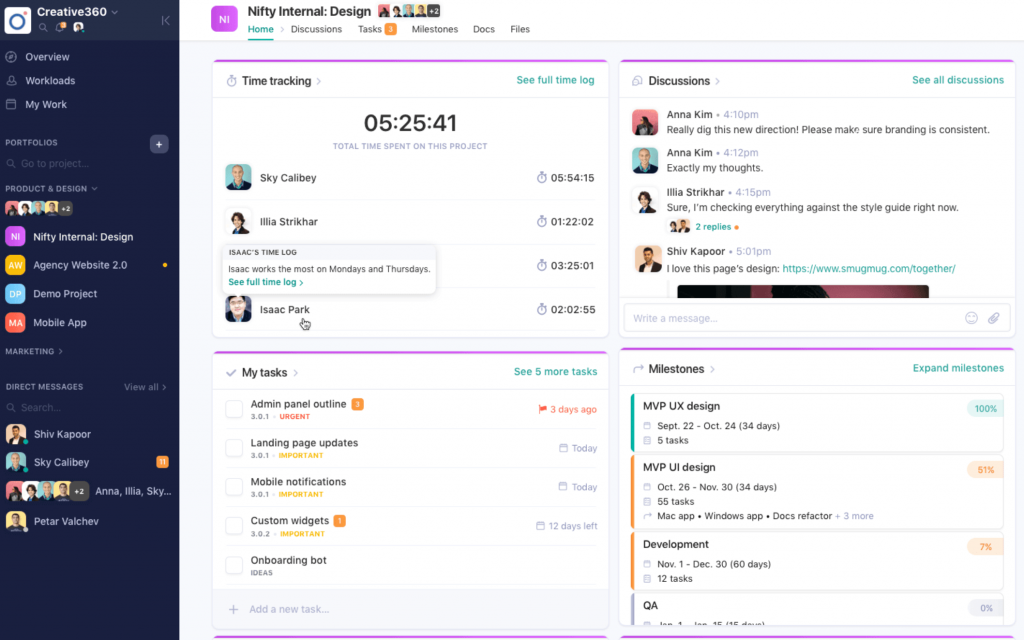
An ex-colleague uses Nifty in their company, and based on what I’ve heard, the software does pretty well in project portfolio management. You can oversee multiple projects through a centralized dashboard.
The dashboard gives a quick snapshot of where everything stands, from individual task progress to overall project timelines. I particularly liked how intuitive the interface is; it won’t take long for you to get up to speed.
Features like milestone tracking are crucial for keeping projects on target. Additionally, the direct messaging and discussion threads also enhance communication, ensuring everyone stays informed and engaged.
What you’ll like:
- A centralized dashboard for a consolidated view of all projects
- Milestone tracking to monitor progress toward major goals
- Document sharing and collaboration tools built into the platform
- Time tracking and reporting tools for project insights
- Customizable task lists adapt to varying project demands
What you may not like:
- Only 100 MB of storage space in the free plan
- Some users report that the software becomes sluggish when handling a lot of tasks, especially during load times
Pricing: A free plan is available for up to 2 projects. Paid options start from $39/month/10 members.
17. nTask – Best for Online Task Management
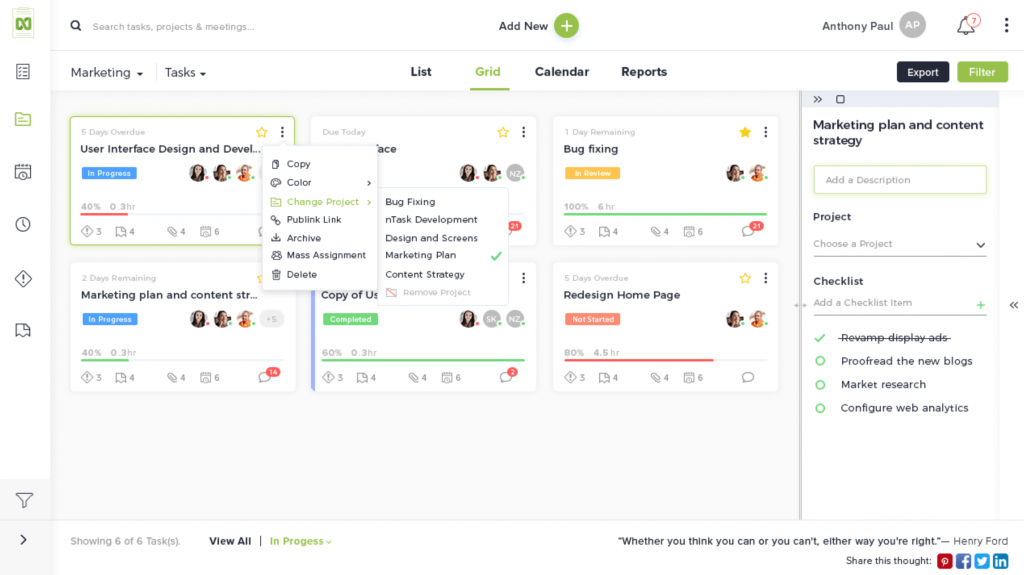
nTask is a robust project management software designed for small and medium-sized businesses. It offers an all-in-one platform that integrates task management, time tracking, and collaboration features.
One of nTask’s standout features that I like is the advanced risk management module. Using it, I could identify, assess, and mitigate potential project risks. The software’s meeting management tool facilitates seamless scheduling, conducting, and documenting meetings, ensuring everyone is on the same page.
With its intuitive Kanban boards and Gantt charts, the software provides a visual representation of tasks and timelines, enhancing project transparency.
What you’ll like:
- Efficient time-tracking tools for monitoring productivity
- A built-in meeting scheduler for team coordination
- Enables effective collaboration with task comments and file attachments
- Supports multiple workspaces for diverse project needs
- Customizable task statuses to fit different workflows
What you may not like:
- Only 100 MB file storage allowance in the free plan
- Some users find the mobile app interface could be improved
Pricing: A free plan is available for up to 5 people. Paid options start from $3/month.
18. TeamGantt – Best for Visual Project Management With Gantt Charts
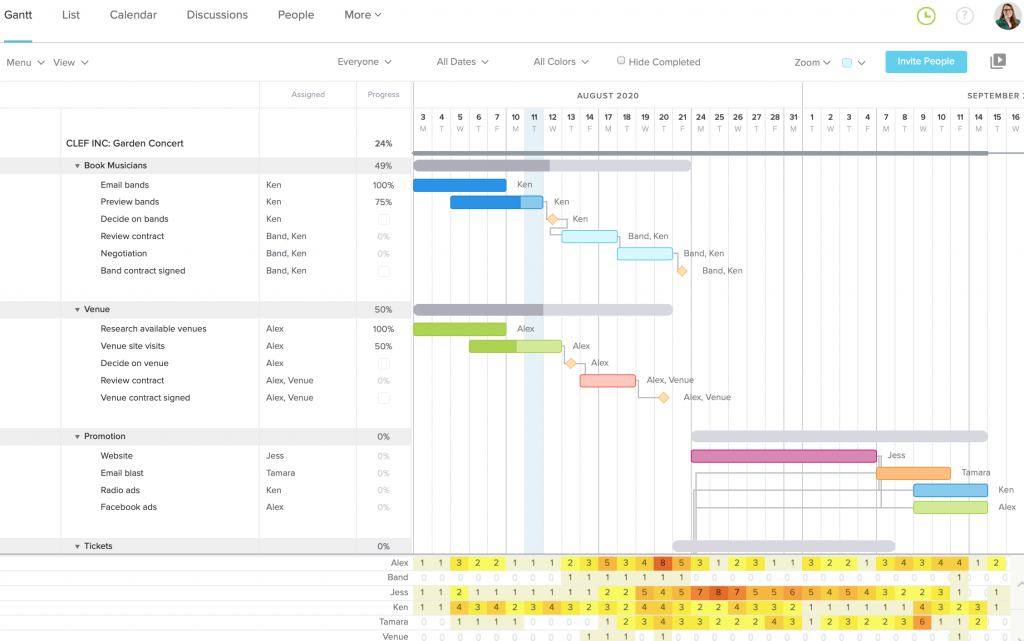
This tool differs slightly from the rest of the project managing software in the list. TeamGantt stands out with its focus on Gantt chart-based project planning.
I’d categorize it as a visual project management tool that helps with planning, scheduling, and collaborative task management. Beyond its primary function of creating Gantt charts, the software also offers a range of collaborative features that make it easy for teams to stay aligned.
For instance, it allows multiple team members to edit and update projects simultaneously, ensuring everyone can access the most current information. I also found the tool has resource management features that can be helpful if you want to allocate and balance workloads efficiently.
What you’ll like:
- Drag-and-drop Gantt charts for easy project scheduling
- Task dependencies to manage project timelines accurately
- Collaborative task assignments with real-time updates
- Project templates for quick setup and consistency
- Baseline setting to compare planned vs. actual progress
What you may not like:
- May not be the best option if you don’t prefer Gantt charts
- Doesn’t offer a dedicated mobile app
Pricing: A free plan is available for up to 2 collaborators. Paid options start from $49/manager/month.
19. Paymo – Best for Project Management & Time Tracking

Paymo is a versatile project management tool that combines task management, time tracking, and billing.
One of its notable strengths is its billing and invoicing capabilities. It streamlines the process of tracking billable hours and generating client invoices directly from the platform. This feature is particularly beneficial for service-based businesses requiring precise tracking of client project time.
I also found the software offers robust resource scheduling tools that allow you to allocate tasks based on team members’ availability and workload. In my opinion, integrating it with Zapier and QuickBooks can further enhance its functionality, making it a powerful choice if you want to centralize your project management and financial operations.
What you’ll like:
- Task lists and project templates for structured project setup
- Time tracking with detailed timesheets and reports
- Collaboration features, including comments and file sharing
- Advanced reporting for project performance analysis
- Client portal for sharing project progress with stakeholders
What you may not like:
- No project templates or timesheet reports in the starting plan
- Some users have reported a slight learning curve when getting started with the platform
Pricing: Starts at $5.9/user/month.
20. ProjectManager – Best for Agile Project Management
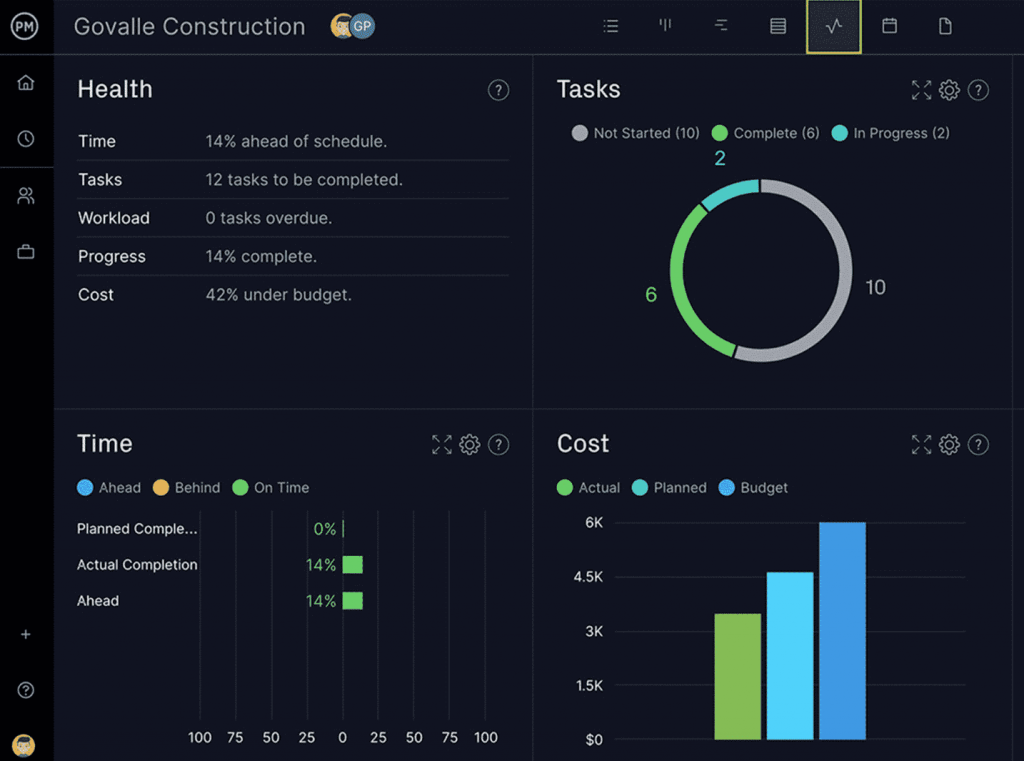
ProjectManager combines planning, tracking, and collaboration tools in a single platform. This, of course, makes it easier for teams to manage projects efficiently.
A key highlight of the software is its real-time project dashboards, which provide an instant overview of project progress. The software also features robust resource management capabilities, allowing you to assign tasks based on team members’ availability and skillsets.
I also liked its advanced reporting tools. The tool provides a detailed project performance analysis, helping you identify areas for improvement.
What you’ll like:
- Project planning with interactive Gantt charts
- Task management with customizable task lists
- Timesheets for accurate time tracking and reporting
- Budget tracking to monitor project expenses
- Integration with popular tools like Google Drive and Slack
What you may not like:
- No workflows and automation capabilities in the starting plan
- Some users reported data input and resource allocation to be time-consuming and manual
Pricing: Starts at $13/user/month.
Evaluation Criteria
The evaluation of products or tools chosen for this article follows an unbiased, systematic approach that ensures a fair, insightful, and well-rounded review. This method employs six key factors:
- User Reviews / Ratings: Direct experiences from users, including ratings and feedback from reputable sites, provide a ground-level perspective. This feedback is critical in understanding overall satisfaction and potential problems.
- Essential Features & Functionality: The value of a product is ascertained by its core features and overall functionality. Through an in-depth exploration of these aspects, the practical usefulness and effectiveness of the tools are carefully evaluated.
- Ease of Use: The user-friendliness of a product or service is assessed, focusing on the design, interface, and navigation. This ensures a positive experience for users of all levels of expertise.
- Customer Support: The quality of customer support is examined, taking into account its efficiency and how well it supports users in different phases – setting up, addressing concerns, and resolving operational issues.
- Value for Money: Value for money is evaluated by comparing the quality, performance, and features. The goal is to help the reader understand whether they would be getting their money’s worth.
- Personal Experience / Expert’s Opinion: This part of the evaluation criteria draws insightful observations from the writer’s personal experience and industry experts’ opinions.
What Is Project Management Software?
Project management software is an all-in-one solution that helps you plan, track, and deliver projects on time and within budget.
You can schedule tasks, assign responsibilities, visualize progress, and collaborate with team members from a single dashboard. Simply put, it provides a platform that helps coordinate team efforts to set up a project for success.
Read More: What is Project Management Software and Why Do You Need One
What Are the Benefits of Using Project Management Software?
Using project management software offers numerous benefits that can significantly enhance project efficiency, productivity, and overall success. Some of the key ones include –
Improved Planning & Scheduling
Project management software offers tools for detailed planning, such as Gantt charts and timelines. These allow teams to set realistic deadlines and allocate resources efficiently.
It also ensures tasks are prioritized and dependencies are managed effectively, leading to better adherence to project timelines.
Enhanced Collaboration
Project management platforms centralize communication and collaboration through shared workspaces, discussion boards, task comments, user tagging, etc.
In my experience, these make it easier for team members to stay connected and maintain transparency across the project.
Better Task Management
Most project management software comes with a robust task management tool. This tool makes creating, assigning, and tracking tasks seamless. It ensures all team members know their responsibilities and deadlines, providing various views such as lists, Kanban boards, and Gantt charts to organize and visualize tasks effectively.
Efficient Resource Management
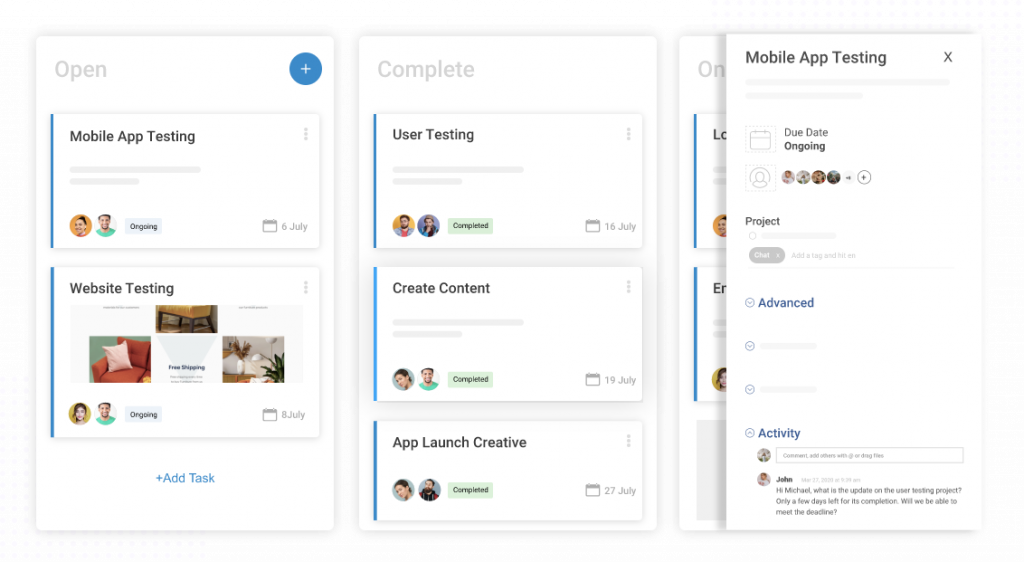
With a dedicated resource planning tool, you can allocate and track resources, preventing overallocation. It enables better forecasting and managing project costs, ensuring resources are used efficiently and projects stay within budget.
Read More: Project Resource Management 101: For Flawless Project Journeys
Accurate Time Tracking
Log hours worked on tasks and projects and check timesheets to monitor productivity and ensure effective time management accurately.
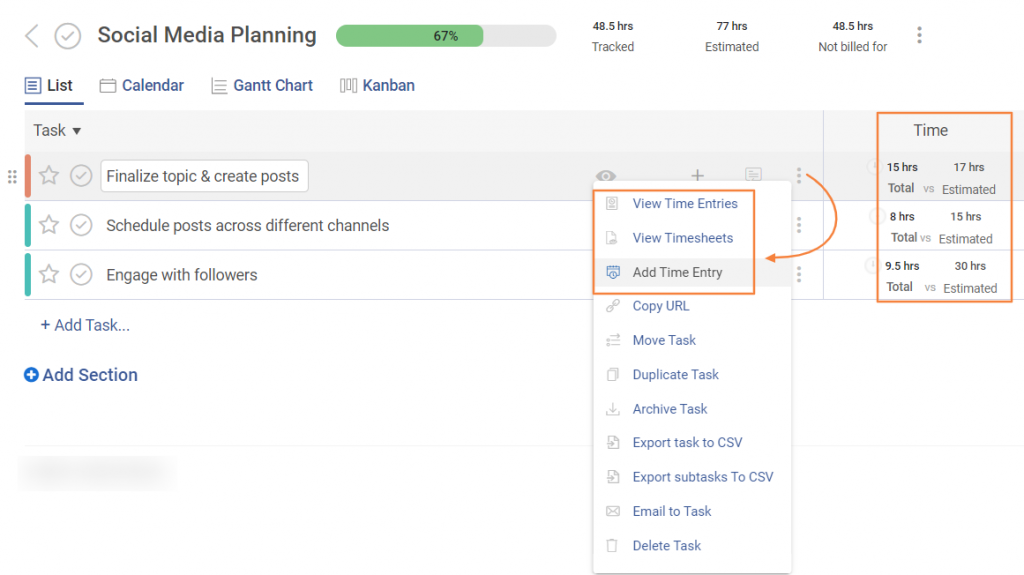
Track actual vs. billable hours to facilitate accurate billing and payroll management, contributing to better financial oversight. You can also export time entries to a CSV file.
Comprehensive Reporting & Analytics
Project management platforms generate detailed reports on profitability, time, resource utilization, task completion, and overall performance. These insights help you make informed decisions, improve project outcomes, and measure success through key performance indicators (KPIs).
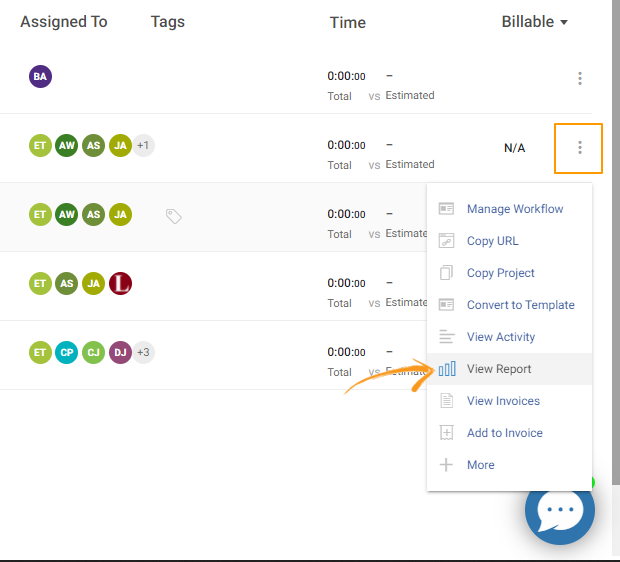
Effective Risk Management
By identifying potential risks and issues early, you can track and mitigate risks and resolve issues proactively. This ensures projects stay on track and avoid scope creep, reducing the likelihood of unexpected problems.
Read More: What Are Project Risks & How to Combat Them
Budgeting & Cost Control
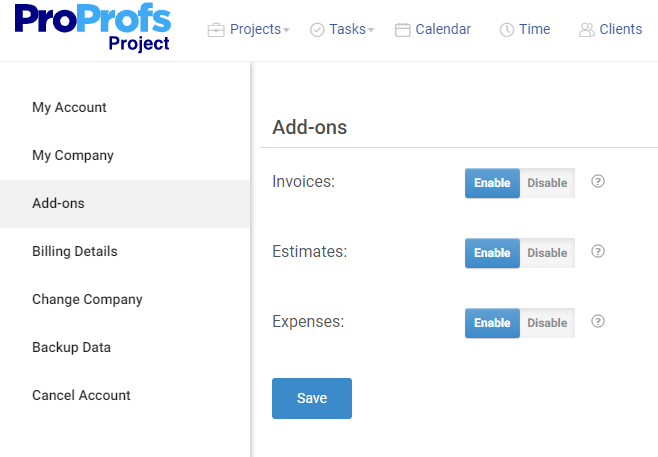
Project management software solutions allow you to track project expenses and budgets in real time. After exploring how this feature works in ProProfs Project, I found it pretty useful.
The top benefit is that it helps you ensure projects stay financially on track. It offers cost estimation and forecasting tools, providing better financial management and oversight.
Turn on these free add-ons in ProProfs’ project managing software to automate budgeting and cost control for your projects.
Read More: Project Budgeting 101: Tips for Sure-Shot Success
What Are the Different Types of Project Management Software?
Project management software comes in various forms, each tailored to specific project methodologies and organizational needs. Here are some common types –
1.Agile Project Management Software:
Agile Project Management Software designed for iterative and incremental project development, Agile methodologies are well-suited for projects with constantly evolving requirements or uncertain outcomes. Popular Agile frameworks include Scrum, Kanban, and Lean.
2. Waterfall Project Management Software:
Suits linear, sequential projects with well-defined phases and deliverables. Waterfall is a good choice for projects with clear requirements and a low tolerance for change. However, it can be less adaptable to changing needs.
3. Hybrid Project Management Software:
Hybrid approaches combine elements of Agile and Waterfall methodologies to accommodate different project types. They can be particularly beneficial for projects with a mix of well-defined requirements and uncertain elements.
ProProfs Project can be a great example of such a software solution.
Read More: Hybrid vs Agile Approach: Which is Better for Efficient Project Management
4.Cloud-Based Project Management Software:
Accessed through a web browser, offering flexibility, scalability, and ease of use. Cloud-based solutions are ideal for remote teams and organizations that need to access project data from anywhere.
They are also typically easier to set up and maintain compared to on-premise software. A perfect example of a cloud-based project management software solution would be ProProfs Project.
Read More: Cloud Based Project Management: Benefits & Challenges
5.On-Premise Project Management Software:
Installed on an organization’s servers, these provide more control over data security and customization.
On-premise solutions may be preferable for organizations with sensitive data or complex security requirements. However, they can be more expensive to implement and maintain than cloud-based solutions.
Businesses to their on-premise software vendors –

What Are Some of the Must-Have Features of Project Management Software?
Even though you’ll find numerous common project management software features inside different software options offered by different vendors, you may not necessarily need all of them. Based on my personal experience with these tools, I jotted down the must-have ones for you.
Check them out –
- Task Management: Break down projects into manageable tasks, assign responsibilities, set due dates, and track progress.
- Project Planning: Create project timelines, set milestones, and visualize project dependencies.
- Collaboration Tools: Facilitate teamwork through features like team creation, file sharing, task comments, user tagging, etc.
- Time Tracking: Monitor time spent on tasks to improve efficiency and billing accuracy.
- Reporting & Analytics: Generate reports on project performance, resource utilization, time spent, key metrics, etc.
- Resource Management: Allocate and manage resources (people, equipment, budget) effectively.
- Risk Management: Identify potential project risks, assess their impact, and develop mitigation plans.
- Budgeting & Finance: Track project costs, create budgets, and manage invoices.
- Portfolio Management: Manage multiple projects simultaneously and prioritize them based on organizational goals.
Read more: Must-Have Project Management Software Features Explained
Pricing Structure for Project Management Software
Project management software pricing generally follows a few common models, which vary depending on the vendor and the features offered. I created a simple breakdown of what to expect –
- Subscription-Based Pricing:
This is the most common model where you pay a recurring fee (monthly or annually) per user to access the software. There are some common variations, including –
- Freemium: A basic version with limited features for free, while paid tiers unlock more functionalities, storage space, or integrations.
- Tiered Pricing: Multiple subscription plans are available at different price points, with increasing features. A basic plan might be for individual users, while higher tiers offer advanced tools for teams.
- Per-User Pricing: The cost increases with the number of users. This is typical for team-oriented tools.
Example: ProProfs Project offers a freemium plan for small teams and a paid plan at $39.97/month for unlimited users.
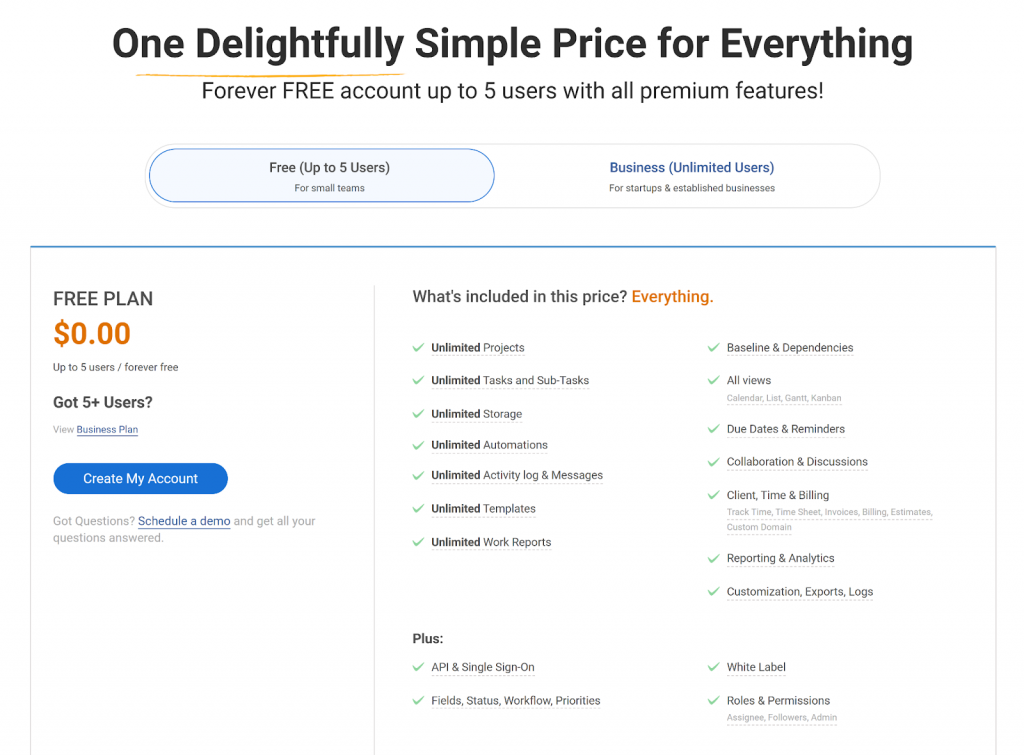
In my opinion, subscription-based pricing is usually the best option for startups and SMBs as it allows you to choose a plan that fits your budget.
- One-Time Purchase:
Some vendors offer a one-time fee for lifetime access to the software.
This model is less common for cloud-based task management platforms but can be found in certain pricing structures. While it might not be ideal for startups or small businesses due to the high upfront cost, it can be a good option for large-scale businesses.
- Usage-Based Pricing:
This model suits individuals or organizations with fluctuating usage patterns, as you only pay for what you use. Charges are based on usage levels, such as the number of tasks created, projects managed, or storage used.
For example, you might pay $0.01 per task created or $5 per GB of storage.
How to Implement Project Management Software
Now that you know how to choose the right software, the next step is implementing it. It’s not that tough. Here are the few steps you need to follow –
1.Set up the Software
If you’re switching from another system, ensure the new software can import existing tasks and projects. Set up integrations with your existing calendar, email, and other tools you regularly use to minimize switching between applications.
2.Onboard Your Team
Provide clear training for your team on how to use the software effectively. This can include video tutorials, user manuals, or short in-person workshops. Avoid overwhelming everyone with a complete system overhaul.
Start by implementing the software for a specific project or department, then gradually expand its use as users become more comfortable. Later, you can encourage feedback from your team and be open to adjusting workflows based on their experience.
3.Provide Ongoing Support
Ensure the software vendor offers a help desk or support system to assist your team with any questions or issues. If need be, you may also seek ongoing training sessions and a knowledge base to keep everyone updated on new features and best practices.
Which Project Management Software Will You Choose?
The right project management software helps you plan, prioritize, and execute tasks from scratch. The tools I discussed in the blog cater to multiple target audiences and offer features like automated invoicing, the ability to create a project from customizable templates, resource planning, and an advanced reporting system.
But you have to make the final call. I suggest trying each software before making a purchase.
ProProfs Project offers a freemium plan for small teams. This plan allows you to explore the software thoroughly, including all premium features, just by signing up for free.
But even if you choose a different tool first, always ensure you use a free trial or a plan to test the software before making a purchase.
FREE. All Features. FOREVER!
Try our Forever FREE account with all premium features!